Joomla Template Override Tutorial : Customise Without Losing Updates [2026]
Why editing core files always loses, and how Joomla's override system lets you change any layout in a way that survives every update.

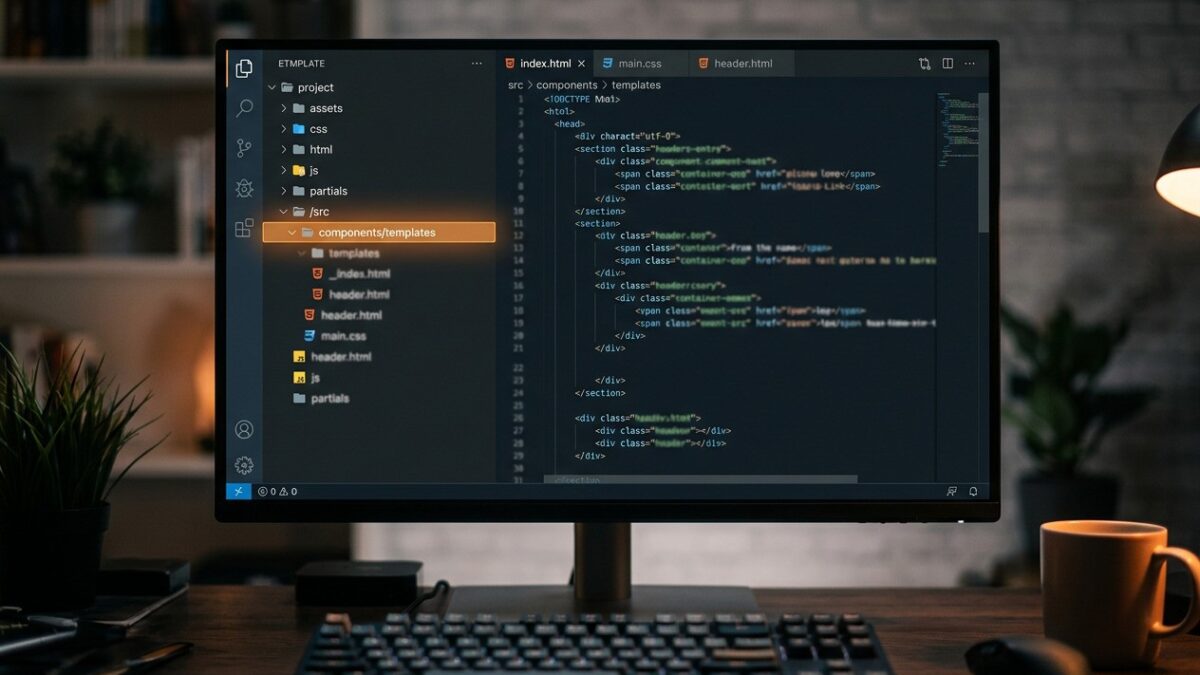
You need to change how something looks on your Joomla site — remove the author byline from articles, restructure a category listing, alter the markup a module produces — and the only obvious way in is to open the core file and edit it. Do that and your change disappears at the next update, silently, along with any memory of what you altered.
Joomla’s override system exists precisely so this never has to happen. It is one of the CMS’s genuinely strong features, it has been stable since Joomla 1.5, and it is still poorly understood. This guide covers it for Joomla 5.x: how it works, the exact paths, what breaks and when, and how to notice before your visitors do.
Why editing core files is always wrong
Three reasons, in order of how badly they will hurt you.
The first is obvious: updates overwrite. When you run Joomla Update or update an extension, the installer replaces files. Your edit is gone. If it was a visual change you will notice within a day. If it was a subtle logic change — a filter on which items appear, a conditional on a field — you may not notice for months, by which time nobody remembers why the page used to be different.
The second is that core edits are invisible. There is no list of “files I have modified”. Six months later, when the site behaves oddly and a new developer is trying to work out why, a modified core file looks exactly like an unmodified one. Overrides, by contrast, all live in one place and the Template Manager will list them for you.
The third is that core edits make you afraid to update. This is the one that actually kills sites. An administrator who knows there are undocumented core changes stops applying updates, because updating means re-doing work nobody has written down. Six months of skipped security updates later, the site is compromised. Almost every badly-out-of-date Joomla site started with someone editing a core file to move a heading.
There is no honest exception. If you need behaviour the override system genuinely cannot reach, the answer is a plugin, a custom component, or a patch submitted upstream to the Joomla project — not an edit to a file the updater owns. If you find yourself thinking “just this once”, write the change down in a file called CORE-EDITS.md in your web root so at least the next person knows.
What an override actually is
Joomla separates what data to show from how to display it. The component or module gathers the data; a layout file — a PHP file that mostly emits HTML — renders it. An override is your own copy of that layout file, placed in a specific path inside your template. When Joomla goes to render, it checks your template’s html directory first, and uses your file if it finds one.
Nothing is patched or hooked. The core file is untouched and continues to exist; Joomla simply never reads it for that view while your override is present. Delete your override and the site instantly reverts to core behaviour, which makes overrides trivially reversible — a property you will appreciate at 11pm.
The directory structure, exactly
Everything lives under /templates/<your-template>/html/ on the site side, or /administrator/templates/<template>/html/ for admin overrides. The structure below that mirrors the core:
| Overriding | Core location | Override location |
|---|---|---|
| Component view | /components/com_content/tmpl/article/default.php |
/templates/cassiopeia/html/com_content/article/default.php |
| Module | /modules/mod_articles_news/tmpl/default.php |
/templates/cassiopeia/html/mod_articles_news/default.php |
| Layout (shared) | /layouts/joomla/content/info_block.php |
/templates/cassiopeia/html/layouts/joomla/content/info_block.php |
| Plugin layout | /plugins/content/pagebreak/tmpl/toc.php |
/templates/cassiopeia/html/plg_content_pagebreak/toc.php |
| Admin component view | /administrator/components/com_users/tmpl/users/default.php |
/administrator/templates/atum/html/com_users/users/default.php |
Note the differences carefully. Component overrides have an extra directory level — the view name — because a component has many views. Module overrides do not, because a module is one view. The tmpl directory in the core path disappears in the override path; a great deal of wasted time comes from people faithfully recreating tmpl in their template’s html directory and wondering why nothing happens.
An override in Cassiopeia does nothing when a different template is active. This is by design — overrides are presentation, and presentation belongs to the template — but it catches people who switch templates and find their carefully built customisations have all vanished. They have not: they are still in the old template’s html directory. Copy them across, then re-test, because the new template’s markup expectations will differ.
Creating an override the easy way
Joomla will create the file for you with the correct path, which removes the most common source of error.
Open the template’s Create Overrides tab
Go to System → Site Templates (not Site Template Styles — that is the other screen and it does not have this tab). Click your template name to open the template file editor, then select the Create Overrides tab.
You will see four groups: Modules, Components, Plugins and Layouts — every extension on the site with an overridable layout, plus the shared layouts the core and extensions render through. Layouts is the one people miss, and it is where the shared sub-layouts discussed later in this article come from.
Click the view you want to override
Expand a component and click a view name, e.g. com_content → article. Joomla copies every layout file for that view into the correct path in your template and reports success.
Note that it copies the whole view, not one file. Overriding com_content/category gives you blog.php, blog_children.php, blog_item.php, blog_links.php, default.php and their XML files. That is usually what you want, but be aware you are now maintaining all of them.
Edit the copy, not the original
Switch to the Editor tab. Your new files appear in the file tree under html/. Edit there.
Before you change anything, note the Joomla version in System → System Information and write it as a comment at the top of the file. When you are debugging a broken override two years from now, knowing which core version it was forked from is the single most useful fact available.
<?php
/**
 * Override: com_content/article/default.php
 * Forked from Joomla 5.1.2 core
 * Changes: removed author byline, moved publish date below title
 * Author: J. Smith  Date: 2026-02-14
 */
defined('_JEXEC') or die;
That comment block costs fifteen seconds and is the difference between a maintainable override and an archaeological dig.
Overriding a component view
Component views are the most common overrides and the most involved, because a component view is often several files rendering into one another.
Take the article view. default.php is the outer shell; it renders the title, then calls out to shared layouts for the info block, the tags, the icons. If you want to remove the “Written by” line, the temptation is to hunt through default.php for it — but it is not there. It is in the shared layout /layouts/joomla/content/info_block/author.php.
This is the single most useful thing to understand about Joomla 5 overrides: much of what you see on an article page is rendered by shared layouts, not by the component view. The component view calls LayoutHelper::render() and passes it data. Overriding the component view will not change what those layouts emit.
| What you want to change | Which file |
|---|---|
| Article page structure, heading order | html/com_content/article/default.php |
| Author name, publish date, category line | html/layouts/joomla/content/info_block/*.php |
| Print/email icons | html/layouts/joomla/content/icons.php |
| Tag display on articles | html/layouts/joomla/content/tags.php |
| Blog listing layout and columns | html/com_content/category/blog.php |
| Individual item within a blog listing | html/com_content/category/blog_item.php |
| Pagination markup | html/layouts/joomla/pagination/*.php |
| Contact form fields | html/com_contact/contact/default_form.php |
The reliable way to find which file renders a piece of markup is Template Debug mode, covered below. Guessing wastes far more time than switching it on.
Overriding a module
Modules are simpler: one directory, usually one or two files. The path is /templates/<template>/html/<module_name>/<layout>.php.
There is a useful trick here that does not apply to components. Rather than overriding default.php, create a new layout file with a different name:
/templates/cassiopeia/html/mod_articles_news/cards.phpJoomla scans that directory and offers every file in it as a Layout option in the module’s Advanced tab. So you get default (core) and cards (yours) as selectable alternatives, per module instance. One module shows the stock layout, another shows yours, and you have not overridden core behaviour anywhere — you have added to it.
Where a new named layout will do, use one instead of overriding default.php. It is safer during updates (nothing shadows a core file), it is selectable per instance, and it makes the customisation visible in the admin rather than hidden in the filesystem. This works for modules and for the shared layouts system; it does not work for component views, which resolve by view and layout name in a stricter way.
Overriding shared layouts
The /layouts/ directory holds fragments used across many extensions — form field rendering, pagination, alerts, the article info block. Overriding one changes it everywhere it is used, which is powerful and occasionally too powerful.
The path keeps the layouts segment: /layouts/joomla/content/info_block/author.php becomes /templates/cassiopeia/html/layouts/joomla/content/info_block/author.php. Get that segment wrong and Joomla will not find your file and will give you no error — it will simply use the core one.
Because a shared layout override is global, check where it is used before editing. A quick grep on the codebase is the honest way to find out:
grep -rn "joomla.content.info_block" \
  --include="*.php" /path/to/site/components /path/to/site/modules
Language string overrides
Not everything you want to change is markup. Often it is a word: “Written by” should read “Posted by”, “Read more” should read “Continue reading”. These come from language files, and the rule is the same — never edit the INI files in /language/, because a language pack update replaces them.
Use the Language Overrides manager
Go to System → Manage → Language Overrides. Choose the language and whether you are overriding the Site or Administrator strings, then click New.
Use the search box on the right: search for the text you can see on screen (“Written by”) with Value selected, and Joomla tells you which constant produces it. Click the result to populate the constant, type your replacement, save.
Overrides are written to /language/overrides/en-GB.override.ini and survive both core and language pack updates. They are also, usefully, a plain text file you can read, copy between sites and put in version control.
; /language/overrides/en-GB.override.ini
COM_CONTENT_WRITTEN_BY="Posted by"
JGLOBAL_ARTICLES="Articles"
COM_CONTENT_READ_MORE_TITLE="Continue reading"If the on-screen text does not turn up in the value search, the string may contain a placeholder such as %s, or be assembled from several constants. Set Debug Language to Yes in Global Configuration and reload the front end: every translated string is then wrapped in ** markers with the constant name shown, so you can read it straight off the page. Turn it off afterwards.
What happens to overrides during an update
The short answer is nothing: overrides live in your template, the updater does not touch your template’s html directory, and your files survive intact.
That is also the problem. Your override is a frozen copy of a core file from whichever version you forked it. When the core file changes — a new field, an accessibility fix, a change in how a helper is called — your copy does not change with it. The site keeps rendering your old markup, and nothing warns you.
This produces three distinct failure patterns.
Silent feature loss. Joomla adds something to the core layout — an image lazy-loading attribute, a new microdata property, a schema improvement. Your override does not have it. Nothing errors; you simply never receive the improvement. This is by far the most common outcome and can persist for years.
Fatal error after an update. The core layout was changed to call a method that no longer exists, or a variable your override uses was removed from the view. You get a 500 error or a white screen on that view specifically, immediately after updating. Unpleasant but at least loud.
Subtle breakage. A variable your override reads still exists but now holds something different — an object instead of an array, a formatted string instead of a raw value. The page renders, but a date is wrong or a link points nowhere. This is the worst of the three because nothing tells you.
Every override you create is a file you have agreed to maintain forever. This is not a reason to avoid them — it is a reason to create as few as possible, keep them as small as possible, and review them after every minor Joomla update. An override that changes two lines is easy to re-fork. An override where you rewrote 300 lines of a blog layout is a project.
Detecting a stale override after an update
Joomla 5 helps, but only if you look. After any core update, do this:
Compare each override against the current core file
The Template Manager’s Editor tab shows a diff for overridden files whose core original has changed since the override was created — the file list marks them, and opening one offers a comparison view. Work through anything flagged.
Where you prefer the command line, diff directly:
diff -u \
  components/com_content/tmpl/article/default.php \
  templates/cassiopeia/html/com_content/article/default.php
Read the differences that are not yours. Those are core changes you have shadowed. Decide for each whether to port it into your override.
Re-fork rather than patch, when the drift is large
If the core file has moved substantially, do not try to reconcile line by line. Take a fresh copy of the current core file, re-apply your small documented change to it (this is where that header comment earns its keep), and replace your override wholesale. Ten minutes, and you are back to a one-version-old fork instead of a five-version-old one.
Set a calendar reminder. Override review after a minor update is the kind of task that is trivially easy and never happens unless someone schedules it.
Template Debug mode
When you cannot find which file produces a piece of markup — and you will not be able to, reliably, by reading paths — turn on Template Debug.
Enable it on the template style
Go to System → Site Template Styles, open your template’s style, and set Preview Module Positions and, in Global Configuration under System → Debug, set Debug System to Yes on a staging site.
With Debug System on, the front end gains a debug panel at the foot of the page. Its Template Files section lists every layout file used to render the current page, in order, with an indication of whether the core file or an override was used.
That list is definitive. It tells you exactly which file to override, in the exact path, without guessing. It also confirms whether an override you have created is actually being picked up — if you made an override and the debug panel still shows the core path, your path is wrong.
Debug System exposes the full SQL query log, session data, memory usage and file paths to anyone who loads the page, including absolute server paths. It is a genuine information disclosure. Enable it on staging, or enable it briefly on production with error reporting restricted and turn it off the moment you are finished. Setting debug = 0 in configuration.php is the fastest way to be sure.
Overrides versus child templates
These solve different problems and are often confused.
| Override | Child template | |
|---|---|---|
| Changes | The HTML a component or module emits | The template’s own CSS, layout files and index.php |
| Lives in | <template>/html/ |
A separate template inheriting from the parent |
| Survives template update | Yes, if the template updater respects html/ |
Yes — that is its entire purpose |
| Needed for | Restructuring component output | Restyling, changing template layout, custom CSS |
Use both. A child template for your CSS and any template-level structural change, and overrides inside that child template for component markup. Joomla 5 creates child templates from the Site Templates screen with a single button, and it is the correct home for any commercial template’s customisation — because commercial template updaters are considerably less careful about your html directory than Joomla’s own updater is.
A practical workflow
- Confirm what you want to change is markup, not styling. If CSS will do it, use CSS in a child template — no override needed.
- Turn on Debug System on staging and identify the exact file rendering the markup.
- Create the override through Create Overrides, never by hand-building the path.
- Add the header comment recording the Joomla version and what you changed.
- Make the smallest change that achieves the goal. Resist tidying the rest of the file.
- Test the view logged in and logged out — several core layouts branch on access level.
- Commit the override to version control alongside the rest of the template.
- After each minor Joomla update, diff every override against its core original.
Frequently asked questions
Do overrides survive a Joomla core update?
Yes. Overrides live inside your template directory, which the core updater does not modify. What they do not survive is relevance — the core file they were forked from may change, leaving your copy silently out of date. Diff them after every minor update.
Do overrides survive a template update?
Usually, but not guaranteed. Joomla’s own templates preserve the html directory; third-party template updaters vary, and some replace the template directory wholesale. This is the main argument for doing all customisation in a child template, where the parent’s updater cannot reach your files.
Why is my override being ignored?
In order of likelihood: the path is wrong (usually a stray tmpl segment, or a missing view directory for a component); the override is in a template that is not the active style for that menu item; or Joomla’s cache is serving an older render. Check the Template Files list in the debug panel — it shows which file was actually used, which settles the question immediately.
Can I override an override?
No, and you should not need to. Overrides do not stack — Joomla checks the active template’s html directory and uses what it finds. If you need different markup for different pages, use a second template style assigned to those menu items, or a named alternative layout selected per menu item.
Should I override or use a plugin?
Override when you are changing presentation: markup structure, what fields appear, ordering of visual elements. Use a plugin when you are changing behaviour or data: filtering which items are retrieved, adding fields, altering content before it renders. Doing data manipulation inside a layout file works, but it puts logic somewhere nobody will think to look.
How do I find which language constant produces a piece of text?
Set Debug Language to Yes in Global Configuration and reload the front end. Every translated string is wrapped in markers showing its constant name, so you can read it directly off the page. Alternatively, search by Value in the Language Overrides manager. Turn Debug Language off afterwards.
Is there a limit to how many overrides I should have?
No technical limit, but a practical one: every override is a file you have committed to reviewing after each update. A dozen small, documented overrides is comfortable. Forty overrides where somebody rewrote whole layouts is a migration problem waiting to happen, and is usually a sign the template was the wrong choice for the site.