Physical Address
304 North Cardinal St.
Dorchester Center, MA 02124
Physical Address
304 North Cardinal St.
Dorchester Center, MA 02124

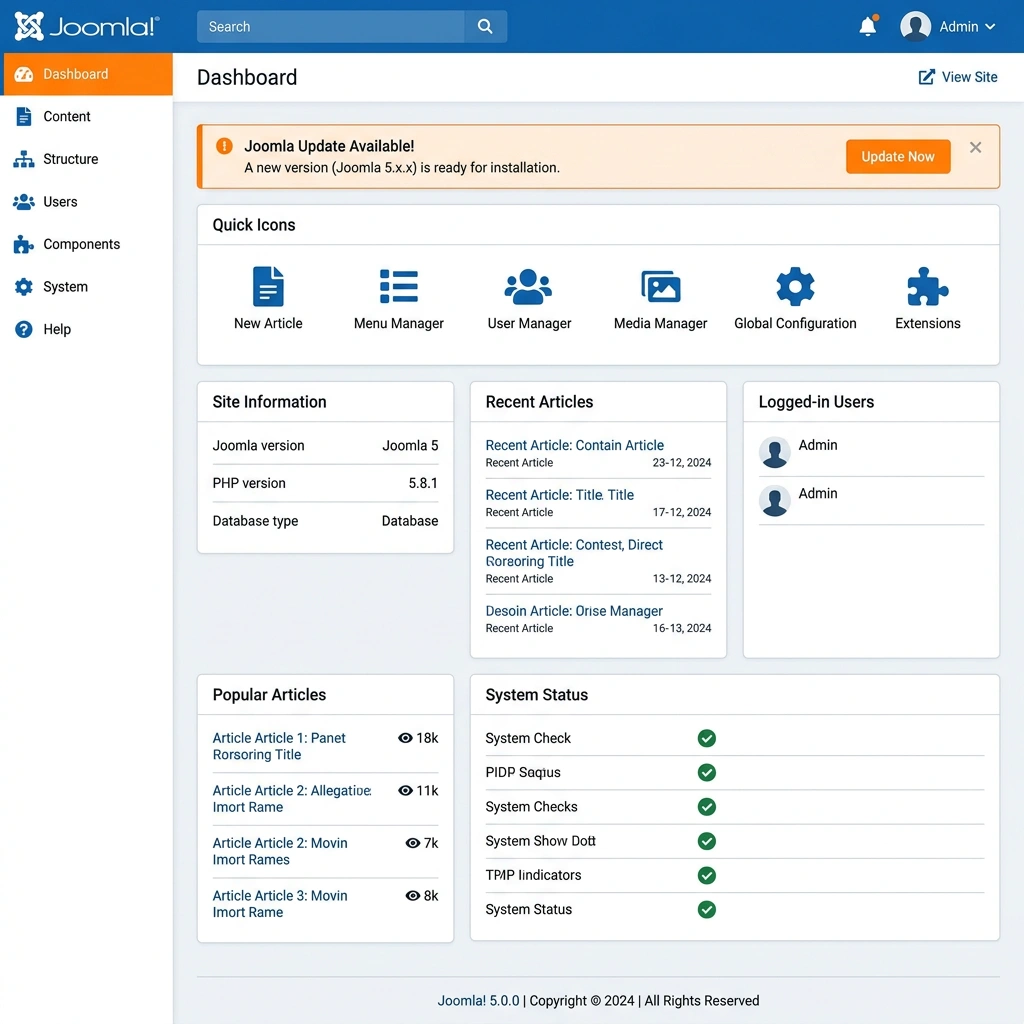


Keeping a Joomla site up-to-date is a regular part of site ownership. In this guide we walk through why updates matter, how the versioning works, the safest ways to apply them, and how to recover when things go wrong. By the end you will have a clear checklist and the confidence to run a Joomla update on any installation, whether it lives on a shared host or a dedicated server.
Every release contains code that closes known security gaps. Attackers scan the public web for outdated Joomla installations because they know that a missing patch can give them direct database access. When we apply a Joomla update, the core files are replaced with versions that have been audited and hardened. Skipping these patches leaves the site exposed to SQL injection, cross-site scripting, and privilege-escalation exploits that can be exploited in minutes.
In practice, the Joomla security team publishes a CVE identifier for each vulnerability and includes a short description in the release notes. By reviewing those notes before the update we can verify that the fix addresses a vulnerability that applies to our extensions or custom code. If an extension relies on a deprecated API that is removed in the patch, we can plan a compatible upgrade before the change goes live. For a deeper look at protecting your Joomla installation, see our Joomla Security Scanner guide.
Many hosting providers enforce a minimum Joomla version for shared accounts. Keeping the core current can prevent forced migrations or account suspensions, and it often unlocks newer PHP versions that are required for optimal server performance.

Beyond security, each new Joomla version refines the core’s execution path. The developers profile common bottlenecks, such as database query overhead in the article manager, and rewrite the code to use more efficient joins or caching strategies. A typical Joomla update can reduce page-generation time by 5-15% on a site with heavy content.
Bug fixes are also a major part of every release. Issues like menu items disappearing after saving or the media manager failing to upload large files are logged in the Joomla tracker and addressed in the next patch. When we update, we eliminate those quirks for our users and reduce the number of support tickets our team must handle. If performance is a priority, our Joomla Performance Optimization article covers server tuning in more detail.
Performance gains are often measurable with tools such as Google PageSpeed Insights or the built-in Joomla debug console. After an update we can compare the page load time metric before and after to confirm that the new code delivers a tangible benefit.
Each major release introduces new APIs, layout options, and integration points. For example, Joomla 6 adds native support for WebP images, a modern lazy-loading attribute, and a revamped media manager that works with cloud storage providers. By staying current we can take advantage of these features without building custom workarounds.
Compatibility with third-party services also improves. Modern JavaScript frameworks, payment gateways, and SEO tools often require recent PHP versions or specific HTTP headers that only newer Joomla releases provide. When we postpone updates, we risk breaking integration with those services, leading to lost revenue or broken analytics.
In short, a Joomla update is not just a maintenance task; it is an opportunity to keep the site aligned with evolving web standards and to deliver a smoother experience for visitors.
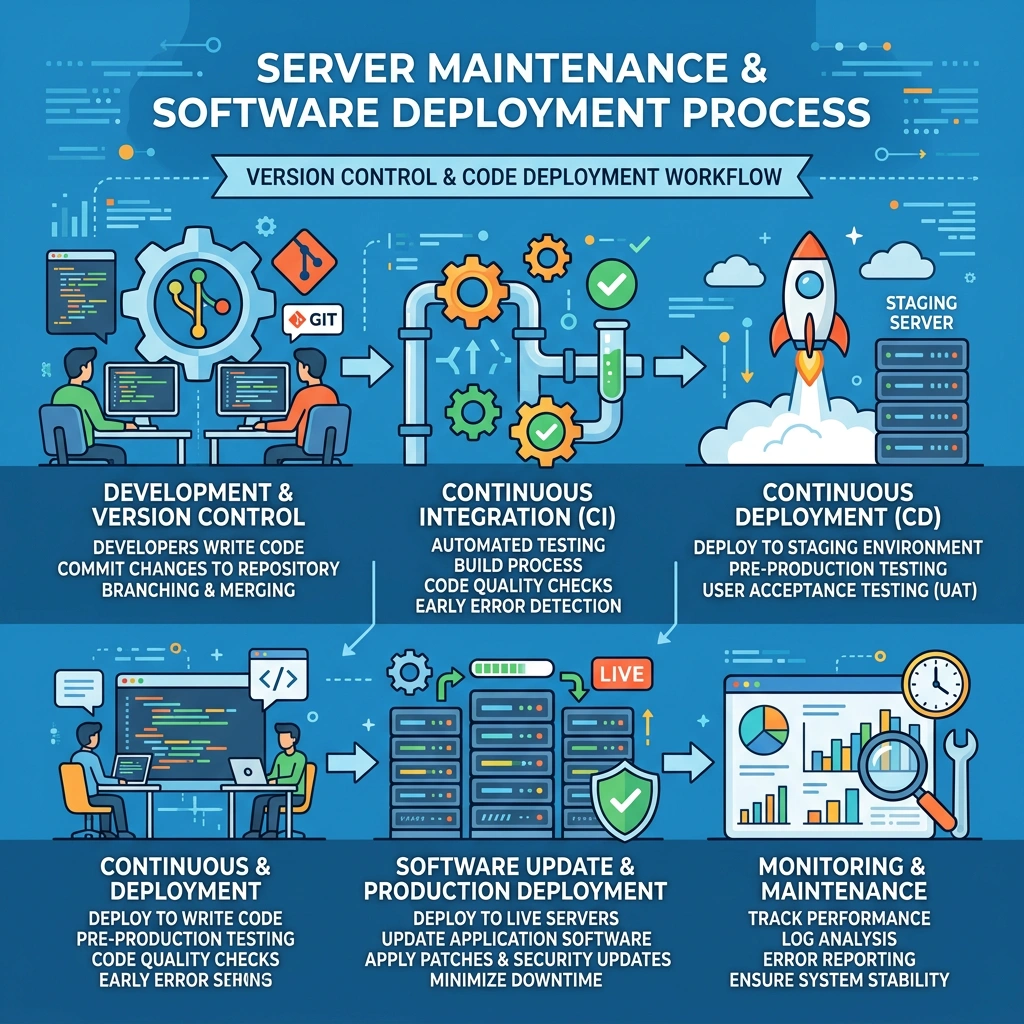
Joomla follows a three-part versioning scheme: X.Y.Z. The first digit (X) denotes a major release, which may introduce breaking changes, new core architecture, or a shift in the minimum PHP requirement. The second digit (Y) indicates a minor release that adds features and may deprecate older APIs but generally remains backward compatible. The third digit (Z) is a patch release focused on security fixes and bug corrections.
When we talk about a Joomla update, we usually refer to moving from one minor version to the next (e.g., 5.3 to 5.4) or applying a patch (5.4.2 to 5.4.3). A major jump (5.x to 6.x) often requires additional preparation, such as testing custom extensions against the new core and updating the PHP version on the server. For a comparison of major versions, see our Joomla 4 vs Joomla 5 breakdown.
| Release Type | Typical Changes | Upgrade Impact |
|---|---|---|
| Major (X) | New architecture, removed APIs, higher PHP minimum | Requires full testing, possible code refactor |
| Minor (Y) | New features, deprecations, UI tweaks | Usually safe with a backup |
| Patch (Z) | Security fixes, bug patches | Minimal risk, recommended immediately |
Joomla 5 entered LTS (Long-Term Support) in early 2024 and will receive security patches until 2027. Joomla 6, released in late 2025, is the next LTS line and will be supported until 2030. Both branches share the same extension ecosystem, but Joomla 6 introduces a new routing system and a modern JavaScript framework for the admin UI.
For most site owners the safest path is to stay on the current LTS branch (5.x) until the migration to 6.x is fully tested. The Joomla community provides a migration guide that outlines the steps needed to move from 5.x to 6.x, including database schema changes and template adjustments.
When we plan a Joomla update across branches, we treat it as a major upgrade and allocate a testing window on a staging server. Our Joomla 4 Migration guide covers the general migration workflow that also applies to major-version upgrades.
Every Joomla release has a defined end-of-life (EOL) date. After this date, the security team no longer provides patches, and the community stops publishing compatible extensions. For example, Joomla 3.10 reached EOL in August 2023, meaning any site still running that version is exposed to unpatched vulnerabilities.
We can check the official Joomla downloads page for the exact EOL dates. The roadmap also shows the maintenance window for each version, typically 12 months of security updates after the next minor release.
Staying within the support window ensures that a Joomla update will always be available from the built-in updater. Running an EOL version means we must rely on manual patches from community forks, which carry additional risk.
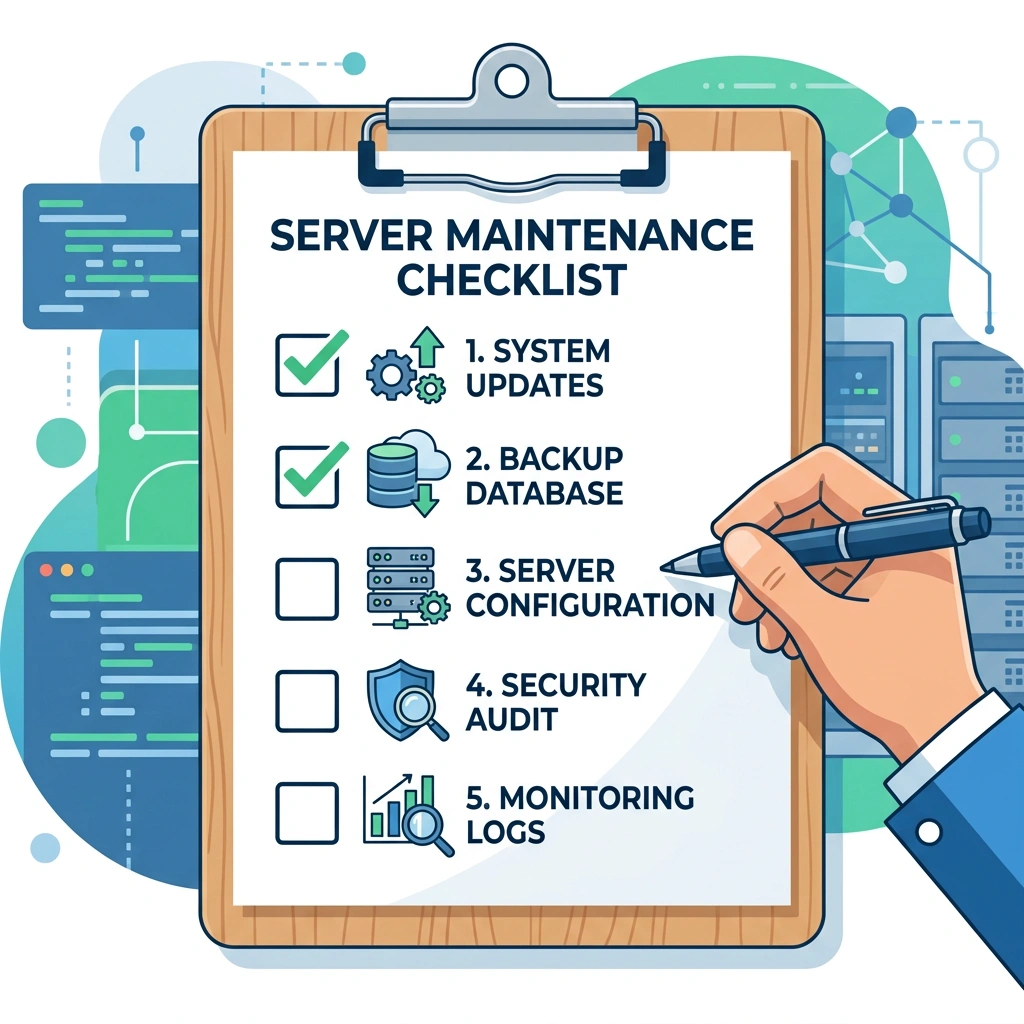
Before we click “Update” in the backend, we run a short checklist to protect the site:
mysqldump) and archive the public_html folder. Store the backup off-site. Our Joomla Backup Extensions guide covers the best tools for this.php -v).The admin dashboard provides the simplest path for a Joomla update. Follow these steps:
/administrator).If the update fails, Joomla displays an error log with a link to the “Update Log” tab. We can use that log to identify missing PHP extensions or file-permission issues. For file permission guidance, refer to our Joomla File Permissions article.
After the backend update we perform a quick sanity check:
logs/error.php for any warnings that appeared during the update.If everything looks clean, we bring the site back online by setting “Site Offline” to “No”. We also recommend running a cache configuration check to make sure caching layers are properly re-enabled.
Manual updates become necessary in a few scenarios:
In those cases we fall back to a manual Joomla update using FTP/SFTP or the command line.
Start by visiting the official Joomla download page and copying the URL for the desired update package. On the server, download the package directly into a temporary folder:
cd /tmp
wget https://downloads.joomla.org/cms/joomla6/6-0-3/Joomla_6.0.3-Stable-Update_Package.zip
unzip Joomla_6.0.3-Stable-Update_Package.zip -d joomla_update
Verify the checksum (SHA-256) provided on the download page to ensure file integrity:
sha256sum Joomla_6.0.3-Stable-Update_Package.zip
# compare the output with the checksum on the Joomla site
Upload the extracted files to the live site, preserving the directory structure. Using rsync is safe because it skips files that have not changed:
rsync -avz joomla_update/ /var/www/html/After the files are in place we must run the database migration scripts manually:
If the site uses the command-line interface (CLI), we can trigger the same process with:
php /var/www/html/cli/joomla.php database:fixFinally, we clear the cache (System > Clear Cache) and test the site as described in the post-update verification steps.
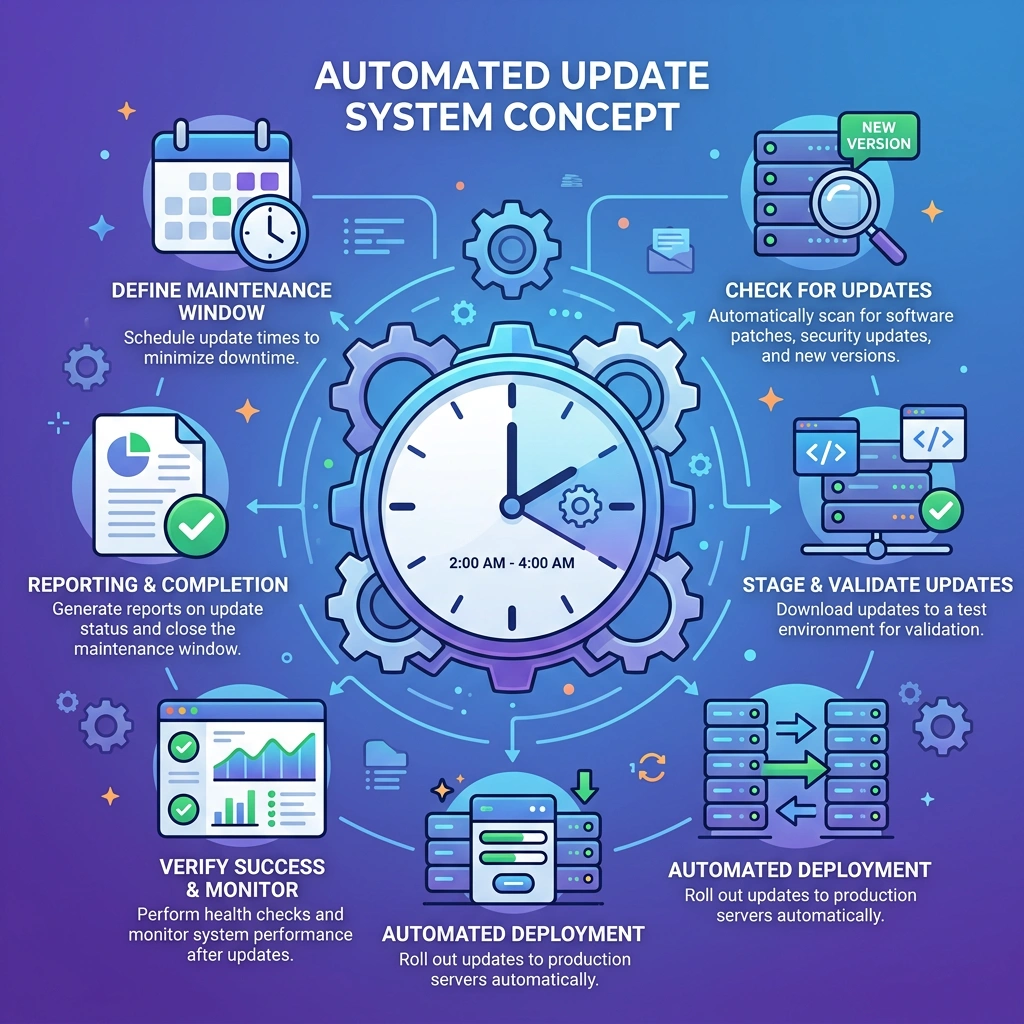
Starting with Joomla 5.4, the core includes a background worker that checks the Joomla update server every 24 hours. When a new patch is available, the worker downloads the package to a temporary directory, validates the checksum, and then runs the same file-replacement routine used by the admin updater. The process runs under the web server’s user account, so file permissions must allow write access to the core directories.
The automatic updater writes a log entry to logs/auto_update.log. Administrators can view this log from System > Joomla! Update > Automatic Update Log. This feature brings Joomla closer to the automatic update behavior that WordPress users have had for years.
The auto-update feature only applies to patch releases by default. Minor and major version jumps still require manual approval through the admin dashboard.
We can enable or disable automatic updates in the global configuration:
Additional options include:
max_execution_time for the update script, useful on slower servers.Automatic updates are convenient, but there are cases where we prefer manual control:
In those environments we set the Automatic Update toggle to “Disabled” and schedule manual updates during a maintenance window. For additional security hardening tips, check our Joomla .htaccess guide.
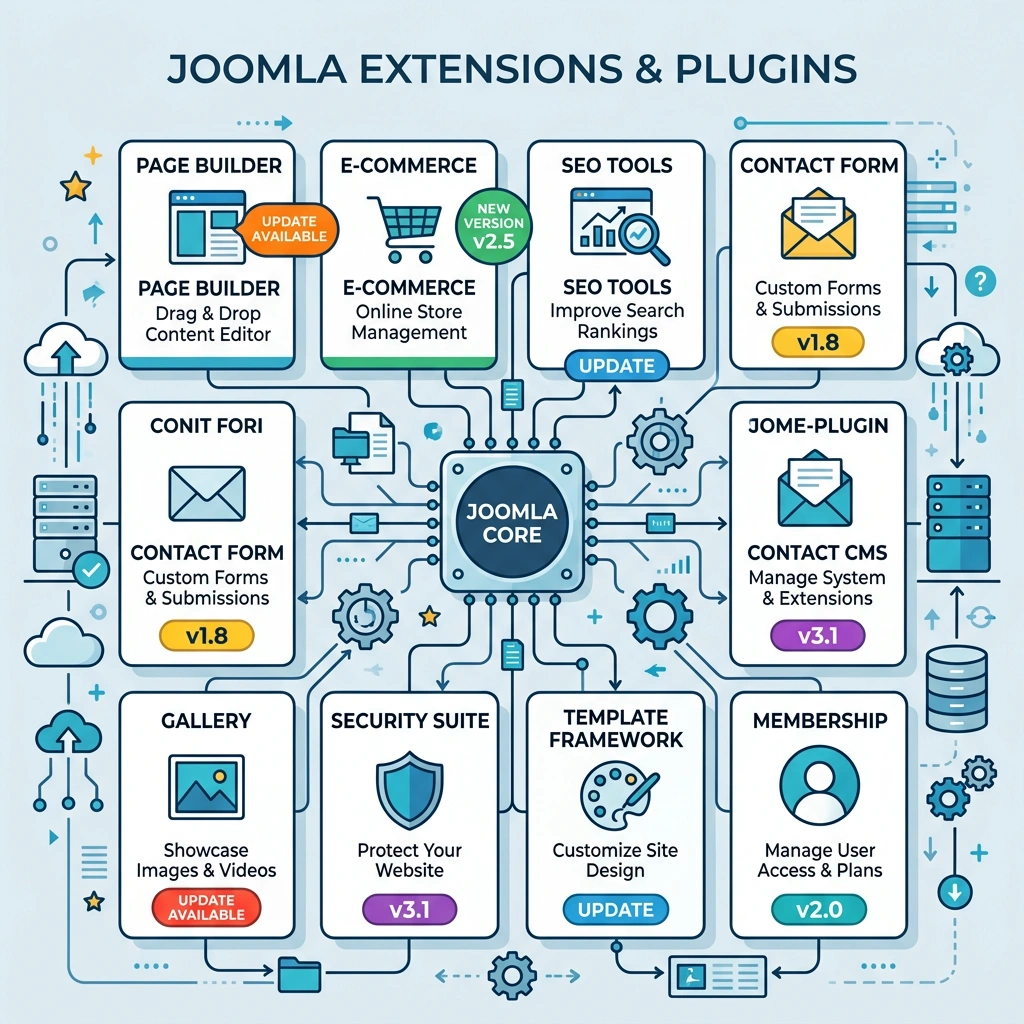
Extensions, including components, modules, plugins, and templates, share the same code base as the core. When the core changes its API, an outdated extension can trigger PHP errors or security warnings. Moreover, many extensions release their own security patches that address vulnerabilities independent of Joomla itself.
A neglected extension can also degrade performance. For example, a caching plugin that does not support the latest PHP 8.2 syntax may cause fatal errors that bring the site down. Therefore, we treat extension updates as a mandatory part of any Joomla update workflow.
If you are new to extension management, our guide to installing Joomla extensions covers the basics, while our Joomla security extensions roundup highlights the tools that help automate vulnerability scanning.
Joomla’s Extension Manager allows us to update many items at once:
If we have a large number of extensions, we can use the CLI to automate the process:
php /var/www/html/cli/extension.php extension:updateThe CLI command reads the extension.xml manifests, downloads the latest packages, and installs them without user interaction. It is especially useful for scripted deployments on staging servers.
When an extension fails to update, the most common reasons are:
To resolve these issues we check the extension’s changelog for a version that supports the target Joomla release. If no compatible version exists, we contact the developer or look for an alternative extension. As a temporary workaround, we can create a compatibility shim by defining a missing function in a custom plugin, but this should be used only as a stop-gap measure.
After fixing compatibility, we re-run the bulk update and verify that the extension appears in the “Installed” list without error messages.

A blank page (often called the “white screen of death”) indicates a PHP fatal error. The most frequent causes are:
libraries/joomla or templates.intl or xmlrpc which are not installed.To diagnose, enable error reporting in System > Global Configuration > Server and set Error Reporting to “Maximum”. Then reload the page; the error message will reveal the missing file or function. Fix the permission (chmod -R 755 /var/www/html) or install the required PHP extension (sudo apt-get install php-intl).
If the admin panel is also inaccessible, edit the configuration.php file directly via SSH or FTP and set $error_reporting = 'maximum'. This will expose the exact error on the next page load.
During a Joomla update, the installer runs a series of SQL scripts. Errors such as “Table already exists” or “Column cannot be null” usually stem from a previous incomplete update.
Steps to resolve:
php /var/www/html/cli/joomla.php database:fixsql/updates/mysql folder using phpMyAdmin or the MySQL CLI.Sometimes an extension that worked perfectly before the update begins to throw warnings or stop loading. Common conflict sources include JavaScript library version changes (Joomla 6 ships with updated jQuery) and template overrides that reference functions removed in the new version.
To isolate the conflict:
Once the problematic extension is identified, we either update it, replace it, or adjust its code to match the new core API.
The most recent stable release is Joomla 6.0.3, published in February 2026. It includes security patches and performance improvements for the media manager. Joomla 5.4.3 was also released simultaneously for sites still on the 5.x branch.
Log in to the administrator backend and look at the top-right corner of the Control Panel; the version number appears next to the Joomla logo. Alternatively, open administrator/manifests/files/joomla.xml and read the <version> tag.
Skipping minor or patch releases is technically possible, but we recommend updating sequentially. Skipping a major version (e.g., 5.x to 6.x) is allowed, but it requires a full compatibility test because APIs may have changed between releases.
We aim to apply every security patch as soon as it is released, typically within 24 hours. Minor releases can be scheduled quarterly, while major releases are planned after a thorough testing cycle on a staging environment.
Updating a live site is safe if we follow the pre-update checklist: backup the files and database, put the site offline, and verify extension compatibility. For high-traffic sites, a short maintenance window of 15-30 minutes is advisable to minimize visitor impact.