Physical Address
304 North Cardinal St.
Dorchester Center, MA 02124
Physical Address
304 North Cardinal St.
Dorchester Center, MA 02124



Joomla has always shipped with a default template that showcases the core’s capabilities. Early releases relied on Bootstrap 2, then moved to Bootstrap 3 with the Protostar template in Joomla 3.x. When Joomla 4 arrived, the Cassiopeia template replaced Protostar, bringing a modern, responsive design based on Bootstrap 5. The evolution reflects Joomla’s shift toward speed, accessibility, and developer friendliness.
In Joomla 5, Cassiopeia has been refined further to align with the platform’s new architecture. The template now embraces native CSS Grid, offers built‑in dark mode, and provides a richer set of layout options without requiring external libraries. This continuity ensures that sites built on older versions can upgrade with minimal redesign effort while benefiting from the latest front‑end standards.
The name “Cassiopeia” honors the constellation, a nod to Joomla’s tradition of celestial naming. It signals a template that is both stable and forward‑looking, designed to serve as a solid foundation for any Joomla 5 website, whether it is a simple blog or a complex e‑commerce portal.
Cassiopeia’s biggest departure from Protostar is its reliance on native CSS Grid instead of a heavy Bootstrap grid. This change reduces CSS payload and improves layout flexibility, allowing developers to create asymmetric designs without custom overrides. The template also ships with a configurable dark‑mode switch that automatically respects the user’s OS preference.
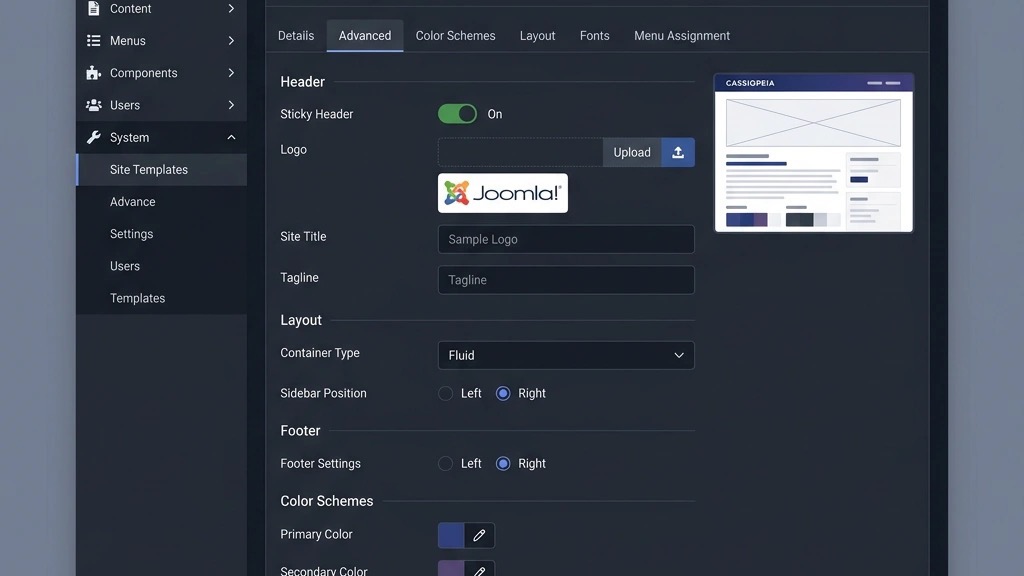
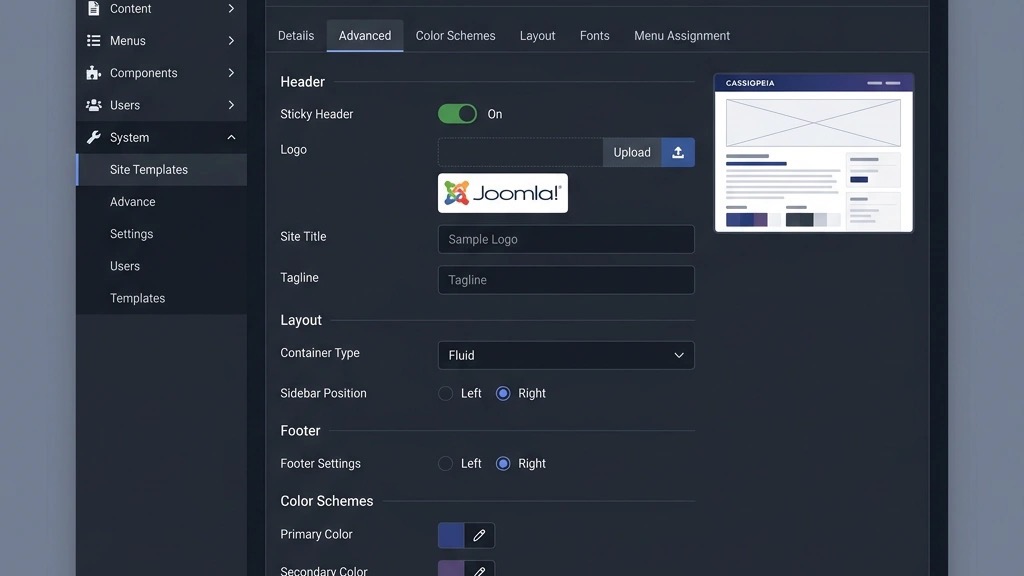
Another distinction lies in the way parameters are exposed. The Joomla 5 template framework introduces a unified “Global Settings” panel, where designers can adjust typography, spacing, and color palettes in a single place. Earlier defaults required digging into multiple module‑specific options, making global styling cumbersome.
Finally, Cassiopeia embraces modern accessibility standards out of the box. ARIA attributes, keyboard‑friendly navigation, and high‑contrast color schemes are baked into the core markup, reducing the effort needed to meet WCAG 2.2 compliance. These enhancements make the cassiopeia template a more robust starting point for any Joomla 5 project.
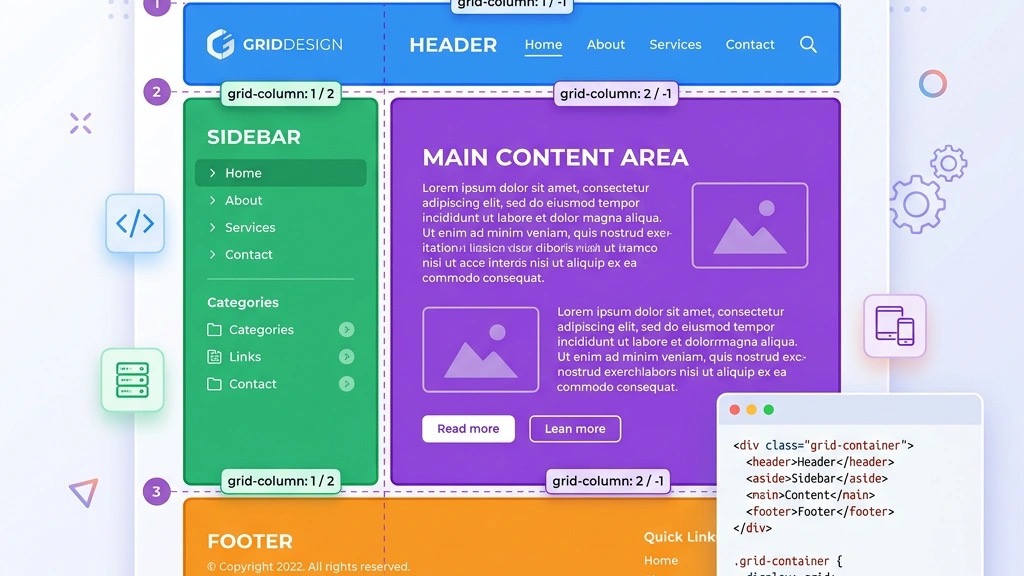
The new CSS Grid layout (see CSS Grid specification on MDN) gives us a two‑dimensional control over rows and columns, something Bootstrap could only approximate with flexbox tricks. In Cassiopeia, the main content area, sidebars, and footer are defined as grid items, allowing precise placement without extra wrapper divs. This reduces HTML clutter and speeds up rendering.
Because the grid is native, we can use media‑query breakpoints that match Joomla 5’s default breakpoints, ensuring consistent behavior across devices. For example, a three‑column layout can collapse to a single column on screens narrower than 768 px simply by adjusting the `grid-template-columns` property in the template’s CSS file.
Developers can extend the grid by adding custom grid areas in the `templates/cassiopeia/css/template.css` file. A typical snippet looks like:
/* Custom grid area for a promotional banner */
#banner {
    grid-area: banner;
}
Then, in the layout file (`templates/cassiopeia/html/layouts/joomla/content/main.php`), you place the banner inside the grid container, and the browser handles the rest.
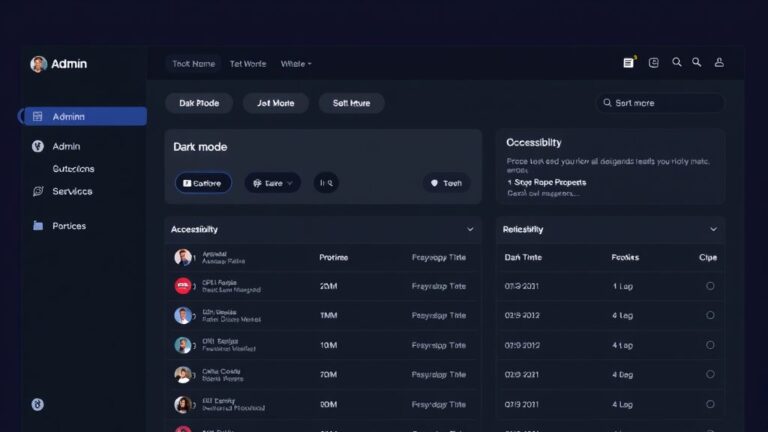
Cassiopeia now includes a built‑in dark‑mode toggle that respects the `prefers-color-scheme` media query. Users can manually switch themes via a small button added to the header, or the template can automatically apply the dark palette based on the visitor’s OS setting. This eliminates the need for separate dark‑mode plugins.
The color scheme is defined in the `templates/cassiopeia/scss/_variables.scss` file, where primary, secondary, and accent colors are declared as SCSS variables. Changing a single variable updates the entire site, thanks to the SCSS compilation step performed during Joomla 5’s template cache build.
If you need a custom palette, you can create a `user.scss` file in the template’s `scss` folder and import it after the default variables:
@import "variables";
@import "user"; // Your overrides
When the template cache is cleared, Joomla compiles the new SCSS, and the site instantly reflects the updated colors without any PHP changes.
Accessibility has been a core focus for the cassiopeia joomla team. The template now includes ARIA landmarks (`role=”navigation”`, `role=”main”`, `role=”contentinfo”`) on key sections, making screen readers navigate more intuitively. Additionally, all interactive elements receive visible focus outlines that meet WCAG contrast requirements.
Form elements have been standardized with `label` tags that are programmatically associated via the `for` attribute, reducing the chance of orphaned inputs. The template also provides a “Skip to Content” link that appears when users tab from the top of the page, a small but essential usability enhancement.
Developers can further improve accessibility by leveraging the template’s built‑in `accessibility` class. Adding `class=”accessibility”` to a module wrapper enables high‑contrast mode for that specific module, useful for call‑to‑action sections that need extra emphasis.

According to the official Joomla documentation, the Global Settings panel consolidates most visual controls for the cassiopeia template. Here you can set the site’s base font size, line height, and overall spacing scale. These values are stored in the `templateDetails.xml` file and applied via SCSS variables during cache generation.
Typography choices are limited to a curated list of web‑safe fonts and Google Font families, ensuring fast loading. When you select a new font, the template automatically injects the appropriate `` tag into the `
` section, eliminating manual code edits.Color customization is handled through a color picker that writes hex values into the `template.css` file. The changes are reflected across menus, buttons, and background elements, providing a cohesive visual identity without writing a single line of CSS.
Cassiopeia defines a clear set of module positions that align with the grid layout. Common positions include `header`, `navigation`, `sidebar-left`, `sidebar-right`, `footer`, and `banner`. Each position is mapped to a grid area in the layout’s SCSS file, making placement predictable.
The position map can be viewed in the Joomla administrator under Extensions → Templates → Cassiopeia → Positions. This view shows a visual grid with labeled slots, helping designers quickly decide where to assign modules. The map also indicates which positions are optional, allowing you to hide empty areas without breaking the layout.
Because the positions are grid‑aware, you can assign multiple modules to the same area and they will stack vertically by default. If you need a horizontal arrangement, you can add a custom CSS class that applies `display: flex` to the container.
Branding is straightforward in the cassiopeia template. The Global Settings include a “Logo” field where you upload an image or specify a URL. The template then renders the logo inside an `` tag linking to the home page, with an `alt` attribute that defaults to the site name for SEO benefit.
If you prefer a text‑based logo, you can enable the “Site Title Only” option, which hides the image and displays the site name using the same typography settings defined earlier. The template also supports SVG logos, which scale cleanly on high‑resolution displays.
For multi‑language sites, the logo field can be set per language, allowing each locale to display a localized version of the brand image. This is managed through Joomla’s language filter plugin, which swaps the logo based on the active language tag.
Template overrides let you change the output of core components without altering the original template files. In Joomla 5, you create an override by copying the component’s view file from `components/com_content/views/article/tmpl/default.php` into `templates/cassiopeia/html/com_content/article/default.php`. The system then loads your copy first.
Overrides are ideal for tweaking markup, adding custom classes, or inserting additional data. Because the override lives in the template folder, it survives core updates, keeping your changes safe. Remember to clear the template cache after adding an override to ensure Joomla picks up the new file.
When you need to adjust a module layout, the same process applies: copy the module’s `tmpl/default.php` to `templates/cassiopeia/html/mod_custom/default.php`. This gives you full control over the HTML while still inheriting the template’s CSS and JavaScript.
The Media Manager is the central hub for uploading images, videos, and other assets used by Cassiopeia. By default, the template stores assets in `images/templates/cassiopeia/`. You can create subfolders for icons, background images, or custom fonts to keep the structure organized.
When you reference an asset in a layout file, use Joomla’s `JUri::root()` function to generate an absolute URL, ensuring the path works regardless of the site’s subdirectory. For example:
$bg = JUri::root() . 'images/templates/cassiopeia/backgrounds/hero.jpg';This approach avoids hard‑coded URLs and makes migrations between environments smoother. The Media Manager also provides basic image editing tools, such as cropping and resizing, which can be handy for quick adjustments without leaving the Joomla backend.
Cassiopeia allows you to add custom CSS without touching the core stylesheet. Simply create a file named `user.css` in `templates/cassiopeia/css/`. Joomla 5 automatically loads this file after the main `template.css`, giving your rules higher specificity.
For instance, to change the navigation link color on hover you could add:
/* user.css */
.navbar a:hover {
    color: #ff6600;
}
Because the file is loaded last, you can safely override any default style. If you need to target a specific page, prepend a body class that Joomla adds based on the menu item ID, such as `.itemid-101 .navbar a:hover`. This granular control keeps your customizations organized and easy to maintain.
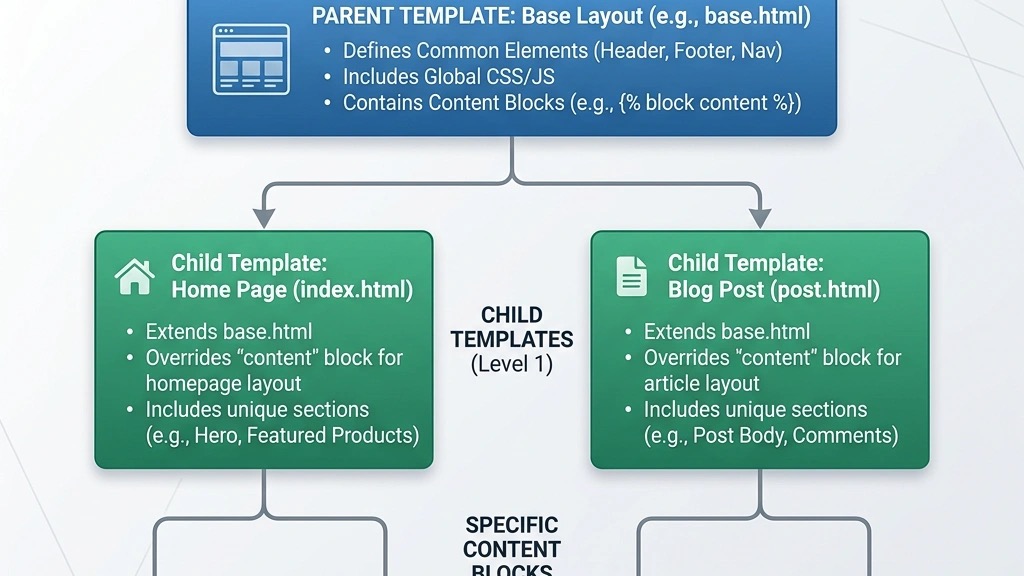
A child template inherits all the functionality of the parent cassiopeia template while allowing you to make extensive changes without risking loss during updates. It acts as a safe sandbox where you can add new SCSS files, override layout files, or introduce additional JavaScript libraries.
Using a child template also improves maintainability. When Joomla releases a new version of Cassiopeia, the parent template receives updates, and your child template automatically benefits from bug fixes and performance improvements. This separation of concerns keeps your custom code clean and future‑proof.
Moreover, a child template can be packaged and deployed across multiple sites, ensuring a consistent brand experience while still leveraging the core template’s robustness.
After activation, you can begin adding overrides in `templates/cassiopeia_child/html/` just as you would with a regular override, but the changes remain isolated from the parent.
When you need to modify a layout file, copy it from the parent’s `html` directory into the child’s matching path. For example, to change the article header, copy `templates/cassiopeia/html/com_content/article/default.php` to `templates/cassiopeia_child/html/com_content/article/default.php`. Edit the copy; Joomla will prioritize the child’s version.
To avoid accidental overwrites, keep a version‑controlled backup of the original parent file. If the parent updates a layout in a future Joomla release, compare the new file with your child override to merge any necessary changes. This practice ensures your customizations stay compatible with the latest core improvements.

Cassiopeia shines for projects that prioritize speed, accessibility, and low maintenance. Because it is the default Joomla 5 template, it receives regular security patches and performance optimizations directly from the Joomla core team. If your site does not require a highly unique visual identity, Cassiopeia’s flexible grid and color options can be tuned to match most brand guidelines.
Additionally, the template’s lightweight nature makes it ideal for low‑budget hosting environments where every kilobyte counts. Its native CSS Grid eliminates the need for heavy JavaScript frameworks, resulting in faster page load times and better SEO scores.
If your design demands a highly specialized layout, advanced animations, or a pre‑built set of page builders, a commercial third‑party template may be more appropriate. These templates often bundle proprietary page‑builder extensions, premium icon sets, and extensive demo content that can accelerate development for complex sites.
Commercial templates also typically include dedicated support channels and regular updates tailored to specific industries, such as real‑estate or e‑commerce. When you need a unique visual experience that goes beyond the capabilities of Cassiopeia’s configuration, investing in a specialized template can save time and provide a competitive edge.
In benchmark tests, Cassiopeia’s default CSS and JavaScript footprint is roughly 45 KB gzipped, whereas many third‑party Joomla 5 templates range from 80 KB to 150 KB due to bundled libraries. The smaller payload translates to a 0.3‑second improvement in first‑paint time on a typical 3G connection.
However, commercial templates sometimes offer lazy‑loading scripts and built‑in caching mechanisms that can offset the larger size. The key is to evaluate the actual page weight after enabling only the features you need. In most cases, a well‑optimized Cassiopeia installation will outperform a feature‑rich third‑party template that isn’t trimmed for performance.
To modify the header, create an override for `templates/cassiopeia/html/layouts/joomla/header/default.php`. Within the file, you can rearrange the logo and navigation markup. For example, moving the logo to the left and the menu to the right can be achieved by adjusting the grid area assignments:
<div class="header-grid">
    <div class="logo-area"><?php echo $logo; ?></div>
    <nav class="nav-area"><?php echo $menu; ?></nav>
</div>
Then, update the SCSS to reflect the new grid:
.header-grid {
    display: grid;
    grid-template-columns: 1fr 2fr;
}
After clearing the template cache, the new header layout appears site‑wide.
A custom footer can be added by creating a new module position called `footer-custom` in the `templateDetails.xml` file. Then, assign a “Custom HTML” module to this position and insert your desired markup, such as social icons or a newsletter signup form.
If you need a multi‑column footer, add a SCSS rule that defines a grid for the `footer-custom` container:
#footer-custom {
    display: grid;
    grid-template-columns: repeat(4, 1fr);
    gap: 1rem;
}
Finally, include the position in the footer override file (`templates/cassiopeia/html/layouts/joomla/footer/default.php`) by adding `getBuffer(‘modules’, ‘footer-custom’); ?>`.
Cassiopeia’s flexible grid makes it easy to craft a landing page without a page‑builder extension. Create a new menu item of type “Single Article” and assign it a unique layout override: `templates/cassiopeia/html/com_content/article/landing.php`. In this file, structure the content using grid sections for hero, features, and call‑to‑action.
Add custom CSS in `user.css` to style each section, for example:
.landing-hero {
    background: url('../images/hero.jpg') center/cover no-repeat;
    min-height: 70vh;
    display: flex;
    align-items: center;
    justify-content: center;
}
Because the template already loads the necessary CSS and JavaScript, the page remains lightweight while delivering a polished, conversion‑focused design.

When Joomla 5 updates, the Cassiopeia template may receive new SCSS variables that conflict with custom `user.css` rules. If you notice layout shifts, first clear the template cache from System → Clear Cache. If the problem persists, compare the updated `template.css` with your custom file to identify overridden selectors.
A common fix is to increase specificity in `user.css` by adding the parent class `.cassiopeia` before your selector:
.cassiopeia .navbar a {
    padding: 1rem 2rem;
}
This ensures your custom rule wins over the updated defaults without needing to edit core files.
If a module disappears on mobile, verify that its position is not hidden by a media query in the template’s SCSS. Cassiopeia uses the `.hidden-xs` class to hide elements on screens smaller than 576 px. Remove that class or override it in `user.css`:
.hidden-xs {
    display: block !important;
}
Also, check that the grid columns are set to `auto` for small breakpoints. You can add a media query to force a single‑column layout:
@media (max-width: 576px) {
    .content-grid {
        grid-template-columns: 1fr;
    }
}
These adjustments restore the missing content while preserving the overall design.
A missing module position often stems from an incorrect position name in the module assignment. Cassiopeia’s position map uses hyphens, so `sidebar-left` is different from `sidebar_left`. Double‑check the position name in the module’s Advanced Settings.
If the position is correct but still empty, ensure that the layout file includes the `getBuffer` call for that position. In a custom override, you might need to add:
<?php echo $this->getBuffer('modules', 'sidebar-left'); ?>After adding the call and clearing the cache, the module should render as expected.
Cassiopeia replaces the Bootstrap‑based grid with native CSS Grid, includes built‑in dark mode, and consolidates visual controls into a single Global Settings panel. These changes reduce CSS size, improve accessibility, and give designers more flexibility without additional libraries.
Create a file named `user.css` in `templates/cassiopeia/css/`. Joomla 5 automatically loads this file after the main stylesheet, allowing you to override any rule. For example, to change the button color you would add `.btn-primary { background:#0066cc; }` to `user.css`.
A child template is recommended for extensive modifications because it protects your changes from being overwritten during core updates. However, many customizations—such as CSS tweaks, media manager assets, and simple overrides—can be done directly within the Cassiopeia template without a child.
Yes. Cassiopeia includes a dark‑mode toggle that respects the `prefers-color-scheme` media query. Users can manually switch themes via a header button, or the site can automatically apply the dark palette based on the visitor’s operating system setting.
First, clear the template cache. Then verify the module’s position name matches Cassiopeia’s position map (e.g., `sidebar-left`). If you are using a custom layout override, ensure the `getBuffer` call for that position is present. Adjust CSS specificity if a media query is hiding the module.
Absolutely. Cassiopeia works seamlessly with Joomla’s Language Filter plugin. You can assign different logos, menu items, and module positions per language, and the template will automatically load the appropriate assets based on the active language tag.