Physical Address
304 North Cardinal St.
Dorchester Center, MA 02124
Physical Address
304 North Cardinal St.
Dorchester Center, MA 02124

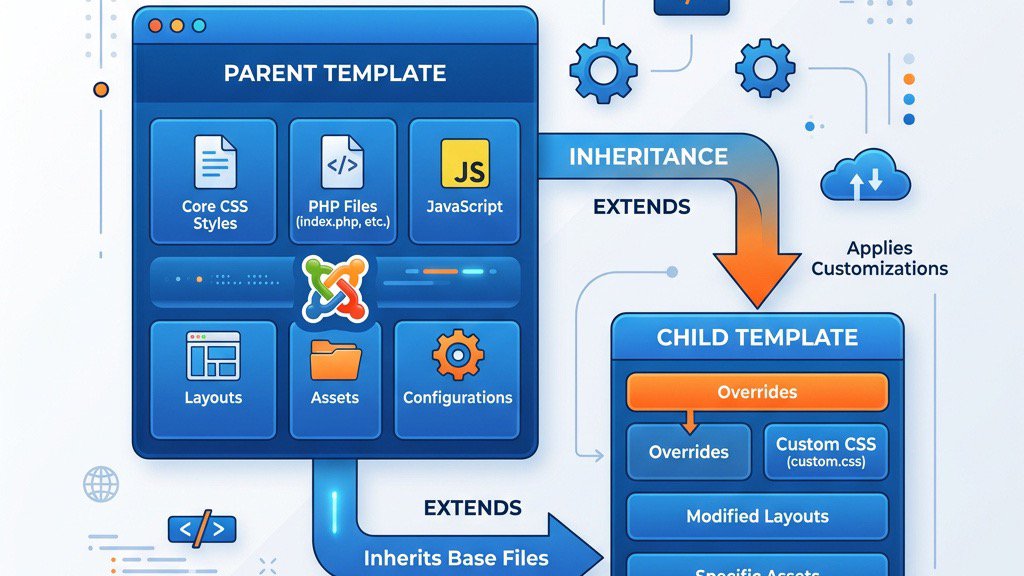


A Joomla child template is a lightweight package that inherits the files and settings of a parent template while allowing us to replace or extend only the parts we need. Think of it as a CSS inheritance model: the parent supplies the base stylesheet and layout, and the child supplies a set of overrides that are applied after the parent’s code. When Joomla renders a page, it first loads the parent template, then merges the child’s resources on top of it.
The main advantage of this approach is that any future update to the parent template will not erase the customizations we have made. Joomla 4.1 and Joomla 5 include native support for child templates, which means the system recognises the <parent> tag in the manifest and automatically builds the inheritance chain. In Joomla 3 we could achieve a similar effect by copying the entire template folder and renaming it, but that method required more manual maintenance and was prone to errors. The native support in Joomla 4/5 makes the workflow cleaner and more reliable.
When we edit a parent template directly, any patch or security update released by the template author can overwrite our changes. By keeping our modifications in a child template, Joomla treats the parent as an immutable base. The child’s files are loaded after the parent’s, so the parent can be upgraded without affecting our custom code.
Maintaining a clear boundary between original code and our customizations helps us and the project. The child contains only the files we have altered, making it easier for new developers to understand what has been changed and why. If you are new to Joomla’s template system, we recommend reading our guide on how to install a Joomla template first.
If a change introduces a problem, we can simply disable or delete the child template and the site will revert to the parent’s default appearance. This one-click revert is far quicker than manually undoing edits in a modified parent folder.
A single parent template can serve as the foundation for several child templates, each with its own colour scheme, typography, or module layout. This approach is useful when we manage a network of sites that share a common structure but need distinct branding.
Using child templates aligns with modern development practices such as version control and continuous integration. The child folder is small, so committing it to a repository produces a clean history that focuses on the actual customizations.
Before we start, we need to verify a few items:
| Requirement | Why It Matters |
|---|---|
| Joomla 4.1+ or Joomla 5 installed | Native child-template support is available only from these versions. |
| Access to the server’s file system (FTP, SFTP, or a file manager) | We will create a new folder under templates/ and place a few files there. |
| A parent template installed (e.g., Cassiopeia) | The child must reference an existing parent in its manifest. |
| Basic knowledge of PHP, HTML, and CSS | The overrides we create will be written in these languages. |
Having a local development environment (XAMPP, Docker, or a staging site) is also recommended so we can test changes without affecting live traffic. For a broader look at Joomla templates, check our roundup of the best Joomla templates available today.
Below is a practical, step-by-step guide that we can follow on any Joomla 4/5 installation.
templates/ directory.cassiopeia_child.templates/cassiopeia_child/.Tip: Joomla treats the folder name as the template identifier, so keep it short and alphanumeric.
Inside the new folder, we need a manifest file that tells Joomla what the template is and which parent it belongs to. Below is a minimal example that works with Cassiopeia:
<?xml version="1.0" encoding="utf-8"?>
<extension type="template" version="4.0" client="site">
    <name>Cassiopeia Child</name>
    <author>Our Team</author>
    <creationDate>2026-03-15</creationDate>
    <copyright>2026 Our Company</copyright>
    <license>GNU General Public License version 2 or later</license>
    <version>1.0.0</version>
    <description>A child template for Cassiopeia.</description>

    <!-- The parent element is the key to inheritance -->
    <parent>Cassiopeia</parent>

    <files>
        <filename>templateDetails.xml</filename>
        <folder>css</folder>
        <folder>html</folder>
    </files>
</extension>
The <parent> element is the critical tag. It must match the exact folder name of the parent template. Joomla uses this tag to build the inheritance chain, loading parent assets first and then applying the child’s overrides on top.
A common use case for a child template is to add a stylesheet that overrides a few selectors. Create a sub-folder called css and inside it a file named user.css:
templates/
    cassiopeia_child/
        css/
            user.css
        html/
        templateDetails.xml
Here is a sample CSS file with practical overrides:
/* Change the header background */
.header {
    background-color: #2c3e50 !important;
}

/* Load a custom Google Font */
@import url('https://fonts.googleapis.com/css2?family=Roboto:wght@400;700&display=swap');

body {
    font-family: 'Roboto', sans-serif;
}

/* Hide the right-hand module position on the home page */
.home .position-right {
    display: none;
}

/* Footer styling */
.footer {
    background: #1a1a1a;
    color: #f0f0f0;
    padding: 30px 0;
}
Joomla loads the parent’s CSS first, then automatically adds user.css from the child. Because the child stylesheet is loaded later, any rule that matches the same selector will take precedence, provided the specificity is equal or higher.
If we need to adjust the markup or PHP logic, we can copy individual files from the parent into the child folder and edit them there. The inheritance system will use the child’s version first and fall back to the parent for everything else.
Overriding index.php: Locate index.php in the parent folder (templates/cassiopeia/), copy it to templates/cassiopeia_child/, and make the desired changes such as adding a new <div> for a custom banner.
Overriding component output: To change how articles are displayed, create an html folder that mirrors the component’s view structure. For example, copy templates/cassiopeia/html/com_content/article/default.php into the child’s html/com_content/article/ folder and edit it. For a deeper look at this technique, see our guide on how to customize a Joomla template without coding.
Important: Do not copy the entire parent folder into the child. The purpose of a child template is to keep the overridden set minimal. Only copy files you want to change — everything else inherits automatically from the parent.
There are two ways to make Joomla aware of the new child template:
Method A — Discover and Install: In the Joomla administrator, go to Extensions → Manage → Discover. Joomla will list the new folder as “Uninstalled.” Select it and click Install.
Method B — Zip Package: Zip the child folder including the templateDetails.xml, css/, and any html/ subfolders. In the administrator, navigate to Extensions → Manage → Install and upload the zip file. This method is covered in more detail in our post about how to install Joomla extensions.
After installation, go to System → Templates → Styles, locate the child template, and click the star icon to set it as the default site template. The parent template remains installed, but the child now drives the front-end appearance.
Below are a few practical scenarios that illustrate how a child template can be used to fine-tune the look of a site without touching the parent.
.header {
    background: #004080;
}@import url('https://fonts.googleapis.com/css2?family=Open+Sans:wght@300;600&display=swap');
body {
font-family: 'Open Sans', Arial, Helvetica, sans-serif;
}/* Hide the left sidebar on article pages */
.itemid-101 .position-left {
display: none;
}.footer {
background: #222;
color: #ddd;
text-align: center;
padding: 20px 0;
}These snippets demonstrate that a child template can control visual aspects ranging from colours to layout tweaks, all through a single stylesheet.
The html/ folder inside a child template follows the same hierarchy as the parent. When Joomla looks for a view file, it checks the following locations in order:
templates/<child>/html/<component>/<view>/<layout>.phptemplates/<child>/html/<component>/<view>/default.php (fallback)templates/<parent>/html/<component>/<view>/<layout>.phptemplates/<parent>/html/<component>/<view>/default.phpBecause the child’s html/ folder is consulted first, we can replace only the files we need. Common override targets include component layouts such as com_content/article/default.php, module chrome files, and pagination views. For more on Joomla’s template override system, the official Joomla documentation on template overrides is a solid reference.
| Mistake | Why It Hurts | How to Fix It |
|---|---|---|
| Copying the entire parent folder into the child | Defeats the purpose of inheritance and makes updates painful | Only copy the files you intend to modify |
Omitting the <parent> tag in templateDetails.xml | Joomla will treat the template as standalone, losing inheritance | Ensure the <parent> element matches the exact folder name of the parent |
| Forgetting to run Discover after uploading via FTP | The child will not appear in the template list | Use Extensions → Manage → Discover or install a zip package |
| Using overly specific CSS selectors that clash with the parent | Changes may not apply or cause unexpected side effects | Keep selectors simple and use !important only when necessary |
| Not testing after a parent update | Hidden overrides may break the layout | After each parent upgrade, clear the cache and verify the front-end |
By paying attention to these points, we keep the child template lightweight and maintainable. We also recommend reviewing our Joomla security audit checklist to make sure your template changes do not introduce vulnerabilities.
Yes, as long as the Joomla version is 4.1 or newer. The parent template must be installed and its folder name must be referenced in the <parent> tag of the child’s manifest file.
Frameworks that follow Joomla’s template structure can be used as parents, but some frameworks have their own inheritance mechanisms. We should consult the framework’s documentation to confirm compatibility. The YOOtheme Pro child theme documentation is one example of a framework with its own approach.
Absolutely. Each child can have a different folder name and its own set of overrides, allowing us to serve distinct designs from a single base template.
Joomla will load the updated parent files, then apply the child’s overrides on top. Because the child only contains the files we changed, our customizations remain intact. It is still good practice to test after every parent update.
The overhead is minimal. Joomla loads the parent’s assets first, then the child’s additional files. The extra HTTP request for user.css is typically negligible, especially when we combine and minify assets. For more on optimizing your Joomla site’s speed, see our Joomla caching configuration guide.
By following the steps outlined above, we can build a Joomla child template that gives us full control over the site’s appearance while preserving the ability to update the parent safely. The approach supports clean development practices, reduces the risk of accidental overwrites, and provides a flexible foundation for future design variations. Whether we are customizing a corporate portal, a community site, or an e-commerce store, the child-template pattern offers a reliable, maintainable path to a tailored front-end experience. To continue exploring Joomla’s template system, check out our article on Joomla template development from scratch and the Joomla Manual on templates.