Physical Address
304 North Cardinal St.
Dorchester Center, MA 02124
Physical Address
304 North Cardinal St.
Dorchester Center, MA 02124




We sit at a crossroads where every extra millisecond of load time can mean a visitor staying or leaving. For Joomla sites that serve audiences across continents, the difference often comes down to how quickly static assets travel from the origin server to the user’s browser. A well-planned joomla cdn setup can cut latency, improve Core Web Vitals, and lower bandwidth costs without requiring a complete redesign. In this guide we walk through the theory, the provider selection, the step-by-step configuration, and the testing procedures you need to get the most out of a content delivery network for Joomla.

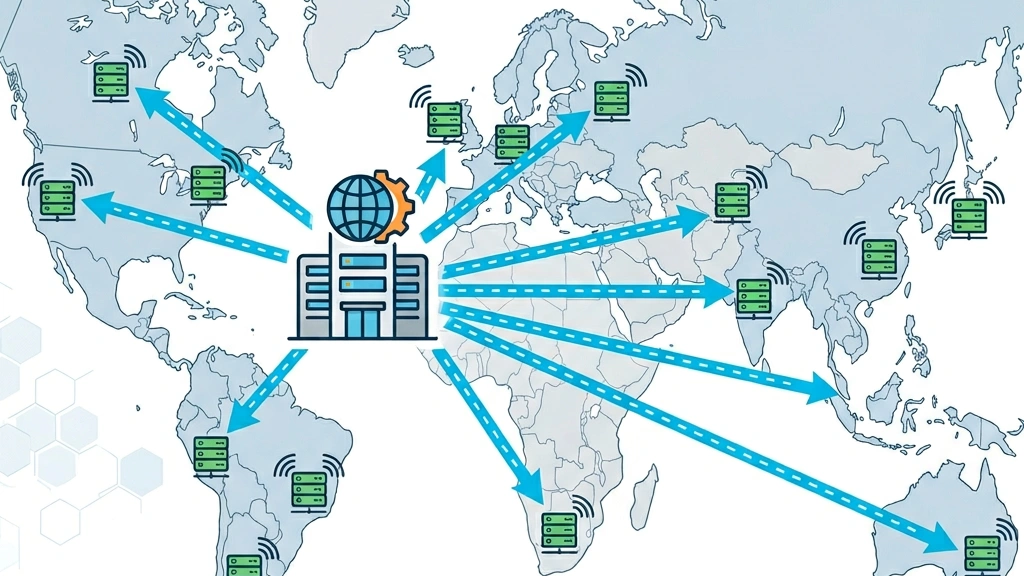
A content delivery network (CDN) is a collection of edge servers strategically placed in data centers around the world. When a visitor requests a file — such as an image, CSS stylesheet, or JavaScript bundle — the CDN routes the request to the nearest edge node. That node either serves the file from its cache (a pull zone when it has already fetched it from the origin) or pulls it from the origin server on first request and then stores it for subsequent visits. The process reduces the distance data travels, shortens round-trip time, and eases the load on the origin web server.
The DNS layer plays a crucial role. When you point your domain’s DNS nameservers to a CDN provider, the provider’s DNS answers with the IP address of the closest edge node. The browser then connects directly to that node, bypassing the origin for cached assets. This is why a proper joomla cdn setup begins with DNS configuration before any code changes.
There are two main CDN delivery models worth understanding:
Most Joomla administrators prefer the pull model because it works transparently with the CMS’s file structure.
Core Web Vitals — Largest Contentful Paint (LCP), First Input Delay (FID), and Cumulative Layout Shift (CLS) — are heavily influenced by the time it takes for the first byte (TTFB) and the speed at which large visual assets load. By serving images, fonts, and scripts from edge servers, a CDN can lower TTFB by up to 70% and improve LCP dramatically. In practice, we see page load times drop from 4 seconds to under 2 seconds for sites with global traffic.
Beyond raw speed, a CDN adds DDoS protection, HTTP/2 support, and automatic compression (Brotli or Gzip). These features collectively raise the cache hit ratio and keep server response time low, which in turn benefits SEO and user satisfaction. When you combine a CDN with Joomla’s built-in caching, the result is a leaner, faster site that meets the thresholds outlined in the Google Core Web Vitals documentation.
For a broader look at Joomla performance tuning, including server-side optimizations and database tweaks, we recommend reading our Joomla speed optimization guide.
Selecting the right provider is the most important decision in any joomla cdn setup. The provider you choose affects pricing, geographic coverage, security features, and how smoothly the CDN integrates with Joomla extensions.
Cloudflare offers a generous free tier that includes global edge coverage, automatic HTTPS, and basic DDoS mitigation. For many Joomla owners, the free plan provides enough bandwidth and features to start seeing performance gains right away. The provider’s dashboard lets you create page rules that control caching behavior, set up custom caching levels, and enable Brotli compression with a single click.
Because Cloudflare operates as a reverse proxy, you do not need to modify your Joomla code to begin delivering static files through the network. Simply point your DNS nameservers to Cloudflare and traffic flows through the edge automatically. The free SSL certificate that comes with every Cloudflare account also pairs well with a proper Joomla SSL certificate setup, ensuring all assets load over HTTPS without mixed-content warnings.
When you need more granular control or higher bandwidth limits, paid options such as KeyCDN, BunnyCDN, and StackPath become attractive.
| Provider | Price per GB | Edge Locations | Pull Zone | Notable Feature |
|---|---|---|---|---|
| **KeyCDN** | $0.04 | 35+ | Yes | Real-time analytics, HTTP/2, instant purge |
| **BunnyCDN** | $0.01-0.03 | 50+ | Yes | Hotlink protection, custom TLS, low cost |
| **StackPath** | $0.04-0.08 | 45+ | Yes | Integrated WAF, edge scripting |
KeyCDN offers a pay-as-you-go pricing model, real-time analytics, and a straightforward API for purging caches. BunnyCDN boasts the lowest price per GB and a feature-rich control panel that includes hotlink protection and custom TLS certificates. StackPath provides a suite of security tools, including web-application firewall rules that can be tailored for Joomla’s URL structure.
Each of these providers supports pull zones, which are ideal for Joomla installations that generate dynamic URLs for media files.
When evaluating a CDN for Joomla, keep an eye on the following criteria:
Choosing a provider that aligns with these points ensures that your joomla cdn setup will scale as your traffic grows. For sites that handle sensitive data or have compliance requirements, we also suggest reviewing our Joomla security tips to create a defense-in-depth strategy alongside the CDN.

This section covers the practical walkthrough for a Cloudflare-based joomla cdn setup. The same principles apply to other providers, with minor UI differences.
1. Visit the Cloudflare homepage and sign up for a free account.
2. Click Add a Site, enter your Joomla domain (e.g., example.com), and let Cloudflare scan your DNS records.
3. Review the automatically imported records. Make sure the A record points to your web server’s IP and that any subdomains used for media (like media.example.com) are also listed.
4. Confirm the plan selection (Free is sufficient for most Joomla sites) and proceed.
During the scan, Cloudflare pulls in all existing DNS entries. We recommend checking that mail records (MX) and any SPF/DKIM entries are intact so email delivery is not disrupted.
Cloudflare will provide two nameserver addresses (e.g., ara.ns.cloudflare.com and bob.ns.cloudflare.com). Log into your domain registrar’s control panel and replace the existing nameservers with the ones Cloudflare gave you. Propagation typically completes within a few minutes, but you can verify the change using dig:
dig NS example.com +short
When the output matches the Cloudflare nameservers, the DNS layer is now pointing traffic to the CDN’s edge network. Until propagation finishes, the site continues to work normally from the origin.
Page Rules let you fine-tune how Cloudflare treats specific URL patterns. For a typical Joomla site, create the following rules:
Rule 1 — Cache static assets site-wide:
| Pattern | Setting | Value |
|---|---|---|
| `*example.com/*` | Cache Level | Cache Everything |
| `*example.com/*` | Edge Cache TTL | 1 month |
| `*example.com/*` | Brotli | On |
Rule 2 — Bypass cache for the administrator area:
| Pattern | Setting | Value |
|---|---|---|
| `*example.com/administrator/*` | Cache Level | Bypass |
| `*example.com/administrator/*` | Security Level | High |
This ensures that Joomla’s dynamic admin pages are never served from cache, while front-end static assets are distributed globally. After saving the rules, purge the cache once so that fresh copies of all files are fetched from your origin.
While Cloudflare’s reverse-proxy approach already caches static files, a dedicated Joomla extension gives you finer control over which URLs get rewritten to the CDN domain. This is especially useful when using a non-proxy CDN like KeyCDN or BunnyCDN.
The CDN for Joomla extension on JED by Regular Labs is the most widely used option. If you are new to adding extensions, our guide on how to install Joomla extensions covers the process in detail.
1. Download the latest package from the Regular Labs website or install directly via URL.
2. In the Joomla administrator, go to System > Install > Extensions, upload the zip file, and click Upload & Install.
3. After installation, head to System > Plugins, search for “CDN for Joomla”, and set its status to Enabled.
The plugin operates as a system plugin, meaning it intercepts the HTML output before it reaches the browser and replaces local URLs with CDN URLs.
Within the plugin’s configuration, locate the CDN URL field. Enter the base URL of your CDN pull zone, which typically looks like https://cdn.example.com. If you are using Cloudflare without a custom subdomain, you can leave this field blank because Cloudflare’s reverse proxy already serves all assets from the edge.
For KeyCDN or BunnyCDN setups, the pull zone URL is generated when you create a new zone in their dashboard. Paste that URL into the plugin, save, and the extension will automatically rewrite all matching URLs in the rendered HTML.
The extension allows you to specify file extensions that should be routed through the CDN. For optimal performance, include:
You can also exclude admin-area assets to avoid accidental caching of dynamic backend pages. After saving the configuration, clear Joomla’s cache and verify that front-end URLs now contain the CDN domain by inspecting the page source in your browser.

Once the basic joomla cdn setup is running, we can fine-tune several server-level settings to maximize the performance gains.
While Cloudflare handles Brotli compression automatically, you should also enable Gzip on the origin server as a fallback. Add the following directives to your .htaccess file in the Joomla root directory:
<IfModule mod_deflate.c>
    AddOutputFilterByType DEFLATE text/plain
    AddOutputFilterByType DEFLATE text/html
    AddOutputFilterByType DEFLATE text/xml
    AddOutputFilterByType DEFLATE text/css
    AddOutputFilterByType DEFLATE application/xml
    AddOutputFilterByType DEFLATE application/xhtml+xml
    AddOutputFilterByType DEFLATE application/rss+xml
    AddOutputFilterByType DEFLATE application/javascript
    AddOutputFilterByType DEFLATE application/x-javascript
    AddOutputFilterByType DEFLATE font/woff
    AddOutputFilterByType DEFLATE font/woff2
</IfModule>
This ensures that any request that bypasses the CDN (for example, a direct origin request during cache miss) still receives compressed content. Brotli typically achieves 15-20% better compression than Gzip for text-based files, which translates directly to faster page load speed.
Control over cache duration helps browsers and edge nodes keep assets longer, reducing repeat requests. Insert the following into .htaccess:
<IfModule mod_expires.c>
    ExpiresActive On
    # Images - cache for 1 year
    ExpiresByType image/jpg "access plus 1 year"
    ExpiresByType image/jpeg "access plus 1 year"
    ExpiresByType image/png "access plus 1 year"
    ExpiresByType image/gif "access plus 1 year"
    ExpiresByType image/webp "access plus 1 year"
    # CSS and JS - cache for 6 months
    ExpiresByType text/css "access plus 6 months"
    ExpiresByType application/javascript "access plus 6 months"
    # Fonts - cache for 1 year
    ExpiresByType font/woff2 "access plus 1 year"
    ExpiresByType font/woff "access plus 1 year"
</IfModule>
These headers work alongside the CDN’s Edge Cache TTL setting. The origin tells the CDN how long files remain valid, and the CDN respects that duration before re-fetching from the origin.
Joomla ships with a built-in page cache that stores rendered HTML fragments on the server. To activate it, go to System > Global Configuration > System and set Cache to On – Conservative caching. Then set the Cache Handler to File and choose a reasonable Cache Time (15-30 minutes for most sites).
The CDN and Joomla’s cache operate on different layers. Joomla’s cache reduces PHP processing and database queries on the origin, while the CDN reduces network latency by serving static files from the edge. Together, they produce a compounding effect: the origin responds faster because it does less work, and the CDN delivers that faster response from a closer location.

After completing the configuration, a thorough test confirms that the CDN is delivering assets correctly and that your Core Web Vitals scores have improved.
Run a GTmetrix test on your homepage and compare the results against a baseline you captured before the joomla cdn setup. Pay special attention to:
Follow the same URL in Google PageSpeed Insights. The “Serve static assets with an efficient cache policy” recommendation should disappear once the CDN cache headers are in place. If the tool still flags this, double-check that your .htaccess expiration rules are being applied.
A quick curl command confirms that a request is being served from the CDN:
curl -I https://example.com/templates/cassiopeia/css/template.css
You should see headers such as:
HTTP/2 200
cf-ray: 7a1b2c3d4e5f6g7h-ORD
content-encoding: br
cache-control: public, max-age=2592000
server: cloudflare
The presence of cf-ray (Cloudflare) or a similar provider-specific header confirms that the edge node delivered the file. The content-encoding: br header verifies that Brotli compression is active.
Set up a simple monitoring script that records TTFB daily:
#!/bin/bash
URL="https://example.com"
DATE=$(date +%Y-%m-%d)
TTFB=$(curl -w "%{time_starttransfer}" -o /dev/null -s "$URL")
echo "$DATE,$TTFB" >> /var/log/cdn-ttfb.csv
Run this via a cron job and chart the results weekly. If you notice a gradual increase in TTFB, it may signal a drop in cache hit ratio or a need to purge stale content. Cloudflare also provides built-in analytics under Analytics > Performance that show bandwidth saved, cache hit ratio, and request distribution by country.
Even a carefully executed joomla cdn setup can run into problems. Below are the most frequent issues and their solutions.
When the site is served over HTTPS but some assets still load via http://, browsers display mixed-content warnings and may block the insecure resources entirely. To fix this:
1. Enable Automatic HTTPS Rewrites in Cloudflare.
2. In the CDN extension, make sure the CDN URL starts with https://.
3. Search your template files for any hard-coded http:// references and update them to https:// or protocol-relative //.
4. Clear Joomla’s cache and purge the Cloudflare cache.
If you are still having SSL issues, our Joomla SSL certificate setup guide covers the full HTTPS configuration for Joomla.
If CSS or JS files return 404 errors from the CDN, work through this checklist:
If the problem persists, temporarily disable the CDN plugin and load the site to confirm the issue is CDN-related rather than a broken template file.
Whenever you update a template, add new media, or change a CSS file, the CDN may still serve the old version. Use Cloudflare’s Purge Everything button for a quick reset, or automate the process with the API:
curl -X POST "https://api.cloudflare.com/client/v4/zones/ZONE_ID/purge_cache" \
     -H "Authorization: Bearer API_TOKEN" \
     -H "Content-Type: application/json" \
     --data '{"purge_everything":true}'
Replace ZONE_ID and API_TOKEN with your credentials. You can also use selective purging to clear only specific URLs, which is faster and avoids flooding the origin with cache-miss requests. For other providers, consult their API documentation for equivalent endpoints.

Yes. Several providers offer free tiers that work well with Joomla. Cloudflare’s free plan includes unlimited bandwidth, automatic SSL, and a global edge network. For small to medium Joomla sites, the free plan is more than enough. Paid plans add features like advanced WAF rules, priority support, and image optimization, but they are not required for a basic joomla cdn setup.
A CDN improves page load speed and Core Web Vitals scores, both of which are ranking signals in Google’s algorithm. Faster LCP and lower TTFB also improve user experience metrics like bounce rate and session duration, which indirectly support SEO performance.
Technically you can, but it adds complexity and can cause debugging headaches. A single CDN with a well-configured pull zone is usually sufficient for most Joomla sites. If you need a push zone for large media files alongside a pull CDN for static assets, it is possible but requires careful URL management in the CDN plugin.
Absolutely. Joomla’s page cache stores rendered HTML on the server, while the CDN caches static assets at the edge. They operate on different layers and complement each other. Enabling both gives you the best of both worlds: faster server response and faster asset delivery.
Use Cloudflare Page Rules to bypass the cache for particular URL patterns, such as example.com/checkout/ or example.com/administrator/. In the CDN for Joomla plugin, you can also exclude specific menu items or URL patterns from URL rewriting, which effectively disables CDN delivery for those pages while keeping it active for the rest of the site.
A properly configured joomla cdn setup reduces latency, strengthens security, and boosts Core Web Vitals — all without touching Joomla’s core files. The combination of a global edge network, the CDN for Joomla extension, and careful cache-header tuning gives us a fast, resilient site ready to serve visitors from any region.