How to Set Up a Joomla Multilingual Site : 14 Steps [2026]
Joomla's built-in multilingual system end to end — language packs, the Language Filter plugin, per-language menus, associations and the failures that produce a blank homepage.

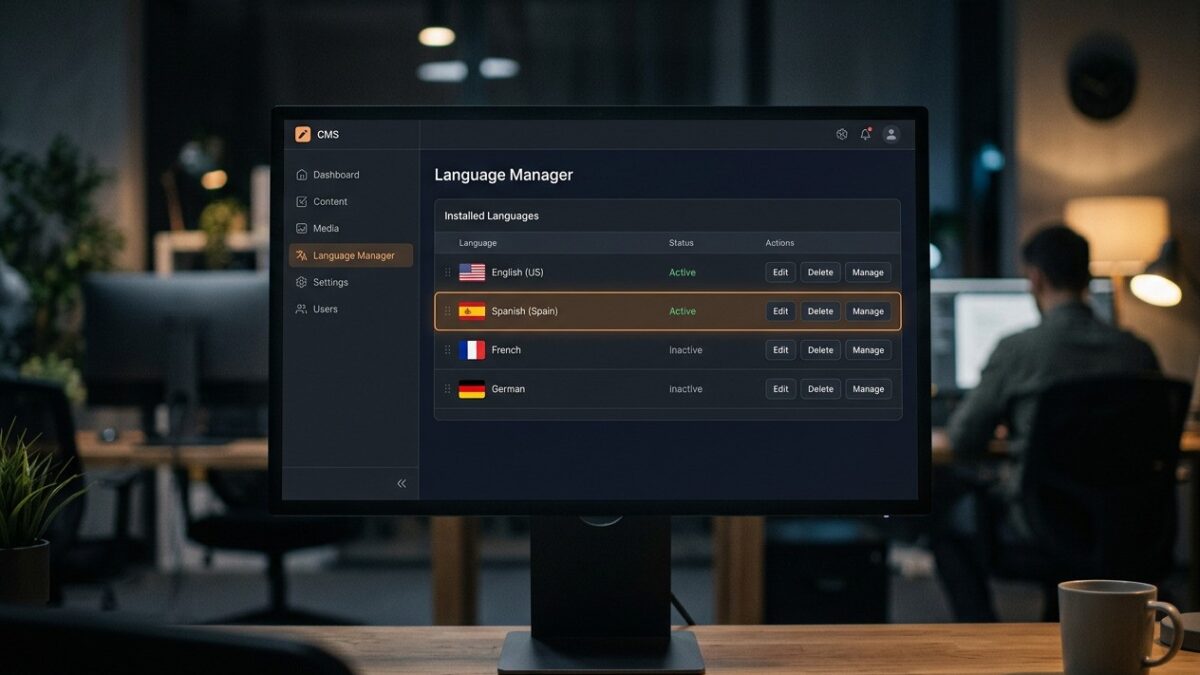
You have a working Joomla 5 site that needs a second language, and every tutorial either pushes a paid extension you do not need or skips the settings that make the site go blank the moment you enable the Language Filter. Joomla has shipped a complete multilingual system in the core since 1.6 — it works, it is free, and it is genuinely good — but it is unforgiving about setup order and fails with almost no diagnostic output.
This is the full sequence for Joomla 5.x, in the order that works, with each classic failure explained where it occurs.
How Joomla’s multilingual system actually works
Joomla does not translate anything, does not link translations automatically, and does not detect what language content is in. It tags every item — article, category, menu item, module, contact — with a language, then filters output by the language the visitor is browsing in. You write each translation yourself, as a separate item.
Three layers have to line up:
| Layer | What it is | Where it lives |
|---|---|---|
| Installed language pack | The actual translation files for Joomla’s own interface strings | System → Manage → Languages (Site and Administrator tabs) |
| Content Language | A record telling Joomla “this language exists as a content language, and its URL code is fr“ |
System → Manage → Content Languages |
| Language Filter plugin | The thing that actually filters output and routes URLs | System → Manage → Plugins → System – Language Filter |
Pack installed but no Content Language record: nothing happens. Content Language present but unpublished: the language silently vanishes from the switcher. Language Filter enabled before each language has a published default home menu item: blank page or error. That last one is the most common Joomla multilingual support question, and it is purely a setup-order problem.
Enabling the Language Filter changes every URL on the site, and getting the sequence wrong on a live site means serving 404s while you debug. Build the structure on a staging subdomain first. The failure modes here take out the whole front end, not one page.
Step 1: Install the site language packs
Install both the site and administrator packs
Go to System → Install → Languages. This screen reads from the Joomla project’s accredited translation list and installs with one click — you do not need to download anything manually.
Search for your language, tick it, and click Install. Joomla 5 installs the site and administrator packs together as a single accredited package. If the language is not listed, the pack may be unaccredited or lagging the current release — install an older pack manually via System → Install → Upload Package File. Untranslated strings fall back to English rather than breaking.
Then check System → Manage → Languages, Site tab: the new language should show as Enabled. Leave English as the default for now — changing the default site language before the rest of the structure exists is another route to an unreachable homepage.
Step 2: Publish the Content Languages
This is the step people skip, on the assumption that installing the pack is enough. It is not: a language pack translates the interface, while a Content Language record is what allows content to be tagged with that language at all.
Publish a Content Language for every language you will use
Go to System → Manage → Content Languages. Joomla creates a record automatically when you install a language pack in 5.x, but it may be unpublished. Set the status of each language you want to Published.
Open each record and check three fields:
- URL Language Code — this becomes the URL segment. Use the short form:
en,fr,de, noten-GB. It must be unique. - Language Tag — this must exactly match the installed pack, e.g.
fr-FR. If it does not match an installed pack, the language will not work. - Image Prefix — the flag icon shown in the switcher, e.g.
fr. Cosmetic only.
Once the site is indexed, changing a URL Language Code from fr to fr-fr rewrites every URL under that language. Decide now. Use the short two-letter form; reserve the regional form (pt-br versus pt-pt) for cases where you genuinely serve both variants as separate content.
Step 3: Create a menu per language
Here is the structural rule that everything else depends on: each content language needs its own menu, and each of those menus needs its own Default Home menu item.
Not one menu with items tagged in different languages — separate menus. This is not stylistic: the Language Filter routes the visitor to the default home item matching the current language, and if that item does not exist there is nowhere to route to.
Create one menu per language
Go to Menus → Manage → Add New Menu. Create a menu for each language with a clear title and unique type:
Title: Main Menu (English)      Unique Name: mainmenu-en
Title: Menu Principal (Français) Unique Name: mainmenu-fr
Title: Hauptmenü (Deutsch)       Unique Name: mainmenu-de
Keep the original mainmenu for English rather than creating a new one, if you already have a populated site — retagging is less work than rebuilding.
Create a Default Home item in each menu, tagged to its language
In each language menu, create a menu item. Type does not matter much for the moment — Featured Articles is the usual choice. Then set two fields on it:
- Default Page: Yes
- Language: the specific language, never All
Joomla 5 will happily hold several default home items simultaneously, one per language, and shows a small flag against each in the menu item list. If you see only one home item with a star and no flags, you have not tagged them and the Language Filter will fail.
Front end blank, or “Error: 404 Page not found” on the homepage, right after enabling the filter? A content language has no published default home menu item. Disable the plugin from the admin (which still works), create the missing home items, re-enable. Nothing is broken and nothing is lost.
Step 4: Enable the Language Filter plugin
Enable it, then configure it before testing
Go to System → Manage → Plugins, search for language filter, and open System – Language Filter. Set Status to Enabled, then work through the options below before you save and look at the front end.
The plugin’s settings decide most of the site’s multilingual behaviour. These are the ones that matter:
| Setting | Recommended | What it actually does |
|---|---|---|
| Language Selection for new Visitors | Site Default | “Browser Setting” uses Accept-Language. It feels clever and causes support tickets — a visitor sharing a link to the French page can have a colleague land on German. |
| Automatic Language Change | Yes | When an association exists, switching language lands on the equivalent page rather than the homepage. |
| Item Associations | Yes | Enables the association fields on articles and menu items. Without this, the switcher always dumps visitors on the homepage. |
| Remove URL Language Code | No | Yes strips /en/ from the default language. Tempting for tidiness; see the warning below. |
| Cookie | Yes | Remembers the visitor’s chosen language across sessions. |
| Add Alternate Meta Tags | Yes | Outputs hreflang automatically from your associations. This is the single most valuable SEO setting on the page. |
Yes gives example.com/about for English and example.com/fr/a-propos for French. Cleaner, and legitimate — but it makes the default language structurally unlike every other, complicating redirects, analytics segmentation and any later language addition. Unless you are retrofitting onto an established English site whose URLs cannot change, leave it as No.
Step 5: Tag your existing content
If the site already has content, every item is currently tagged All, and the rule is counter-intuitive: “All” is almost never what you want for articles.
| Item type | Tag as | Why |
|---|---|---|
| Articles | Specific language | An article tagged All appears in every language’s listings, in whatever language it was actually written in |
| Categories | Specific language | Create parallel category trees per language; an All category collects articles from every language |
| Menu items | Specific language | Required for routing; an All menu item is reachable under every language prefix, creating duplicate URLs |
| Menu module (per language) | Specific language | Each language’s menu module shows only under that language |
| Language switcher module | All | Must be visible in every language, obviously |
| Logo / footer / purely visual modules | All | No text, or text that does not need translating |
Retag efficiently with batch processing: in Content → Articles, filter by category, tick all, and use the Batch button — it has a Set Language dropdown.
You translate an article into French, tag it French, and it does not appear. Nine times out of ten the category is still tagged English, or the menu item pointing at it is. Joomla filters the whole chain — menu item, category, article — and every link must be the current language or All. Check the category before the article.
Step 6: Build the parallel content structure
The cleanest structure mirrors itself across languages. For a three-language site:
Categories
├── EN
│   ├── News          (Language: English)
│   └── Services      (Language: English)
├── FR
│   ├── Actualités    (Language: Français)
│   └── Services      (Language: Français)
└── DE
    ├── Nachrichten   (Language: Deutsch)
    └── Leistungen    (Language: Deutsch)
The top-level containers are optional but make the admin far easier to navigate at a hundred categories; tag the container with its language too. A flat structure works and gives shorter URLs, but becomes unmanageable around the fourth language.
Step 7: Create associations between translations
An association tells Joomla that an English article and a French article are the same page in different languages. It powers two things: the switcher landing on the equivalent page rather than the homepage, and the hreflang tags.
Associate articles as you translate them
Open the French article, go to the Associations tab, select the corresponding English article. Joomla writes it in both directions — once per pair. Do the same for menu items; those matter more, because they govern the switcher on category listings and contact pages.
Joomla 5 also ships a Multilingual Associations component giving you a side-by-side editor: source on the left, target on the right. For sustained translation work it is far faster than two browser tabs.
“Add Alternate Meta Tags” generates hreflang from associations. No associations, no hreflang — so search engines treat your language versions as unrelated pages and may read near-identical ones as duplicates. Associating menu items is the highest-value five minutes here.
Step 8: Language-specific modules
Every module has a Language field on its right-hand panel, and it is the mechanism for showing the right menu, the right sidebar text and the right call to action per language.
Duplicate and retag your menu modules
In Content → Site Modules, open your existing Main Menu module. Use Save as Copy to create one per language. For each copy set:
- Select Menu: the corresponding language menu (
mainmenu-fretc.) - Language: the corresponding content language
- Position: the same position as the original
- Menu Assignment: On all pages
All three modules sit in the same position; the Language Filter ensures only one is ever rendered.
The same pattern applies to any module with visible text: custom HTML blocks, search placeholders, login labels. If a module has no text at all, leave it as All.
Step 9: Add the language switcher
Publish the Language Switcher module
Go to Content → Site Modules → New and choose Language Switcher. Set:
- Position: a header or top position in your template
- Language: All — this is one of the few modules that genuinely should be All
- Menu Assignment: On all pages
- Use Dropdown: No for two or three languages, Yes above that
- Use Image Flags: your call, but flags represent countries rather than languages and are a poor fit for e.g. Spanish or Arabic. Text labels age better.
Show the current language in the switcher rather than hiding it — visitors need to know which version they are looking at.
Step 10: SEF URL structure per language
With the Language Filter running and SEF URLs on in Global Configuration, your URLs take this shape:
| Configuration | English URL | French URL |
|---|---|---|
| Default (code kept) | example.com/en/services |
example.com/fr/services |
| Remove URL Language Code = Yes | example.com/services |
example.com/fr/services |
| URL rewriting off | example.com/index.php/en/services |
example.com/index.php/fr/services |
| Adds Suffix to URL = Yes | example.com/en/services.html |
example.com/fr/services.html |
The language segment is inserted by the Language Filter, not the SEF router, which is why it sits before the menu path. If you see index.php in your URLs, either URL Rewriting is off or you have not renamed htaccess.txt to .htaccess. The menu alias determines the rest, and there is no requirement that aliases match across languages — /en/services and /fr/nos-prestations is correct, because the alias should be in the language of the page.
Step 11: Verify hreflang output
With associations in place and “Add Alternate Meta Tags” set to Yes, view source on any associated page. You should see this in the <head>:
<link href="https://example.com/en/services" rel="alternate" hreflang="en-GB" />
<link href="https://example.com/fr/nos-prestations" rel="alternate" hreflang="fr-FR" />
<link href="https://example.com/de/leistungen" rel="alternate" hreflang="de-DE" />
Check three things: that the tags are present at all (if not, associations are missing or the meta tag option is off); that each page includes a self-referencing tag, which Joomla does emit and search engines expect; and that the URLs are absolute and use the right protocol. If your hreflang URLs say http:// while the site serves https://, check Force HTTPS and the $live_site value in configuration.php.
Joomla does not emit an x-default tag. If you want one — worth having when you have a language-selection landing page or a clear fallback — it needs a template override on the head renderer or a small system plugin. It is not a core option.
Step 12: Handle the untranslated-content problem
An article will exist in English and not yet in French. Leaving it out of the French site is the correct default — a missing page beats an English page presented as French content. Tagging it All is occasionally right for a press release or a visual portfolio item, but it dilutes that language’s relevance signals. Publishing raw machine translation is the option to avoid: two years later nobody knows which of the 400 French pages a human actually wrote.
Step 13: Override interface strings, do not edit them
Menu item and module titles are per-item, so the duplication above handles them. Strings from Joomla itself — “Read more”, “Written by”, validation messages — come from the language pack, and editing its INI files means losing your changes at the next update. Use System → Manage → Language Overrides instead: pick the language, search the constant, enter a replacement. Overrides survive updates and live in /language/overrides/.
; /language/overrides/fr-FR.override.ini
COM_CONTENT_READ_MORE_TITLE="Lire la suite"
JGLOBAL_ARTICLES="Nos articles"
Step 14: Final verification pass
Work through this on the front end, in a private browsing window so cookies do not mask problems: the homepage loads in the default language with the expected prefix; the switcher shows every published content language; switching from the homepage lands on the other homepage rather than a 404; switching from a deep associated page lands on the equivalent page; switching from an unassociated page lands on the homepage (correct behaviour, not a bug); each language’s menu shows only its own items; a French category listing shows only French articles; <html lang> matches the page; hreflang tags are present and absolute; and search and 404 pages both respect the current language.
The core system is right when each language has genuinely separate content and its own navigation. It is the wrong tool if you want one article record with translated fields in a side-by-side editor, or translations of third-party component data such as a shop catalogue that the core cannot filter. A dedicated extension is reasonable there — but confirm Joomla 5.x support first, since several well-known multilingual extensions never made the Joomla 4 transition.
Troubleshooting reference
| Symptom | Likely cause | Fix |
|---|---|---|
| Blank homepage after enabling Language Filter | Missing default home menu item for one language | Create a published Default Page menu item tagged to each language |
| Language switcher shows one language only | Content Language unpublished | Publish it in System → Manage → Content Languages |
| Translated article does not appear | Parent category still tagged to another language | Check the whole chain: menu item → category → article |
| Switcher always returns to homepage | No associations, or Item Associations disabled | Enable Item Associations in the plugin, then associate menu items |
Same content on /en/x and /fr/x |
Item tagged All | Tag it to a specific language, or accept the duplication deliberately |
No hreflang in source |
Add Alternate Meta Tags off, or no associations | Enable the option; create associations |
| Admin interface in the wrong language | Per-user language setting | Users → Manage → your account → Basic Settings → Backend Language |
| Menu module appears under every language | Module Language still All | Set the module’s Language field |
Frequently asked questions
Do I need an extension for a multilingual Joomla 5 site?
No. Everything here is core Joomla 5.x. Extensions are worth considering only for side-by-side translation editing at volume, or for translating a third-party component’s own data tables. For a brochure or publisher site the core system is complete.
Why does my homepage go blank when I enable the Language Filter?
Because a published content language has no default home menu item tagged to it, so the plugin tries to route there and finds nothing. Disable the plugin from the administrator, create a Default Page menu item in each language menu with its Language field set, then re-enable.
Should I set content to “All” or to a specific language?
Specific language for anything with readable text: articles, categories, menu items, text modules. “All” only for structural or visual items — the switcher, a logo, a decorative banner. An article tagged All appears in every language’s listings in whatever language it was written in.
Can I remove the /en/ prefix from my default language?
Yes, via “Remove URL Language Code” in the Language Filter plugin. Valid, but it makes the default language structurally unlike the others, complicating redirects and analytics later. On a new site, keep the prefix.
Does Joomla translate my content automatically?
It does not. Joomla tags and filters; you write each translation. Machine translation extensions can produce a usable first draft, but publishing untouched output is a mistake you will still be paying for in two years.
How many languages can a Joomla site handle?
There is no hard limit, and eight- or ten-language sites are common. The ceiling is editorial rather than technical: each language multiplies your menus, modules and content items, so a ten-language site is ten sites’ worth of maintenance regardless of how well Joomla copes.
My site uses subdomains per language. Does this guide apply?
Partly. Running fr.example.com as a separate installation is a different architecture — no Language Filter, no associations, no shared content, and you generate hreflang yourself. Reasonable for genuinely independent regional sites with different teams; wrong if the sites are translations of one another.