Joomla 4 to Joomla 5 Upgrade : Pre-Flight Checklist [2026]
The 4 to 5 upgrade is genuinely simple. This is how to do it without being the person whose site broke anyway.

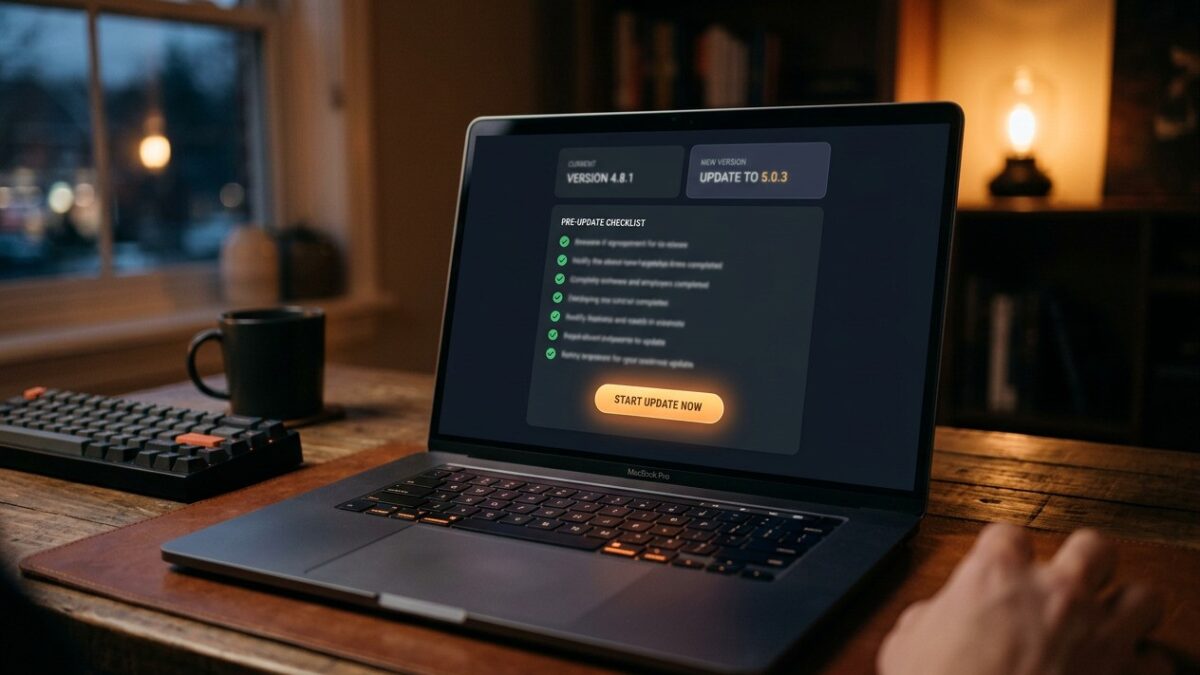
Joomla Update is showing you a Joomla 5 release and a button, and you are wondering whether clicking it on a Tuesday afternoon is a reasonable thing to do. Usually, yes — the 4 to 5 upgrade is genuinely straightforward, unlike the 3 to 4 migration that gave major Joomla upgrades their reputation.
But “usually” is doing work in that sentence. Three things reliably turn a ten-minute update into a broken site: a PHP version below 8.1, an extension relying on APIs that Joomla 5 removed, and custom code or an older template written against deprecated interfaces. This is the pre-flight checklist that finds all three before you click.
Why this upgrade is not the last one
Joomla 4 was a rewrite of Joomla 3. Joomla 5 is not a rewrite of Joomla 4 — it is the same architecture with deprecated code removed and some modernisation applied. Your Joomla 4 template will work. Your overrides will mostly work. Most extensions will work unchanged.
The removals are the whole risk surface. Joomla 4 kept a large amount of Joomla 3-era code marked deprecated, precisely so extensions had a transition period. Joomla 5 deleted it. Anything still calling those old interfaces stops working at the moment of upgrade, with a fatal error rather than a warning.
| Aspect | Joomla 3 → 4 | Joomla 4 → 5 |
|---|---|---|
| Architecture | Rewritten | Unchanged |
| Your template | Will not work | Almost certainly works |
| Your overrides | Need rebuilding | Usually fine; verify |
| Extensions | Most need new versions | Most work as-is |
| PHP minimum | 7.2.5 | 8.1 |
| Realistic time | Days to weeks | Under an hour, plus testing |
| Main failure mode | Everything | Removed deprecated APIs |
Check 1: PHP 8.1 is a hard floor
Joomla 5 requires PHP 8.1 as an absolute minimum and runs on 8.2 and 8.3. There is no configuration flag to relax this and the updater will refuse to proceed below it.
Raise PHP first, and test on Joomla 4
Check your current version in System → System Information → PHP Information. If it is below 8.1, change it in your hosting control panel — cPanel’s MultiPHP Manager or Plesk’s PHP Settings.
Then, before touching Joomla Update, run the site on the new PHP version for a few days on Joomla 4. This is the important part: if something breaks under PHP 8.2, you want to know it was PHP, not Joomla 5. Testing one change at a time is what makes debugging possible.
Choose 8.2 rather than 8.3 unless you have a reason otherwise. Both are supported; 8.2 currently has slightly broader third-party extension coverage, and there is no meaningful performance difference between them for a typical Joomla site.
Moving from PHP 7.4 or 8.0 to 8.1+ is itself a breaking change for older extension code — stricter type handling, removed functions, changed default behaviours. If you make that jump and the Joomla 5 upgrade in the same session, a resulting fatal error has two possible causes and you cannot tell which. Separate them by at least a few days of normal use.
Check 2: The Pre-Update Check
Joomla 4 has this built in and it is worth reading properly rather than glancing at.
Run it from Joomla Update
Go to System → Update → Joomla. If Joomla 5 is not offered, open Options and check the Update Channel — Default follows the current stable line and should offer 5.x; if you are pinned to a 4.x-only channel you will never be offered 5. Note that Joomla 4.4 reached end of life in October 2025, so this upgrade is overdue rather than optional — and once you are on a current 5.4 release, Joomla 6 is the next step.
The Pre-Update Check panel reports two things: your environment against Joomla 5’s requirements (PHP, MySQL, extensions), and a compatibility status for every installed extension.
| Status shown | Meaning | What to do |
|---|---|---|
| Compatible | Developer has published Joomla 5 support | Update it to that version before upgrading core |
| Compatible (with update) | A newer compatible release exists | Install that release first |
| Not compatible | Developer has declared no Joomla 5 support | Find a replacement or accept losing it |
| Unknown / not listed | No published data — not the same as incompatible | Check the developer’s site directly |
“Unknown” is the status that causes trouble, because it appears for anything not listed in the Joomla Extensions Directory — including extensions bundled with commercial templates, anything custom-built for you, and plenty of perfectly current software. Do not treat it as a blocker and do not ignore it. Look it up.
Check 3: Verify extensions yourself
The Pre-Update Check reads published metadata. Published metadata is only as accurate as whoever last updated it.
Confirm compatibility at the source
For each third-party extension, visit the developer’s own site or changelog and confirm Joomla 5 support explicitly. Then update every extension to its current version before upgrading the core.
That ordering matters. Extension developers ship Joomla 5-compatible versions that still run on Joomla 4, precisely so you can update extensions first and core second. Doing it the other way round means running a Joomla 5 core against Joomla 4 extension code, which is exactly the state you are trying to avoid.
Pay particular attention to three categories. Commercial templates, because their bundled framework touches more core APIs than most extensions do. Anything doing authentication or user handling, because those APIs saw significant change. And anything you paid for once, years ago, with a lapsed subscription — you may need to renew to get the compatible build, and finding that out mid-upgrade is unpleasant.
A plugin somebody wrote for you in 2021 will not appear in any compatibility list and will not have been updated. It is the single most likely thing to produce a fatal error on Joomla 5. If you have custom extensions, someone needs to read the code against the list of removed APIs before you upgrade — and if nobody can, the staging test below is not optional, it is the entire safety mechanism.
Check 4: Backup and a real rollback plan
Take a full backup and confirm it restores
Files and database, in one operation, immediately before the upgrade. Then answer, concretely: how do you restore it, where do you restore it to, and how long does that take?
If you cannot answer all three, you do not have a rollback plan. Ten minutes spent restoring the backup to a subdomain now is the cheapest insurance available.
Joomla’s own updater does not offer a downgrade. There is no button that puts you back on 4.4 — restoring the backup is the only route, which is why its integrity matters more than usual.
Check 5: Test on staging
For a small brochure site with stock extensions, upgrading production directly with a fresh tested backup is a defensible risk. For anything carrying revenue, member data, or a custom extension, test on a copy.
Build a staging copy and upgrade that first
- Restore the backup to a subdomain with its own database.
- Update
configuration.php: database credentials,$tmp_path,$log_path. - Set Robots to
noindex, nofollowand disallow inrobots.txt. - Run the full upgrade there and work the post-upgrade checklist.
- Only then repeat on production, now knowing exactly what to expect.
The upgrade itself
Raise limits, then run it
Before clicking, raise two PHP limits — the upgrade writes a large number of files and a timeout partway through leaves a half-upgraded installation:
max_execution_time = 300
memory_limit = 256M
Put the site into Offline mode in Global Configuration. Then System → Update → Joomla, confirm the version offered, click Install the Update, and leave the tab alone until it finishes.
A normal upgrade takes one to three minutes. If the progress display stops moving for more than about five minutes, do not close the tab and do not click again — open the site in a second browser or check System Information from another session to see what version is actually installed.
Reloading a stalled update page or clicking Install again starts a second file-writing process against the same installation. Two concurrent updaters writing the same files produce a genuinely corrupted installation that no amount of re-running fixes — only a restore does. If you think it has stalled, diagnose from a separate session first.
Post-upgrade verification
Work through this in order. Most of it takes seconds; skipping it is how a broken form goes unnoticed for three weeks.
- System Information reports the expected Joomla 5 version.
- The administrator dashboard loads with no error messages at the top.
- System → Manage → Extensions — nothing has been disabled unexpectedly.
- The front end homepage renders with styling intact.
- A deep, non-homepage URL renders — this proves rewriting still works.
- A category listing and a single article both display correctly.
- Every form submits and the email arrives. Checking the form says thank you is not checking the form works.
- Search returns results.
- Front-end login works, if you have registered users.
- Media Manager opens and an upload succeeds.
- Any e-commerce, booking or membership flow completes end to end.
- Browser console shows no new JavaScript errors on key pages.
- Clear all caches, then load the site logged out in a private window.
Set Global Configuration → Server → Error Reporting to Maximum during verification. A page that renders a white screen with reporting off will show you the exact file and line with it on. Set it back to None the moment you are finished — error messages on a production site disclose paths and internals to anyone who can trigger them.
When the upgrade fails partway through
It happens, usually to a timeout or a permissions error. Do not panic and do not immediately re-run.
Establish what state you are actually in
Check /libraries/src/Version.php for the version constants, or load /administrator and look at System Information. You are in one of three states:
- Still on 4.x, nothing changed. The update failed before writing. Fix the cause — usually limits or permissions — and re-run.
- On 5.x but with errors. Files updated, database schema may not have. Go to System → Update → Joomla and use Rebuild Update Sites, then check System → Global Configuration → Database for the schema check tool and run any pending fixes.
- Neither — site will not load at all. Restore the backup. Do not try to repair a half-written installation by hand; you will spend longer than the restore takes and end up restoring anyway.
Joomla 5’s Database screen (System → Maintenance → Database) checks the installed schema against what the version expects and offers to fix discrepancies. If the file update completed but the schema update did not, this is the tool that reconciles it — and running it after any interrupted upgrade is good practice regardless.
| Symptom | Cause | Fix |
|---|---|---|
| Update stops around 30 seconds in | max_execution_time |
Raise to 300, restore, re-run |
| “Cannot write to file” | Directory permissions or ownership | Fix ownership with your host; do not use 777 |
| White screen after upgrade | Fatal error in an extension using a removed API | Error Reporting to Maximum, read the file path, disable that extension |
| Admin works, front end broken | Template or a site-only plugin | Switch to Cassiopeia to confirm, then update the template |
| “Update package not found” | Stale update site records | System → Update → Update Sites → Rebuild |
| Version correct, odd database errors | Schema update incomplete | System → Maintenance → Database, apply fixes |
| Extensions disappeared from menus | Disabled as incompatible during upgrade | Extensions manager, re-enable or install the Joomla 5 build |
Deprecated APIs: what actually hits custom code
If you maintain custom extensions or an older template, these are the changes that produce fatal errors rather than notices.
Removed legacy class aliases. Joomla 4 kept aliases mapping old Joomla 3 class names (JFactory, JHtml, JText and their siblings) to their namespaced replacements. Joomla 5 removed many of them. Code calling JFactory::getDocument() throws a class-not-found error. The fix is mechanical: use the namespaced class and import it.
// Old, removed
$app = JFactory::getApplication();
$db  = JFactory::getDbo();

// Current
use Joomla\CMS\Factory;
$app = Factory::getApplication();
$db  = Factory::getContainer()->get(\Joomla\Database\DatabaseInterface::class);
Direct database object access. Factory::getDbo() is deprecated in favour of retrieving the database service from the DI container, as above. It still functions in 5.x but is on the way out; new code should not use it.
jQuery is no longer assumed. Joomla 4 began removing jQuery dependencies and Joomla 5 continues. A template or extension that calls $(...) without requesting jQuery through the asset manager will produce console errors and non-functioning UI. Either declare the dependency properly or rewrite the code in vanilla JavaScript.
Old-style asset loading. HTMLHelper::_('script', ...) and stylesheet calls still work but the Web Asset Manager is the supported route, and it is what handles dependency ordering and deduplication correctly.
Joomla 5 ships Behaviour – Backward Compatibility, which restores some removed class aliases. Leave it enabled during and after the upgrade so extensions keep working. But understand what it is: a compatibility shim with a limited life, intended to buy you time. Use that time to update or replace the extensions relying on it. A site still depending on the shim when it is eventually removed has the same problem again, with fewer options.
After the upgrade: the housekeeping worth doing
You are already in the site with everything fresh in mind. Five things worth ten minutes:
- Check for extension updates again. Some developers ship a Joomla 5-specific build that only appears once you are on 5.
- Review your overrides. They survived, but core layouts changed between 4 and 5. Diff each against its current core file and port anything you have shadowed.
- Re-check PHP. If you upgraded to 8.1 as the minimum, consider moving to 8.2 now that Joomla 5 is in place.
- Confirm multi-factor authentication is still active on administrator accounts.
- Take a fresh backup of the working Joomla 5 site. Your pre-upgrade backup restores you to Joomla 4; you now want a restore point that does not undo the work.
A condensed pre-flight checklist
- PHP 8.1 or higher, running and tested on Joomla 4 for several days.
- Joomla 4 fully up to date on the 4.4 line.
- Pre-Update Check run and every flagged item resolved.
- Every extension verified compatible at the developer’s own site.
- Every extension updated to its current version, before the core upgrade.
- Custom code reviewed against the removed-API list.
- Full backup taken and test-restored.
- Rollback plan written down with a known restore time.
- Staging upgrade completed successfully, if the site is anything but simple.
max_execution_time300 andmemory_limit256M.- A maintenance window nobody will interrupt.
Frequently asked questions
Can I upgrade Joomla 4 to 5 directly?
Yes. Unlike 3 to 4, this is a normal update through System → Update → Joomla, provided you are on a recent 4.4 release and PHP 8.1 or higher. Get onto the latest 4.4 first — the update path assumes a current 4.x starting point.
Will my Joomla 4 template work on Joomla 5?
Almost certainly. The template system did not change between 4 and 5. What can break is a template loading assets in a deprecated way or assuming jQuery is present. Test the front end thoroughly and check the browser console for new JavaScript errors.
What happens to my template overrides?
They survive the upgrade untouched, because they live in your template directory. But some core layouts changed between 4 and 5, so an override forked from a Joomla 4 file may now shadow improvements or, occasionally, reference something that moved. Diff each override against its current core file afterwards.
Do I have to be on PHP 8.1?
Yes, it is a hard minimum and the updater will refuse below it. Move to 8.2 if your host offers it. Critically, make the PHP change first and run on it for a few days before upgrading Joomla, so that any breakage has one identifiable cause.
The update stalled. Can I just run it again?
Not blindly. First determine what version is actually installed, from System Information in a separate session or by reading /libraries/src/Version.php. Re-running while a first process is still writing corrupts the installation. If the site will not load at all, restore the backup rather than attempting a repair.
Should I keep the Backward Compatibility plugin enabled?
Yes, for now. It restores class aliases that some extensions still need. Treat it as a transition aid rather than a permanent configuration: identify what depends on it, get those extensions updated, and plan to run without it.
How long should I allow?
The upgrade itself is one to three minutes. Verification is twenty to thirty. The pre-flight checks — PHP, extension audit, backup, staging — are where the real time goes, and on a typical site that is an afternoon. Budget half a day and you will not be rushed into skipping the testing.