Physical Address
304 North Cardinal St.
Dorchester Center, MA 02124
Physical Address
304 North Cardinal St.
Dorchester Center, MA 02124

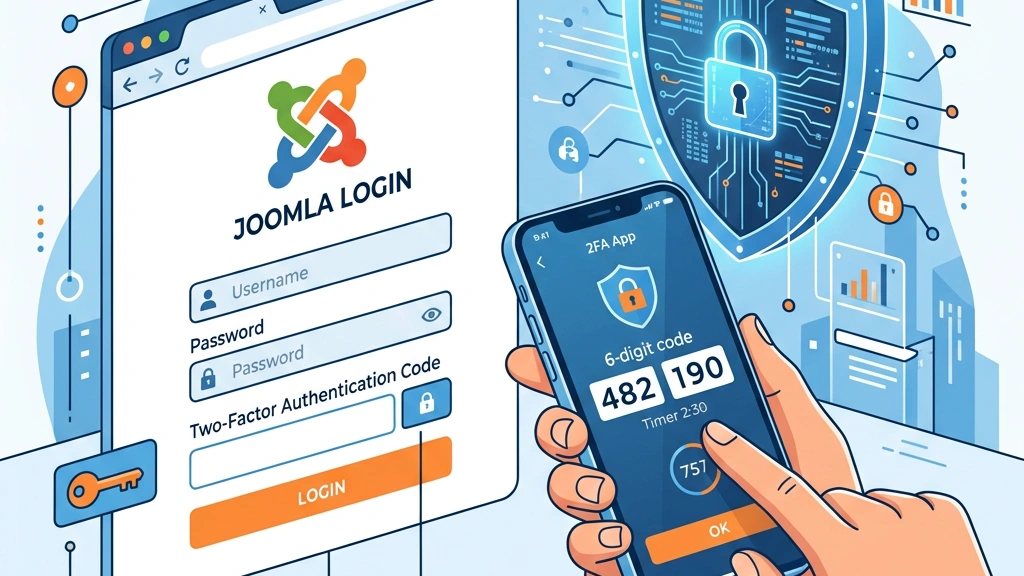


In today’s threat‑rich environment, protecting a Joomla site with more than just a password is essential. We have seen a steady rise in credential‑stuffing attacks, and a single compromised password can give attackers full control of the Joomla admin panel. That is why we recommend enabling joomla two factor authentication for every privileged account on your site.
The Joomla community has been improving its authentication framework for years. Early Joomla 3 installations offered a basic two‑factor system that relied on Google Authenticator or a YubiKey. Starting with Joomla 4.2, the core was renamed to joomla mfa (multi‑factor authentication) and now supports a broader set of methods, including WebAuthn and email codes. Understanding this evolution helps us choose the right configuration for our Joomla 5 sites.
In this guide we walk through the concepts, supported methods, step‑by‑step setup, enforcement policies, admin management, third‑party extensions, and troubleshooting tips. By the end, you will have a solid, actionable plan for securing your Joomla installation with joomla two step verification and related tools.
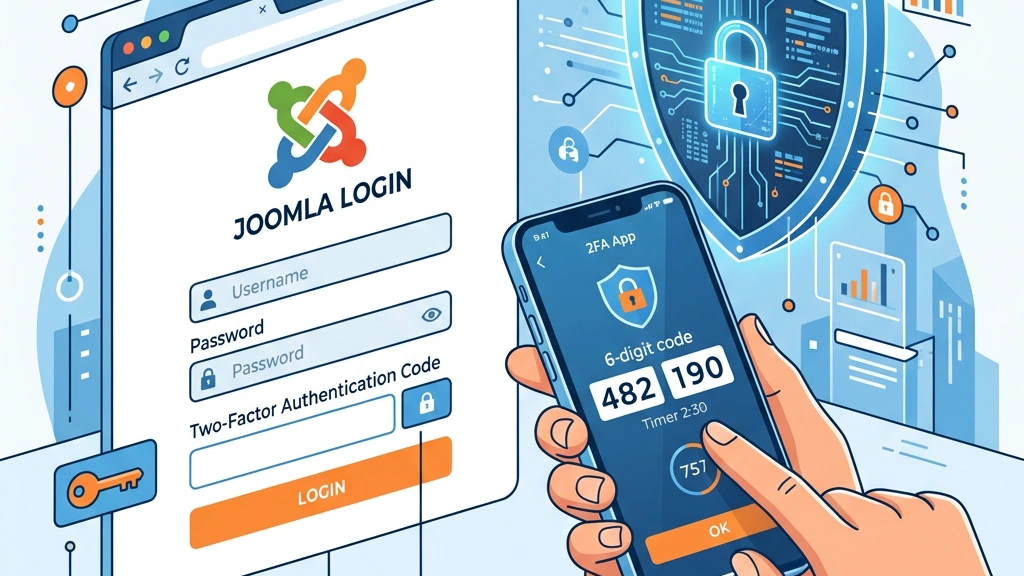
Standard Joomla login asks only for a username and password, which means a single credential can be guessed or stolen. Two‑factor authentication adds a second, independent proof of identity, typically a time‑based code or a hardware token. Because the second factor is generated on a device that the attacker does not possess, the attack surface shrinks dramatically.
When we enable joomla two factor authentication, the login flow inserts an extra screen after the password check. The user must supply a code that matches the secret stored on the server, and the server validates it before granting access. If the code is missing or incorrect, the login is rejected even if the password is correct. This extra barrier is what makes 2FA a powerful addition to the joomla security login process.
The core benefit is not just protection against stolen passwords but also against automated bots that try to guess credentials. Bots typically cannot solve a TOTP or interact with a hardware key, so they are stopped before they reach the Joomla admin area. That is why we treat joomla two factor authentication as a baseline security measure for any production Joomla site.
Joomla 3 introduced a simple 2FA module that supported Google Authenticator and YubiKey, but it was limited to a single method per user. The configuration was stored in plain text, which raised concerns about data exposure. Nevertheless, it gave administrators a first step toward stronger authentication.
With Joomla 4.2 the core was renamed to joomla mfa, and the system now encrypts configuration data with AES‑256. The new architecture allows multiple methods to be attached to a single account, and it supports WebAuthn, which enables Windows Hello, Android biometrics, and other platform authenticators. Automatic migration scripts move legacy 2FA settings into the new MFA tables, so existing users are not forced to re‑configure from scratch.
Joomla 5 builds on this foundation by adding a more flexible onboarding UI, better group‑based enforcement, and an API for third‑party extensions. The terminology “multi‑factor authentication” reflects the fact that we can combine TOTP, hardware keys, email codes, and backup codes in any combination. Understanding this lineage helps us decide whether the built‑in solution meets our needs or if we should look at external plugins.
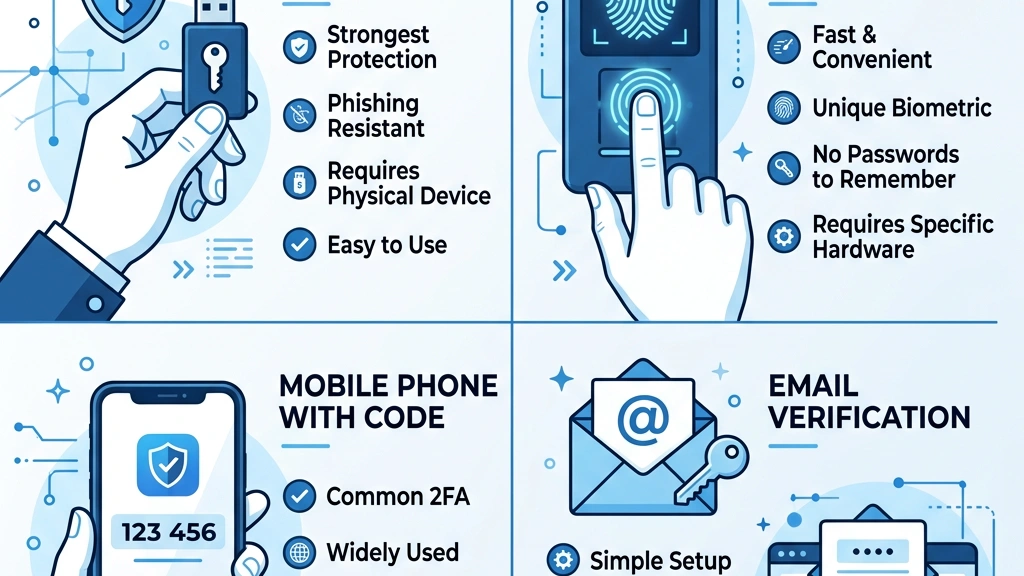
TOTP is the most common method for joomla two factor authentication and works with apps such as Google Authenticator, Authy, or Microsoft Authenticator. The server stores a secret key, and the app generates a six‑digit code that changes every 30 seconds. During login, Joomla validates the code against the stored secret using the standard RFC 6238 algorithm.
To enable TOTP, we first generate a QR code from the user profile page and then scan it with the authenticator app. The secret is encrypted in the database, so even a compromised database does not reveal the raw key. If the user loses the device, they can fall back to backup codes or another configured method.
TOTP works on any platform that can run an authenticator app, making it a universal choice for both desktop and mobile administrators. Because it does not require additional hardware, it is often the first method we recommend when rolling out joomla mfa across a site.
WebAuthn brings a modern, password‑less experience to Joomla by allowing hardware security keys, fingerprint readers, and facial recognition to act as second factors. When a user registers a WebAuthn credential, the browser creates a public‑key pair and stores the private key in a secure enclave on the device. Joomla stores only the public key, which is used to verify signatures during login.
Supported platforms include Windows Hello, Android’s built‑in biometric open, and external keys such as YubiKey 5 Series. The registration flow is initiated from the user profile, and the browser prompts the user to touch the security key or present a biometric. Because the private key never leaves the device, the risk of credential theft is extremely low.
WebAuthn also supports “resident keys,” which means the credential can be used without a username on the same device. That feature is handy for administrators who manage multiple Joomla sites from a single workstation. We often combine WebAuthn with TOTP to give users a choice of second factor based on their workflow.
YubiKey is a hardware token that can operate in several modes, including OTP, FIDO2/WebAuthn, and static password. In Joomla, the most common usage is the FIDO2/WebAuthn mode, which integrates directly with the core MFA system. When a YubiKey is registered, Joomla stores the public key and uses it to verify a signed challenge during login.
The advantage of YubiKey is that it does not rely on a mobile device or an internet connection; the key itself generates the cryptographic response. For administrators who prefer a physical token, YubiKey provides a tactile, reliable second factor. We also enable the YubiKey OTP mode for legacy support, though the WebAuthn mode is preferred for its stronger security guarantees.
If a YubiKey is lost, the user can still access the account using backup codes or another registered method. Therefore, we always recommend configuring at least two methods per account to avoid lock‑outs.
Email codes are a simple fallback method that sends a one‑time numeric code to the user’s registered email address. Joomla generates a random six‑digit value, stores a hash of it for a short period, and dispatches the code via the site’s mail system. During login, the user enters the code they received, and Joomla validates the hash.
While email is less secure than TOTP or WebAuthn because it depends on the security of the user’s mailbox, it is useful for accounts that cannot install an authenticator app. We typically enable email verification as a secondary option, not as the primary factor for privileged users. It also serves as a recovery channel when a user loses access to their hardware token.
Because the code expires after a few minutes, the window for an attacker to intercept it is limited. Nevertheless, we advise administrators to enforce stronger methods for super users and other high‑risk roles.
Backup codes are a set of one‑time use strings that a user can print or store securely offline. When a user generates them, Joomla creates 10‑12 random 12‑character codes, hashes them, and displays the plain text only once. Each code can be used to complete a login when the primary second factor is unavailable.
These codes are essential for disaster recovery, especially when a hardware token is damaged or a mobile device is lost. We recommend that users keep the backup list in a password manager or on a secure physical medium. If all backup codes are exhausted, an administrator can reset the MFA configuration via the backend or a database command.
With joomla two factor authentication properly configured, the backup system is encrypted at rest, and the codes are never transmitted over the network. That design ensures that even a database breach does not reveal usable backup tokens.
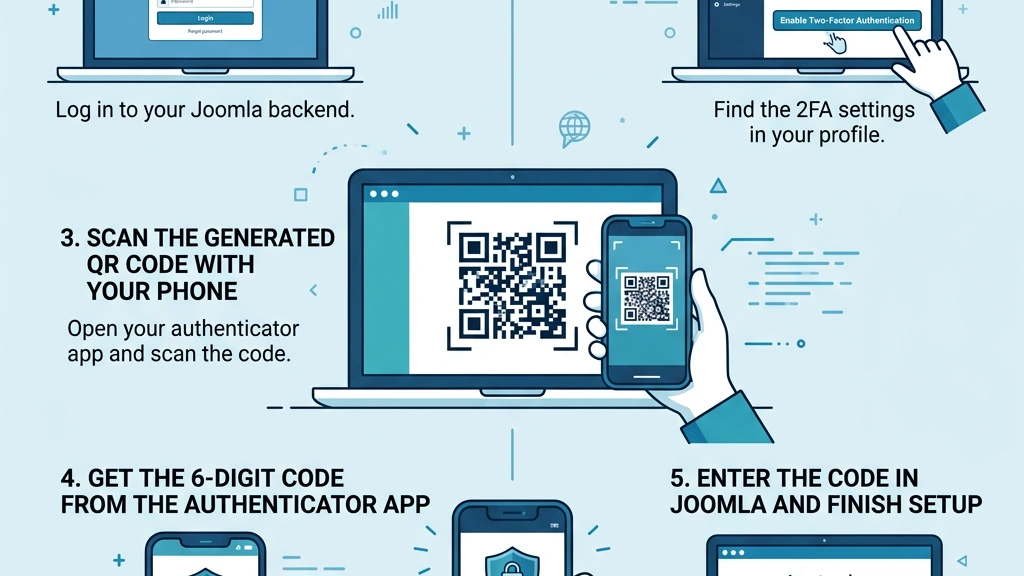
First, we log into the Joomla administrator back‑end and go to Users → Manage. We locate our own account (or the account we wish to secure) and click the username to open the profile editor. On the profile page, the Multi‑Factor Authentication tab appears near the bottom, ready for configuration.
If the tab is missing, we verify that the System – MFA plugin is enabled under Extensions → Plugins and that the site is running Joomla 5 or later. We also check that the user group has permission to edit their own MFA settings — review our Joomla user management guide if you need help with group permissions. Once the tab is visible, we can proceed to select a method.
The interface shows a list of available methods: TOTP, WebAuthn, YubiKey, Email, and Backup Codes. We click Add Method and choose the one that best fits our workflow. From here, the wizard guides us through the configuration steps.
For a typical administrator, we recommend starting with TOTP because it works on any smartphone. We click the TOTP row, then press Configure, which opens a modal containing a QR code and a secret key. If we prefer a hardware token, we select WebAuthn or YubiKey instead, and the wizard will prompt us to insert the device.
Each method has a short description and a “Test” button that lets us verify the setup before saving. We can add multiple methods to the same account by repeating the Add Method step. This flexibility is useful for users who travel and may not always have their phone.
After configuring the desired methods, we click Save to store the encrypted configuration in the database. The system automatically migrates any legacy Joomla 3 2FA data into the new MFA tables, preserving the user’s existing settings.
When we select TOTP, the modal displays a QR code that encodes the secret key. We open Google Authenticator, Authy, or any compatible app on our phone and tap the + button to scan the QR code. The app immediately starts generating six‑digit codes that change every 30 seconds.
We then enter the current code shown in the app into the Verification Code field in the Joomla modal and press Validate. If the code matches, Joomla confirms the setup and stores the secret encrypted. We repeat the process for each additional device we want to link, such as a tablet or a secondary phone.
Finally, we click Save to commit the TOTP configuration. From now on, any login attempt for this user will require a valid TOTP code after the password step.
To ensure everything works, we log out of the administrator back‑end and attempt a fresh login. After entering the username and password, Joomla presents the Two‑Factor Authentication screen. We open our authenticator app, read the current code, and type it into the field. If the code is accepted, we are redirected to the control panel as usual.
If the code is rejected, we double‑check that the device time is synchronized, as TOTP relies on accurate clocks. We also verify that the secret stored in the database matches the one we scanned, which can be inspected via the MFA tab in the user profile. Once the test succeeds, we can proceed to generate backup codes.
Testing also includes trying the secondary method, if we configured one, to confirm that the fallback works. This step is crucial before enforcing MFA for a larger user group.
After a successful test, we return to the MFA tab and click Generate Backup Codes. Joomla creates a list of 12 random codes and displays them in a modal. We copy the list to a secure password manager or print it and store it in a locked drawer. Each code can be used only once, and the list is never shown again.
We advise users to treat these codes like any other secret: do not share them via email or chat, and rotate them periodically. If a code is used, Joomla automatically removes it from the pool and prompts the user to generate a new set. Having backup codes ensures we can regain access even when the primary device is unavailable.
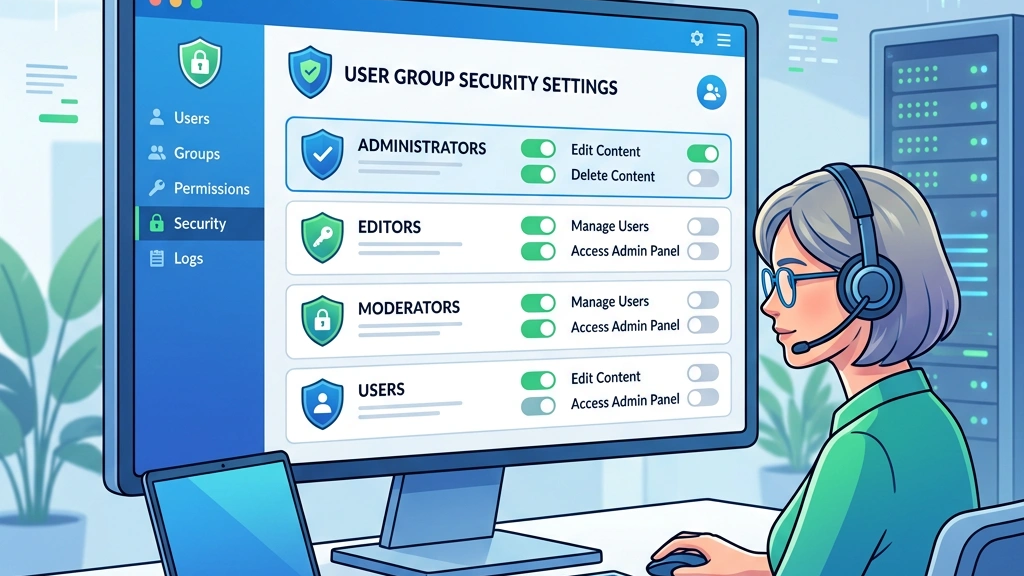
Once we have joomla two factor authentication working for individual accounts, we can scale it up. To require MFA for a whole group, we go to System → Global Configuration → Security and locate the MFA Enforcement section. We select the user groups that must use MFA, such as Super Users, Administrators, or any custom group we created for editors. The system then checks each login against the group’s policy and redirects users without a configured method to the MFA setup page.
We can also set a Grace Period that allows new users a limited time to configure their second factor before being blocked. This helps with onboarding while still maintaining a strong security posture. The enforcement settings are stored in the `#__extensions` table under the `system` plugin parameters.
After saving the configuration, we test the enforcement by creating a test user in the forced group and attempting a login without MFA. Joomla should display a message prompting the user to set up a second factor before proceeding. This confirms that the policy is active.
In some cases we want to exempt certain groups from MFA, for example, a public‑facing support team that uses a single shared account. We configure Forbidden MFA Groups in the same Security tab, selecting the groups that should bypass the MFA requirement. These groups will not be prompted for a second factor, even if the global enforcement is active.
It is important to limit the size of forbidden groups and to monitor their activity closely, as they represent a weaker security posture. We recommend keeping the list short and reviewing it regularly during security audits. The configuration is stored alongside the enforcement settings, making it easy to export or version‑control.
Successful adoption of joomla two factor authentication often hinges on clear communication and a smooth onboarding experience. We create a short tutorial page within the Joomla back‑end that explains how to add a TOTP app, scan the QR code, and generate backup codes. We also enable the MFA Onboarding banner that appears for users who have not yet configured a second factor.
The banner includes a direct link to the user’s profile MFA tab, reducing friction. We can also schedule a reminder email using Joomla’s built‑in mailer, encouraging users to complete the setup before a deadline. By tracking the MFA Completed flag in the database, we can generate reports on adoption rates.
Finally, we provide a support channel for users who encounter issues, such as lost devices or email delivery problems. Having a clear process for recovery and assistance reduces resistance and improves overall security.
Managing joomla two factor authentication includes handling lock‑outs. When a user loses access to all their second‑factor devices, we can reset their MFA configuration from the back‑end. We go to Users → Manage, select the user, and click Reset MFA on the MFA tab. Joomla clears the stored secrets and backup codes, forcing the user to set up a new method on next login.
If the user is a super user, we must first disable the Super User Security Restrictions (see the next section) to allow the reset. After resetting, we inform the user via a secure channel and provide instructions for re‑enrolling. The reset action is logged in the `#__action_logs` table for audit purposes.
For bulk resets, we can run a SQL command that clears the MFA data for a set of users:
UPDATE #__user_profiles
SET profile_value = NULL
WHERE profile_key = 'mfa.secret' AND user_id IN (SELECT id FROM #__users WHERE usergroup_id = 8);
This query removes the encrypted secret for all users in the Administrators group (group ID 8). We always back up the database before running bulk operations.
Joomla treats the Super User role with extra caution. The core plugin enforces that super users cannot disable MFA from the front‑end, and they cannot edit another super user’s MFA settings. These restrictions are controlled by the `system` plugin parameter superuser_mfa_enforced.
If we need to troubleshoot a super user’s login, we can temporarily disable the restriction by editing the plugin’s XML file or via the Plugin Manager. We set `superuser_mfa_enforced` to `0`, save, and then perform the necessary reset. Afterwards, we re‑enable the restriction to maintain the high security level.
All changes to super user MFA settings are recorded in the Action Logs component, providing a clear audit trail. We recommend reviewing these logs weekly to detect any suspicious activity. Pairing this with a Joomla security scanner gives us even deeper visibility into potential threats.
Joomla’s built‑in Login Audit plugin captures each authentication attempt, including the MFA method used and whether it succeeded. We enable the plugin under System → Global Configuration → System → Login Audit and configure it to write to a custom log file.
The log entries contain fields such as `user_id`, `method`, `status`, and `ip_address`. We can query the database to find failed MFA attempts:
SELECT user_id, method, COUNT(*) AS failures
FROM #__login_attempts
WHERE status = 'failed' AND method LIKE 'mfa_%'
GROUP BY user_id, method
ORDER BY failures DESC;
This query highlights accounts that may be under attack or experiencing configuration issues. We set up a cron job that runs the query daily and emails the results to the security team.
Although Joomla’s native MFA covers most use cases, some organizations require additional features such as adaptive risk analysis, SSO integration, or custom hardware tokens. In those scenarios we turn to third‑party extensions that extend the core functionality. Popular choices include miniOrange, SAASPASS, and Authenticator Pro.
These extensions often provide a centralized dashboard for managing MFA across multiple Joomla sites, as well as detailed reporting and compliance tools. They may also support additional methods like push notifications, QR‑code‑less enrollment, or LDAP‑based authentication. When evaluating an extension, we check its compatibility with Joomla 5, its update frequency, and its support policy.
Before installing a third‑party MFA plugin, we test it on a staging site to ensure it does not conflict with existing plugins or custom code. We also review the extension’s security certifications and community feedback. If it meets our requirements, we deploy it to production with a rollback plan in place.
| Extension | Supported Methods | Pricing | Notable Features |
|---|---|---|---|
| miniOrange MFA | TOTP, WebAuthn, SMS, Email, Push | Free tier, paid plans start at $29/yr | Adaptive risk, SSO, detailed logs |
| SAASPASS | TOTP, Push, Biometrics, YubiKey | Free for up to 5 users, then $5/user/mo | Cloud‑based management, API integration |
| Authenticator Pro | TOTP, QR‑code‑less, Backup Codes | One‑time $49 license | Lightweight, no external service required |
| Duo Security (via plugin) | TOTP, Push, Phone Call, Hardware Token | Free tier, paid plans start at $3/user/mo | Real‑time threat detection, extensive documentation |
We typically start with miniOrange when we need a centralized admin console, and we switch to SAASPASS for organizations that already use its identity platform. Authenticator Pro is a good fit for small sites that want a simple, self‑hosted solution without recurring fees. Each extension integrates with Joomla’s user table, so the user experience remains consistent.
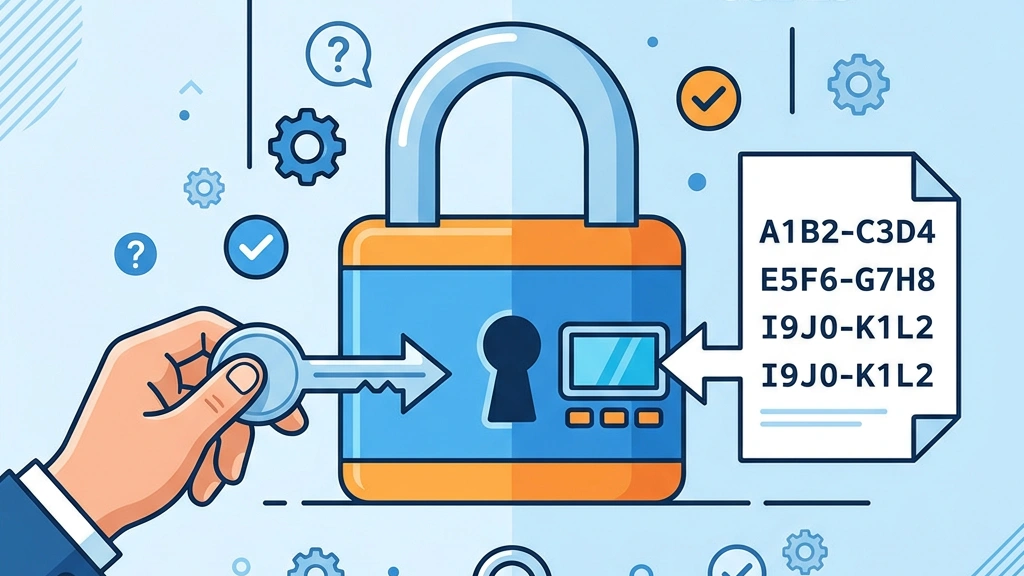
If a user cannot open their authenticator app, we first verify whether they have backup codes stored securely. If backup codes are available, the user can log in using one of them and then re‑configure a new TOTP device. If no backup codes exist, we as the administrator to reset the user’s MFA configuration via the Reset MFA button in the user profile.
We also check whether the user’s device time is synchronized, as a drift of more than a few minutes can cause all TOTP codes to be rejected. Guiding the user to enable automatic time sync on their phone often resolves the issue. For hardware tokens, we confirm that the token is still registered in the WebAuthn list; if not, we remove the stale entry and let the user add a new one.
If the problem persists, we examine the `#__login_attempts` table for error messages and ensure that the System – MFA plugin is still enabled. Re‑enabling the plugin sometimes clears a corrupted session state.
After a major Joomla update, the MFA plugin may be disabled or its configuration schema may have changed. We start by checking the Plugin Manager to confirm that System – MFA is published and that its version matches the Joomla core. If the plugin shows a warning, we reinstall it from the Joomla update package.
Next, we verify that the encryption key used for storing MFA secrets is still valid. Joomla stores the key in the `configuration.php` file as `$secret`. If the key was regenerated during the update, existing MFA data becomes unreadable, and users will see “invalid code” errors. In that case, we restore the previous `configuration.php` from backup or run the migration script provided in the update notes.
Finally, we clear the site cache and the browser cache, then test the login flow again. If the issue remains, we enable Debug System in Global Configuration and review the log output for any PHP errors related to the MFA component.
When all MFA methods fail and we cannot reset the account through the UI, we can directly edit the database to clear the stored secrets. The MFA data resides in the `#__user_profiles` table with keys such as `mfa.secret`, `mfa.webauthn`, and `mfa.backup`. We can remove these entries with a single SQL command:
DELETE FROM #__user_profiles
WHERE user_id = 42 AND profile_key LIKE 'mfa.%';
After running the command, the user with ID 42 will be prompted to set up a new second factor on their next login. We must also delete any lingering login attempts that may lock the account:
DELETE FROM #__login_attempts
WHERE user_id = 42;
All database modifications should be performed on a maintenance window and after taking a full backup. We recommend documenting the recovery steps in the site’s operational handbook.
Two‑factor authentication greatly reduces the risk of credential theft, but it does not eliminate all attack vectors. Phishing attacks that capture both the password and the second‑factor code can still succeed, especially if the user is tricked into entering the code on a malicious site. Therefore we combine MFA with other best practices such as regular updates, strong passwords, and limited admin access. For a full list of hardening steps, see our Joomla security guide.
If you lose access to your authenticator app, you can use one of the backup codes generated during MFA setup. If no backup codes remain, an administrator can reset your MFA configuration from the user profile, clearing the stored secret and allowing you to enroll a new device.
Two‑factor authentication refers to a single additional factor beyond the password, typically a TOTP code. Multi‑factor authentication expands this concept to allow multiple methods to be attached to a single account, such as TOTP, WebAuthn, email codes, and backup codes. Joomla 4.2+ renamed the feature to MFA to reflect this broader capability.
Yes, Joomla’s MFA system lets you add several methods to the same user account. During login you can choose any of the configured methods, and the system will accept the first valid code it receives. This flexibility is useful for users who travel or who need a hardware token in addition to a mobile app.
If you are locked out, an administrator with super‑user privileges can reset your MFA settings from the back‑end. They go to Users → Manage, select your account, and click Reset MFA on the MFA tab. After the reset, you can log in with just your password and then re‑configure a new second factor.
Implementing joomla two factor authentication (2FA) is a practical step that dramatically improves the security of any Joomla site. By understanding the supported methods—TOTP, WebAuthn, YubiKey, email codes, and backup codes—we can tailor the solution to the needs of our administrators and developers. The built‑in MFA system in Joomla 5 provides encryption, multiple method support, and group‑based enforcement, while third‑party extensions fill any gaps for specialized requirements.
For further reading, the Joomla security manual covers additional hardening techniques. We have walked through the complete setup process, from configuring a user profile to enforcing MFA across groups and handling emergency recovery. Regular monitoring, clear onboarding, and a disciplined backup‑code policy ensure that the system remains both secure and usable. By following the steps outlined in this guide, we can protect our Joomla installations against credential‑based attacks while maintaining a smooth user experience.