Physical Address
304 North Cardinal St.
Dorchester Center, MA 02124
Physical Address
304 North Cardinal St.
Dorchester Center, MA 02124




Joomla image optimization is one of the most effective ways to keep a site fast, affordable, and user‑friendly. When we first started tweaking images on a Joomla 5 installation, the page load time dropped dramatically, and the search‑engine rankings followed suit. In this guide we walk through every step you need to take— from choosing the right file format to configuring the Media Manager, installing the best compression extensions, and measuring the impact with Core Web Vitals. By the end you’ll have a repeatable workflow that keeps your Joomla site lean without sacrificing visual quality.

A typical Joomla article or product page contains several images, often ranging from 150 KB to 1 MB each. When a visitor’s browser requests those files, the server must transmit the full byte count, which directly affects the Largest Contentful Paint (LCP) metric used by Google. Studies show that a 1‑second delay in LCP can reduce conversion rates by up to 7 %. For Joomla administrators, the stakes are twofold: user experience and hosting costs.
First, page speed is a ranking signal. Google’s Core Web Vitals measure LCP, First Input Delay, and Cumulative Layout Shift. Large, uncompressed images are the single biggest culprit for a high LCP score on Joomla sites that rely heavily on media‑rich content. By shrinking image file size, we lower the time the browser spends waiting for the first paint, which in turn improves the overall SEO health of the site.
Second, bandwidth consumption can become a hidden expense. A Joomla site that serves 10 GB of image data each month will see higher hosting bills than a site that serves the same visual content at half the size. Optimized images reduce the amount of data transferred, which is especially valuable for visitors on mobile networks or limited data plans.
Third, user experience on mobile devices hinges on fast visual delivery. Mobile browsers often throttle bandwidth, and a heavy image will cause scrolling to stutter and buttons to feel unresponsive. By applying a systematic joomla image optimization process, we keep the visual fidelity while delivering a snappy experience across all devices.
Finally, image optimization helps with accessibility and SEO beyond speed. Properly sized, descriptive alt attributes and clean file names improve crawlability and give screen readers the context they need. When you combine these practices with a solid caching strategy, the result is a Joomla site that feels instant, ranks higher, and costs less to run.
It is also worth noting that Google’s search algorithm increasingly favors mobile‑first indexing. Mobile devices are more sensitive to large file sizes because of limited bandwidth and processing power. A Joomla site that passes Core Web Vitals thresholds on mobile has a tangible ranking advantage over competitors that ignore joomla image optimization. For a complete pre‑launch checklist that includes image sizing, see our Joomla SEO Checklist: 25 Steps Before You Launch.
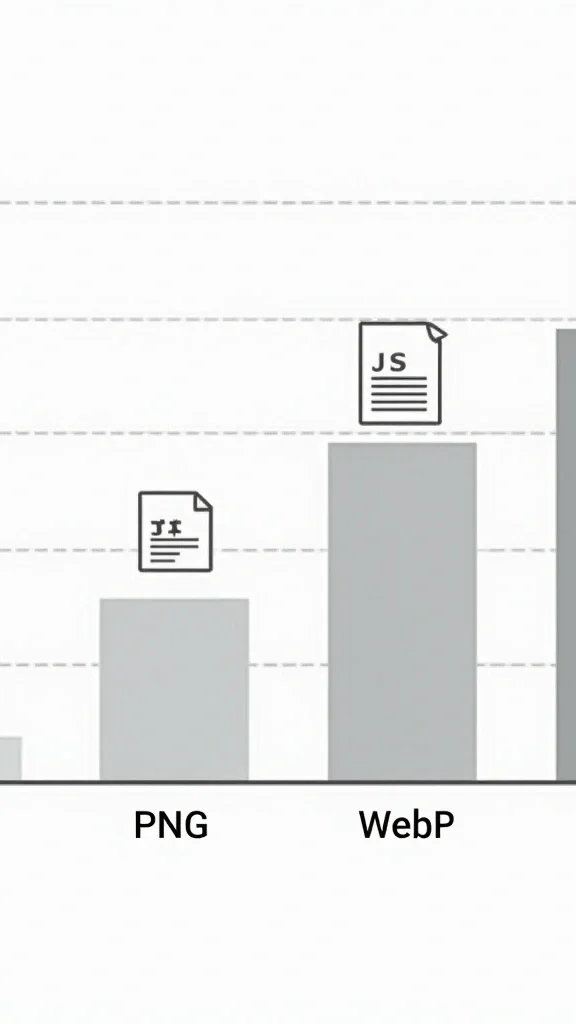
When we talk about image formats, the choice hinges on the type of visual content and the desired balance between size and quality. JPEG remains the workhorse for photographs because it supports millions of colors and offers adjustable lossy compression. A well‑tuned JPEG can be reduced to 60 % of its original size with only a barely noticeable quality loss.
PNG shines for graphics that contain sharp edges, transparent backgrounds, or limited color palettes. It uses lossless compression, preserving every pixel exactly as uploaded. However, PNG files can be considerably larger than JPEGs for the same visual scene.
WebP, developed by Google, provides both lossy and lossless compression in a single container. In most cases, WebP files are 25‑35 % smaller than comparable JPEGs while maintaining comparable visual quality. Modern browsers—including Chrome, Edge, Firefox, and Safari (from version 14)—support WebP natively, making it a safe default for new Joomla sites.
AVIF is the newest entrant, built on the AV1 video codec. It delivers even smaller file sizes than WebP, especially for high‑resolution images, while supporting HDR and alpha channels. Adoption is growing, and as of 2024 most major browsers support AVIF, though a few older versions still require a fallback.
When configuring Joomla, we recommend serving WebP or AVIF whenever possible, with JPEG/PNG as a graceful fallback for browsers that lack support. This dual‑format strategy ensures that every visitor receives the smallest possible file without breaking the layout.
Compression can be split into two categories: lossy and lossless. Lossy compression discards data that the human eye is less likely to notice. JPEG’s “quality” slider (0‑100) is a classic example: lowering the value from 90 to 70 can cut file size by half while keeping the image visually acceptable for most web contexts. The trade‑off is that the original data cannot be fully restored.
Lossless compression, on the other hand, preserves every pixel exactly as it was uploaded. PNG’s DEFLATE algorithm and WebP’s lossless mode fall into this category. The result is a file that can be decompressed back to its original state, which is essential for graphics that require pixel‑perfect fidelity, such as logos or UI icons.
In practice, a mixed approach works best for Joomla sites. Use lossy compression for photographs and large background images, and lossless compression for icons, logos, and any graphic where exact color reproduction matters. Joomla extensions like ShortPixel and ImageRecycle let you set per‑image rules, automatically choosing the appropriate method based on file type and dimensions.

Joomla 5 introduced a more flexible Media Manager that lets administrators enforce size limits and quality settings at the point of upload. Adjusting these defaults prevents oversized files from ever reaching the public folder.
These settings ensure that every image entering the Media Manager is already trimmed to a sensible size and compressed to a web‑ready quality level.
Joomla’s Media Manager stores the original file name, which becomes part of the URL if you use the “friendly URL” option. Rename files to something descriptive and keyword‑rich before uploading, e.g., summer‑festival‑stage‑2024.jpg. Avoid generic names like IMG_1234.jpg.
When you insert the image into an article, Joomla’s editor prompts you for Alt Text. Fill this field with a concise, descriptive phrase that includes relevant keywords. Alt text not only aids screen readers but also provides additional context for search engines, contributing to the overall SEO health of the site. For a full list of on‑page SEO factors that affect your Joomla site’s rankings, see our Joomla Media Manager: How to Upload and Organize Files guide, which covers file organization in greater depth.
Lazy loading delays the download of off‑screen images until the user scrolls near them, dramatically reducing initial page weight. Joomla 5 ships with a built‑in lazy‑load toggle:
Behind the scenes Joomla adds loading="lazy" to every <img> tag it renders. For older browsers that don’t support this attribute, you can add a small JavaScript fallback via a custom plugin, but the native attribute covers the majority of traffic today.
While the Media Manager handles basic resizing, dedicated compression extensions give you deeper control and bulk processing capabilities.
ImageRecycle integrates directly with Joomla’s media library and offers one‑click optimization for existing files. It supports both lossy and lossless modes and can automatically convert JPEG/PNG to WebP. The extension also provides a dashboard that shows total bytes saved and the average reduction per image. You can install it from the Joomla Extension Directory or use the following link for more details: ImageRecycle.
ShortPixel is a cloud‑based service that processes images on upload and can also bulk‑optimize the entire media folder. It offers a free tier with 100 MB of compression per month and a paid plan for larger sites. The plugin lets you choose a default quality (e.g., 82 %) and automatically generates WebP versions. Because the processing happens on ShortPixel’s servers, your Joomla host’s CPU load stays low.
OptiPic is a lightweight Joomla extension that runs locally on your server, using the cwebp and avifenc binaries to convert images. It includes a scheduler that runs nightly, scanning for new uploads and optimizing them in place. Other noteworthy tools include Joomla Optimizer and EIR (Easy Image Resizer), both of which provide batch resizing and compression without leaving the Joomla admin area.
When selecting an extension, consider the following criteria:
By integrating one of these extensions into your workflow, you can automate the joomla image optimization process and keep the media folder tidy.

Beyond Joomla extensions, server‑level tweaks can further shrink image payloads and improve caching.
If your site runs on Apache, enable mod_pagespeed; for Nginx, use ngx_pagespeed. Both modules automatically rewrite HTML to serve optimized images, convert JPEG/PNG to WebP when the browser supports it, and apply lazy loading if not already present. A minimal configuration looks like this:
<IfModule pagespeed_module>
    ModPagespeed on
    ModPagespeedRewriteLevel CoreFilters
    ModPagespeedEnableFilters convert_jpeg_to_webp,convert_png_to_webp
    ModPagespeedFileCachePath "/var/cache/pagespeed"
</IfModule>
For Nginx, the equivalent directives are placed inside the http block. Remember to test the configuration on a staging environment first, as aggressive optimization can sometimes break custom CSS overlays.
Long‑term caching reduces repeat downloads for returning visitors. Add the following snippet to your site’s .htaccess file, placed after the Joomla core rules:
# Image caching – 1 year
<IfModule mod_expires.c>
    ExpiresActive On
    ExpiresByType image/jpeg "access plus 1 year"
    ExpiresByType image/png  "access plus 1 year"
    ExpiresByType image/webp "access plus 1 year"
    ExpiresByType image/avif "access plus 1 year"
</IfModule>

# Cache‑control header
<IfModule mod_headers.c>
    Header set Cache-Control "public, max-age=31536000"
</IfModule>
These directives tell browsers to keep images in their local cache for up to 365 days, dramatically cutting bandwidth for repeat visits.
For bulk conversion outside of Joomla, the cwebp and avifenc utilities are indispensable. Install them via your package manager (apt-get install webp libavif-tools on Debian/Ubuntu) and run a simple loop:
# Convert all JPEGs in the media folder to WebP (quality 80)
find /path/to/joomla/images -type f -name "*.jpg" -exec sh -c '
    for img; do
        cwebp -q 80 "$img" -o "${img%.*}.webp"
    done
' sh {} +

# Convert PNGs to AVIF (quality 50)
find /path/to/joomla/images -type f -name "*.png" -exec sh -c '
    for img; do
        avifenc -j 4 -c aom -q 50 "$img" "${img%.*}.avif"
    done
' sh {} +
After conversion, update the Joomla article markup to reference the new WebP/AVIF files. If you have the mod_pagespeed module enabled, it can serve the original JPEG/PNG to browsers that lack WebP/AVIF support, so you may keep the originals as fallbacks.
Optimizing images is only worthwhile if you can prove the performance gain. Google’s PageSpeed Insights provides a quick snapshot, but for ongoing monitoring we recommend using the Web Vitals Chrome extension or the Lighthouse CI pipeline.
The Largest Contentful Paint metric records the time when the biggest visible element—often a hero image—finishes rendering. If that image is 500 KB, the browser may need 1.5 seconds to download it on a 3G connection. Reducing the same image to 150 KB can bring LCP down to under 1 second, moving the page from a “needs improvement” to a “good” rating.
To see the impact, capture a baseline LCP value before optimization, then re‑run the test after applying the compression workflow. Record the difference in milliseconds and note the reduction in kilobytes.
| Page | Original Size (KB) | Optimized Size (KB) | LCP (ms) | Δ LCP (ms) |
|---|---|---|---|---|
| Home | 1,240 | 420 | 1,850 | -1,200 |
| Product | 860 | 310 | 1,620 | -1,010 |
Regularly tracking these numbers helps you maintain a fast Joomla site as new content is added. For deeper analysis, integrate the Web Vitals JavaScript library into your template and send metrics to Google Analytics.
We recommend running Google PageSpeed Insights on at least five representative pages: the homepage, a category listing, a media‑heavy article, a product page (if applicable), and a contact or about page. This gives a balanced view of how joomla image optimization affects different content types. If any page scores below 75 on mobile, the images on that page need further attention — either resize them, switch to WebP, or enable lazy loading for off‑screen elements.
For server‑side monitoring, tools like GTmetrix and WebPageTest provide waterfall charts that show exactly how long each image takes to download. These charts are invaluable for identifying the one or two images that are dragging down an otherwise fast page. Combined with the Joomla Performance Optimization guide for database and server tuning, you will have a complete picture of your site’s speed profile.
For photographs, WebP offers the smallest size with visual quality comparable to JPEG. In our tests, a 1 MB JPEG hero image compressed to roughly 350 KB in WebP at quality 80 — a 65 % reduction with no visible difference on screen. For graphics with transparency, AVIF or PNG (lossless) works best. Use a fallback to JPEG/PNG for browsers that don’t support newer formats.
Yes. Tools like cwebp or the ImageRecycle extension can generate WebP/AVIF copies while keeping the original file name. Joomla will automatically serve the newer format if the browser supports it, so your article links remain valid.
Lazy loading improves page speed, which is a confirmed ranking factor. Google’s crawler respects the loading="lazy" attribute and still indexes the image content normally. The key rule is to ensure that above‑the‑fold images — especially the hero image — are not deferred. Set loading="eager" on those elements manually. For every other image below the fold, lazy loading reduces initial page weight and speeds up the first meaningful paint, which benefits both SEO and user experience.
Add the .htaccess snippet shown earlier to set long‑term Expires and Cache‑Control headers. Combine this with a CDN (see our guide on Joomla CDN Setup) for global delivery and even faster load times.
Most reputable services, such as ShortPixel and ImageRecycle, process images on secure servers and return optimized copies. Always back up your media folder before running a bulk operation, and test a few images first to verify quality. You can also use free online tools like TinyPNG to manually compress individual files before uploading them to Joomla, which gives you full control over the output. For more information on modern image formats, Google maintains a detailed WebP developer resource that explains the format’s compression algorithms and browser compatibility.
By following the steps outlined above, we can turn a Joomla site with heavy, unoptimized media into a lean, fast‑loading experience that satisfies both users and search engines. The combination of proper format selection, Media Manager configuration, powerful extensions, server‑side tweaks, and rigorous measurement creates a repeatable workflow for ongoing joomla image optimization. Start with the Media Manager settings today, add a compression extension this week, and run a PageSpeed test next week — that three‑step approach will cover 90 % of your joomla image optimization needs.