Physical Address
304 North Cardinal St.
Dorchester Center, MA 02124
Physical Address
304 North Cardinal St.
Dorchester Center, MA 02124




joomla robots.txt is the gatekeeper that tells web robots which corridors of our site they may wander through and which doors remain locked. By shaping this simple text file we can steer search‑engine crawlers away from duplicate content, protect private directories, and preserve our crawl budget for the pages that truly matter. In this guide we walk through every step—from the default file that ships with Joomla to advanced wildcard tricks—so that our site can be indexed efficiently and safely.
We will explore the anatomy of the file, the nuances of user‑agent directives, and the practical tools that let us edit it without breaking the site. Along the way we sprinkle analogies and metaphors to make the concepts stick, and we provide ready‑to‑copy code snippets that you can drop into your Joomla root folder. By the end, you will have a clear roadmap for configuring a joomla robots.txt that boosts visibility while keeping the unwanted bots at bay.
robots.txt in the web root, not inside a subfolder.User‑Agent blocks to give Googlebot and Bingbot distinct instructions.Disallow and Allow wisely to protect admin, cache, and temporary folders.Sitemap directive pointing to the XML sitemap for faster discovery.The Robots Exclusion Protocol is a set of simple rules that web robots read before they start crawling a site. Think of it as a traffic sign that tells a driver whether to turn left, go straight, or stop; the protocol tells a bot which URLs it may visit and which it must avoid. It works through plain‑text directives such as User‑Agent, Disallow, and Allow, each line acting like a stoplight for the crawler.
In Joomla, the protocol lives in a file named robots.txt placed at the domain root. When a crawler requests https://example.com/robots.txt, the server returns the file, and the crawler parses the directives line by line. The protocol does not enforce any legal penalties—its power comes from the fact that reputable search engines respect the wishes expressed within it.
Because the file is read on every crawl, even a tiny typo can cause a bot to wander into areas we intended to keep hidden. Therefore, understanding the syntax and the way Joomla interprets the file is essential for maintaining a healthy SEO posture.
Search engine crawlers, often called spiders or bots, start their journey by fetching the robots.txt file. They treat the file as a map, marking off streets they cannot travel. For example, Googlebot will read the User‑Agent: Googlebot block and obey the Disallow rules inside it, while Bingbot follows its own block if present.
Crawlers also consider the crawl budget—a finite amount of time and resources they allocate to each site. By blocking low‑value pages with Disallow, we free up budget for high‑impact content, much like pruning a garden to let the sun reach the most promising flowers. The protocol also supports a Crawl‑Delay directive, which tells bots to pause between requests, reducing server load during peak traffic.
While most major search engines honor the protocol, not all bots are well‑behaved. Some malicious crawlers ignore the file entirely, which is why we also rely on server‑level security measures. Nevertheless, for the majority of legitimate search engine bots, a well‑crafted robots.txt is a powerful ally.
Joomla’s architecture creates many folders that are not meant for public consumption, such as /administrator/, /cache/, and /tmp/. If these directories are left exposed, search engines may waste crawl budget indexing temporary files or, worse, expose sensitive information. A properly configured robots.txt acts like a fence, keeping the wild bots away from the garden’s back‑yard.
Moreover, Joomla extensions often generate dynamic URLs that can lead to duplicate content. By disallowing patterns like /component/ or /index.php?option=, we help search engines focus on the canonical pages, improving the site’s overall SEO health. The file also provides a convenient place to reference the XML sitemap, guiding crawlers straight to the most important URLs.
Finally, a clear robots.txt simplifies troubleshooting. When a page is not appearing in search results, we can quickly check whether a Disallow rule is the culprit, rather than digging through meta tags or server logs. In short, the file is a first line of defense and a roadmap for efficient indexing.
When we install Joomla, the system ships a template file named robots.txt.dist. This file serves as a blueprint that we copy and rename to robots.txt after we have reviewed its contents. Think of it as a recipe card that lists the ingredients, but we must decide which spices to add or omit for our own flavor.
The .dist suffix signals that the file is a distribution version, not the live configuration. Joomla’s installer places it in the root directory, and it contains a set of generic directives that block common administrative and temporary folders. By default, it also includes a comment block explaining each line, which is helpful for newcomers.
Before we rename the file, we should open it in a text editor and verify that the paths match our site’s structure. Some Joomla installations use custom folder names for components or templates, and the default directives may need tweaking to reflect those changes. This step ensures that the final robots.txt aligns perfectly with our site’s architecture.
The default robots.txt.dist file typically starts with a comment header, followed by a User‑Agent: * line that applies to all bots. The next few lines use Disallow to block directories like /administrator/, /cache/, /cli/, /components/, /modules/, /plugins/, /templates/, and /tmp/. Each of these folders contains code or temporary files that are not meant for indexing.
For example, the directive Disallow: /administrator/ tells crawlers to stay away from the back‑office login area, protecting it from accidental exposure. Similarly, Disallow: /cache/ prevents the indexing of cached HTML files that could duplicate the main content. The file may also include an Allow: / line, which explicitly permits crawling of the root and any subfolders not otherwise blocked.
Finally, the template often ends with a placeholder for a Sitemap directive, such as Sitemap: https://example.com/sitemap.xml. Adding this line helps search engines discover the XML sitemap quickly, acting like a signpost that points straight to the treasure chest of URLs.
Joomla’s default configuration blocks several key directories to safeguard the site’s integrity. The /administrator/ folder houses the login page and backend tools; exposing it could invite brute‑force attacks. The /cache/ directory stores temporary copies of pages, which can create duplicate content issues if crawled.
The /tmp/ folder is a staging area for uploaded files, and it may contain scripts or images that are not intended for public view. The /cli/ directory contains command‑line scripts that should never be accessed by a web robot. Additionally, the /components/, /modules/, /plugins/, and /templates/ directories hold code that, if indexed, could reveal implementation details or cause confusion in search results.
By blocking these directories out of the box, Joomla helps us avoid common SEO pitfalls. However, we may need to fine‑tune the list based on the extensions we use; some plugins generate public assets inside these folders that we actually want indexed, such as a public media folder inside /templates/. In those cases, we can add an Allow rule to override the broader Disallow.
The first step in customizing our robots.txt is to locate the robots.txt.dist file in the Joomla root. Using an FTP client, SSH, or the hosting file manager, we copy the file and rename the copy to robots.txt. This act is akin to taking a draft manuscript and stamping it as the final edition.
Renaming the file activates it, because web servers automatically serve robots.txt when a crawler requests it. If we forget to rename the file, the default template remains invisible, and bots will assume there is no robots.txt at all. After renaming, we should set the file permissions to 644, ensuring that it is readable by everyone but writable only by the owner.
It is also a good practice to back up the original robots.txt.dist before making any changes. This backup serves as a safety net, allowing us to revert to the default state if a new directive causes unexpected crawling behavior. Keeping a version history in a source‑control system like Git can further protect us from accidental overwrites.
Once the file is renamed, we can edit it directly through the hosting control panel’s file manager or via an FTP client. Open the file in a plain‑text editor—avoid rich‑text editors that might insert hidden formatting characters. Each line should end with a Unix line feed (\n) to ensure proper parsing by crawlers.
When editing, we can add new User‑Agent blocks, adjust existing Disallow paths, or insert a Sitemap line. For instance, to allow Googlebot to crawl the /blog/ folder while blocking it for other bots, we would write:
User-Agent: Googlebot
Allow: /blog/

User-Agent: *
Disallow: /blog/
After saving the changes, we must clear any server‑side caches that might serve an older version of the file. A quick way to verify the update is to visit https://example.com/robots.txt in a browser and confirm that the new directives appear as expected.
For those who prefer a graphical interface, several Joomla extensions simplify robots.txt management. Extensions like “SEO Simple” or “Robots.txt Manager” add a backend component where we can toggle directives with checkboxes and generate the file automatically. This approach reduces the risk of syntax errors, as the extension handles the proper formatting.
When using an extension, we still need to ensure that the generated file is placed in the root directory and that the web server can read it. Some extensions also provide a preview mode, showing exactly how the final robots.txt will look before we click “Save”. This visual feedback is valuable for catching accidental Disallow entries that could block important pages.
Even with an extension, it is wise to periodically download the raw robots.txt file and review it manually. Automated tools can sometimes insert extra whitespace or comment lines that confuse certain crawlers. By keeping a manual eye on the file, we maintain full control over the directives that guide our site’s indexing.
The User‑Agent directive tells a crawler which set of rules applies to it. We can create a generic block for all bots using User‑Agent: *, and then add more specific blocks for Googlebot, Bingbot, or any other major crawler. This is similar to giving each visitor a personalized map based on their vehicle type.
For example, we might allow Googlebot to crawl the /news/ section while restricting Bingbot from the same area due to a partnership agreement. The syntax looks like this:
User-Agent: Googlebot
Allow: /news/

User-Agent: Bingbot
Disallow: /news/
When multiple blocks exist, the most specific match takes precedence. Therefore, it is crucial to order the directives logically and avoid contradictory rules that could confuse the bots. Testing the file with a tool like Google Search Console’s Robots.txt Tester helps verify that each user‑agent receives the intended instructions.
Both Disallow and Allow are used to fine‑tune crawler access, but they work in opposite directions. Disallow tells a bot not to fetch a particular path, while Allow explicitly grants permission, even if a broader Disallow rule would otherwise block it. This interplay is like a security guard who stops everyone at the gate but lets in VIPs with a special pass.
Below is a comparison table that illustrates common patterns and their effects:
| Directive Syntax | What It Does | Example Use Case |
|————————————–|——————————————————-|—————————————————-|
| Disallow: /admin/ | Blocks the entire /admin/ folder for the user‑agent. | Prevent indexing of backend login pages. |
| Allow: /admin/public/ | Overrides a broader Disallow to permit a subfolder. | Allow public resources inside an admin directory. |
| Disallow: /images/*.png$ | Blocks all PNG files using a wildcard and end‑match. | Stop indexing of large image assets. |
| Allow: /images/ | Grants access to the whole images folder. | Ensure product photos are crawlable. |
| Disallow: / | Blocks the entire site for the user‑agent. | Use for bots we want to completely exclude. |
| Allow: / | Explicitly permits crawling of the entire site. | Default for well‑behaved crawlers. |
When we combine Disallow and Allow, the order matters only when the same user‑agent appears multiple times. The most specific rule—often the one with the longest matching path—wins. This hierarchy lets us protect sensitive directories while still exposing valuable assets within them.
The Sitemap directive points crawlers to the XML sitemap, which lists all the URLs we want indexed. Placing this line at the bottom of robots.txt acts like a beacon, guiding bots straight to the treasure map of our site. The syntax is simple:
Sitemap: https://example.com/sitemap.xml
If we have multiple sitemaps—for instance, one for articles and another for media—we can list each on a separate line. Search engines will fetch each sitemap in turn, accelerating the discovery of new content.
The Crawl‑Delay directive tells a bot to wait a specified number of seconds between requests. This can be useful for large Joomla sites that experience server strain during peak crawling periods. An example for Bingbot might be:
User-Agent: Bingbot
Crawl-Delay: 10
Note that Google does not officially support Crawl‑Delay; instead, we can adjust the crawl rate in Google Search Console. Nevertheless, including the directive for other bots can help balance server load across the board.
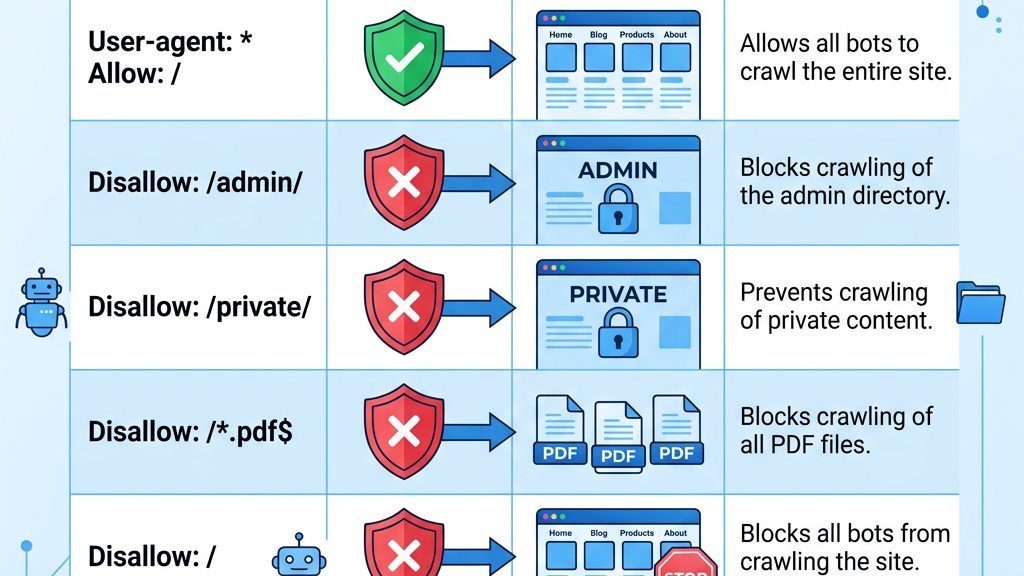
One of the most common pitfalls is inadvertently blocking pages that we want to appear in search results. For example, a blanket Disallow: / will stop all crawlers from indexing any content, effectively rendering the site invisible to search engines. It is like putting a “Do Not Enter” sign on the front door of a storefront.
To avoid this, we should always double‑check the paths in each Disallow line and test the file with a crawler simulation tool. If a new extension creates a public URL under a previously blocked directory, we can add an Allow rule to override the broader block. Keeping a spreadsheet of critical URLs and their corresponding directives can serve as a safety net.
Another subtle mistake is using a trailing slash inconsistently. Disallow: /blog blocks the folder but may still allow access to /blog.html. Adding the slash (Disallow: /blog/) ensures the entire directory and its contents are excluded. Consistency in syntax prevents accidental leaks.
When we migrate a Joomla site to a new domain or a subdirectory, the paths in robots.txt often become outdated. A directive that once pointed to /administrator/ may now need to reference /newadmin/ if we renamed the admin folder for security reasons. Ignoring this update is like leaving an old map on a wall after the city has been rebuilt.
After any migration, we should revisit the robots.txt file and adjust the directives to match the new structure. This includes updating the Sitemap URL, which may have changed to reflect the new domain. Additionally, we need to verify that the file is still accessible at the root of the new site, as some hosting setups place the root in a different directory after migration.
Running a post‑migration audit with tools like Screaming Frog or Sitebulb can quickly reveal any blocked URLs that were unintentionally hidden. Fixing these issues promptly ensures that the search engines can resume crawling the new site without unnecessary delays.
It is easy to conflate the robots.txt file with meta robots tags placed in HTML sections. While both influence crawling, they operate at different levels. robots.txt works at the URL level before the page is fetched, whereas meta tags are read after the page has been downloaded. This distinction is similar to a gatekeeper versus a sign inside a building.
If we block a page with Disallow, search engines will never see the meta robots tag on that page, rendering it ineffective. Conversely, a page that is allowed in robots.txt but contains will be crawled but not indexed. Understanding this separation helps us avoid redundant or contradictory instructions.
A best practice is to use robots.txt for broad directory-level restrictions and meta robots tags for page‑specific indexing decisions. By coordinating both mechanisms, we achieve fine‑grained control over what the web sees and what stays hidden.

Google Search Console offers a built‑in Robots.txt Tester that lets us validate our directives against Googlebot’s parsing rules. We paste the live robots.txt content into the tool, select a user‑agent, and then test a specific URL to see whether it is allowed or blocked. This interactive check is like a rehearsal before the main performance.
If the tester reports a syntax error—such as a missing colon or an unrecognized directive—we must correct it immediately, as even a tiny mistake can cause Googlebot to ignore the entire file. After fixing, we re‑submit the file through the Console to prompt Google to re‑crawl the site with the updated rules.
The tester also highlights the effect of wildcards and end‑match symbols ($). By experimenting with these patterns, we can fine‑tune our directives to cover complex URL structures generated by Joomla extensions. Regular use of this tool keeps our robots.txt in sync with Google’s expectations.
Beyond Google’s own tester, several third‑party validators provide additional insights, such as checking for compatibility with Bingbot, Yandex, or Baidu. Tools like “Robots.txt Checker” or “SEO Site Checkup” parse the file and flag common pitfalls, including duplicate directives or unreachable sitemap URLs.
Running our robots.txt through multiple validators ensures that we are not inadvertently blocking a less common crawler that still contributes to our traffic. Some tools also simulate how a bot would crawl the site, showing a visual map of allowed and disallowed paths. This visual feedback can be especially helpful when we have a large Joomla installation with many nested directories.
After validation, we should document the results in a changelog, noting the date of the test and any adjustments made. This practice creates an audit trail that can be referenced during future SEO reviews or when troubleshooting indexing issues.
Once the updated robots.txt is live, we must monitor crawl statistics in Google Search Console and Bing Webmaster Tools. The “Crawl Stats” report shows how many pages were fetched, the average response time, and any crawl errors that occurred. A sudden drop in crawled pages may indicate an over‑restrictive Disallow rule.
We can also set up alerts for crawl‑error notifications, which will inform us if a bot encounters a 404 or 403 error due to a misconfigured directive. By keeping an eye on these metrics, we can quickly roll back a problematic change or fine‑tune the directives to restore optimal crawl efficiency.
Regular monitoring is akin to checking the pulse of a living organism; it tells us whether our robots.txt is keeping the site healthy or inadvertently choking its growth.
Wildcards () and end‑match symbols ($) empower us to write concise rules that cover many URLs at once. For instance, Disallow: /component/ blocks all URLs that start with /component/, regardless of the query string that follows. This is similar to using a net to catch a whole school of fish rather than trying to catch each one individually.
We can also combine wildcards with file extensions to block specific types of resources, such as Disallow: /*.php$ to prevent indexing of all PHP files. However, we must be cautious not to block essential scripts that generate visible content, as doing so could cripple the site’s functionality in the eyes of search engines.
Another advanced pattern is using the $ sign to match the end of a URL. Disallow: /private$ blocks only the exact /private page, while allowing /private/page.html. This precision lets us protect singular pages without affecting the rest of the directory hierarchy.
Large Joomla sites with thousands of articles can quickly exhaust their crawl budget, causing important pages to be missed. By strategically disallowing low‑value sections—such as old archives, duplicate category pages, or filtered product listings—we allocate more crawl budget to fresh, high‑traffic content. Think of it as directing a delivery truck to the most profitable neighborhoods first.
We can also use the Crawl‑Delay directive for bots that respect it, reducing the request rate during peak traffic periods. For Google, adjusting the “Crawl rate” setting in Search Console provides a similar effect. Combining these tactics helps maintain a steady flow of fresh content into the index without overloading the server.
Regularly reviewing the “Crawl Stats” report and the “Coverage” report in Search Console reveals which pages are being crawled and which are not. Based on this data, we can refine our robots.txt rules to further optimize the crawl budget, ensuring that new articles receive the attention they deserve.
While robots.txt is a powerful tool, it works best when paired with other SEO controls like meta robots tags, canonical tags, and HTTP headers. For example, we might allow a directory in robots.txt but use on individual pages that we do not want to appear in search results. This layered approach is akin to having both a fence and a sign that says “Do not enter” for specific rooms.
We can also leverage the X-Robots-Tag HTTP header for non‑HTML resources, such as PDFs or images, to control indexing at the server level. By aligning these signals, we avoid mixed messages that could confuse crawlers and lead to suboptimal indexing.
Finally, integrating the robots.txt configuration into our deployment pipeline—using version control and automated testing—ensures that any change is reviewed and validated before it reaches production. This disciplined workflow reduces the risk of accidental blocks and keeps our SEO strategy robust.
Yes, the Robots Exclusion Protocol remains a fundamental way to guide search‑engine crawlers, and Joomla respects the file placed at the domain root. While some modern bots may ignore it, the majority of reputable search engines—Google, Bing, Yandex—still honor the directives we set.
First, locate the robots.txt file in the root directory and open it in a plain‑text editor. Check for syntax issues such as missing colons, stray spaces, or unsupported characters. After correcting the errors, save the file, clear any server cache, and re‑test using Google Search Console’s Robots.txt Tester.
The live file should be placed directly in the web root, e.g., https://example.com/robots.txt. Joomla ships a template called robots.txt.dist in the same location; you must copy and rename it to robots.txt after customizing the directives.
robots.txt can prevent Googlebot from crawling a page, which often results in the page not being indexed. However, if the URL is discovered through external links, Google may still show it in search results with a “noindex” label. For guaranteed exclusion, use a noindex meta tag or an X-Robots-Tag header.
robots.txt.dist is the distribution template that ships with Joomla; it contains default directives and comments. It is not read by crawlers until you rename it to robots.txt. The renamed file is the one that search engines actually fetch and interpret.
Absolutely. Blocking /administrator/ prevents search‑engine bots from accessing the backend login and configuration files, reducing the risk of accidental exposure and saving crawl budget. The directive looks like Disallow: /administrator/.
Review the file whenever you add new extensions, change directory structures, or launch a major redesign. A quarterly audit is a good habit, and any time you notice unexpected crawl behavior in Search Console, you should double‑check the directives.