Physical Address
304 North Cardinal St.
Dorchester Center, MA 02124
Physical Address
304 North Cardinal St.
Dorchester Center, MA 02124




joomla multilingual website is the cornerstone of our global outreach. We’ll walk you through every step, from language packs to SEO fine‑tuning, so you can launch a site that speaks to visitors in any language.
Key Takeaways

Image: Building a website that speaks multiple languages
The Language Filter plugin acts like a traffic cop at a busy intersection, directing each visitor to the correct language version of a page. When a user lands on the site, the plugin checks the URL, the browser’s language header, and any language cookie that may exist. If a match is found, the plugin rewrites the URL to include the language code (e.g., /en/). This process happens before the page is rendered, which means the visitor never sees the wrong language content. or /fr/
We enable the plugin, we go to System > Plugins, search for “Language Filter,†and set Enabled to Yes. The plugin also offers options for automatic language detection and for forcing a default language when no match is found. In Joomla 5 the settings are grouped under the “Multilingual Associations tab, making it easier to locate the right toggle. By configuring these options, we give the site a reliable way to serve the correct language without manual redirects.
The plugin works hand‑in‑hand with the Language Code plugin, which adds the language prefix to URLs. Together they form the backbone of Joomla’s multilingual routing engine. When a URL lacks a language code, the Language Filter inserts one based on the visitor’s preferences. This seamless hand‑off feels like a well‑rehearsed dance, where each step follows the rhythm of the user’s language choice.
Content language refers to the language of the article, category, or menu item itself, while interface language governs the text of the Joomla backend and the front‑end modules. In practice, we might have an article written in Spanish (content language) but displayed with an English navigation bar (interface language) if the visitor has selected English as their preferred UI. This separation lets us mix and match, much like a chef pairing ingredients from different cuisines to create a unique dish.
To set a content language, we open the article editor and choose the appropriate language from the “Language†dropdown. Joomla stores this choice in the #__content). When the Language Filter processes a request, it looks for items that match the URL’s language code and only displays those. This mechanism prevents the accidental display of a French article on an English page, keeping the user experience tidy. table, linking it to the language’s ISO code (e.g., es-ES
Interface language is managed in Extensions > Language(s), where we install language packs for the administrator and site. The default interface language is defined in System > Global Configuration > Site > Language. By aligning interface and content languages, we give visitors a cohesive feel, as if the entire site were painted with the same brushstroke.
Joomla’s built‑in multilingual support eliminates the need for third‑party plugins that often clash with core updates. While other platforms may rely on separate extensions for each language, Joomla bundles the essential tools—Language Filter, Language Switcher, and content associations—directly into the core. This integration reduces the risk of version conflicts and security gaps.
The architecture treats each language as a separate “site†within the same installation, allowing us to maintain a single database while keeping URLs clean. In contrast, some CMSs create duplicate installations for each language, which can become a maintenance nightmare. Joomla’s approach is like a single tree with many branches, each branch bearing its own fruit but sharing the same root.
Finally, Joomla’s multilingual system respects SEO best practices out of the box. The automatic generation of hreflang tags, combined with SEF URLs, gives search engines clear signals about language targeting. This native support saves us time and money, as we do not need to install additional SEO extensions to achieve the same result.
The Joomla Extension Directory (JED) hosts a wealth of language packs for both the site and the administrator. We navigate to Extensions > Manage > Install, click the “Install from Web†tab, and type the desired language, such as “German (Germany).†The JED then presents the appropriate package, which we install with a single click.
Each language pack contains translation files for core components, modules, and plugins, as well as a set of language‑specific templates. Installing a pack is akin to adding a new set of lenses to a camera; the view becomes clearer for speakers of that language. After installation, we verify the pack’s presence in Extensions > Language(s), where it appears with a green checkmark.
For Joomla 5, the process is identical, but the UI has been modernized with a more streamlined “Install from Web†dialog. We also have the option to install language packs directly from the command line using Composer, which is handy for automated deployments. By following these steps, we ensure that every piece of the core interface can be rendered in the chosen language.
Once the language packs are installed, we define the content languages that will appear in the front‑end. In Extensions > Language(s) > Content, we click “New†and fill out fields such as “Title,†“Tag,†and “Code.†The tag is a short identifier (e.g., en-GB), while the code follows the ISO‑639‑1 format used in URLs.
We also decide whether a language should be marked as “Default.†Only one language can hold this status, and it determines the fallback when a visitor’s language cannot be detected. Setting a default is like planting a flag at the entrance of a garden; it tells guests where to start if they are unsure which path to take.
After saving, the language appears in the dropdown menus for articles, categories, and menu items. This step is critical because the Language Filter only works with languages that are explicitly defined in the manager. By carefully naming each language, we avoid confusion later when we build associations.
With content languages in place, we turn our attention back to the plugins that drive routing. The System Language Filter plugin offers options such as “Automatic Language Change†and “Remove URL Language Code for Default.†Enabling automatic detection lets Joomla read the browser’s Accept‑Language header and redirect the visitor accordingly.
The Language Code plugin, found under System > Plugins > System – Language Code, adds the language prefix to every URL. We can choose to keep the default “language code†format (/en/) or use a custom pattern for SEO purposes. In Joomla 4 the plugin also supports “SEO Friendly†URLs, which strip unnecessary parameters from the query string.
Both plugins must be enabled for the multilingual system to function correctly. We test the setup by appending a language code to a known article URL and confirming that the correct language version loads. If the page displays the wrong language, we revisit the plugin settings and ensure that the language codes match those defined in the Language Manager.
Content associations act like bridges that connect the same piece of information across different languages. When we create an article in English, we can associate it with its French counterpart by selecting the French article in the “Associations†tab of the editor. Joomla then stores this relationship in the #__associations table, enabling the Language Switcher to jump between linked items.
These bridges are essential for both users and search engines. A visitor clicking the language switcher on an English article will be taken directly to the French version, rather than a generic landing page. Search engines also use the association data to understand that the pages are translations of one another, which improves indexing.
To maintain a clean association map, we keep the same article ID pattern across languages whenever possible. For example, an “About Us†page might be 101 in German. This systematic approach reduces the chance of orphaned associations, much like keeping a tidy filing system in an office. in English, 103102 in Spanish, and
A well‑organized site mirrors its category hierarchy across all languages. We start by creating a top‑level category for each language, such as “Blog – English†and “Blog – Spanish.†Within each top‑level category, we replicate the same sub‑categories (e.g., “News,†“Tutorials,†“Eventsâ€).
This parallel structure simplifies navigation and ensures that the Language Switcher can find a matching menu item for every page. When we add a new sub‑category, we duplicate it in each language and then associate the categories using the “Associations†tab in the Category Manager.
By keeping the category trees aligned, we avoid situations where a visitor clicks a menu item in one language and lands on a page that has no counterpart in another language. The experience feels like walking down a hallway with identical doors on each side, each leading to the same room painted in a different hue.
Menus are the visible guideposts that direct visitors to content. For a multilingual site, we create a separate menu for each language—“Main Menu – English,†“Main Menu – French,†etc. Each menu contains items that point to the appropriate language version of an article or category.
After building the menus, we associate the corresponding items. In the Menu Manager, we open a menu item, go to the “Associations†tab, and select the matching item from the other language’s menu. This creates a link that the Language Switcher uses to switch seamlessly between pages.
When we add a new page, we must remember to add it to every language’s menu and set up the associations. Forgetting to do so can cause the switcher to display a dead link, which is as j as a broken compass in a ship. Regular audits of menu associations help us keep the navigation smooth and error‑free.
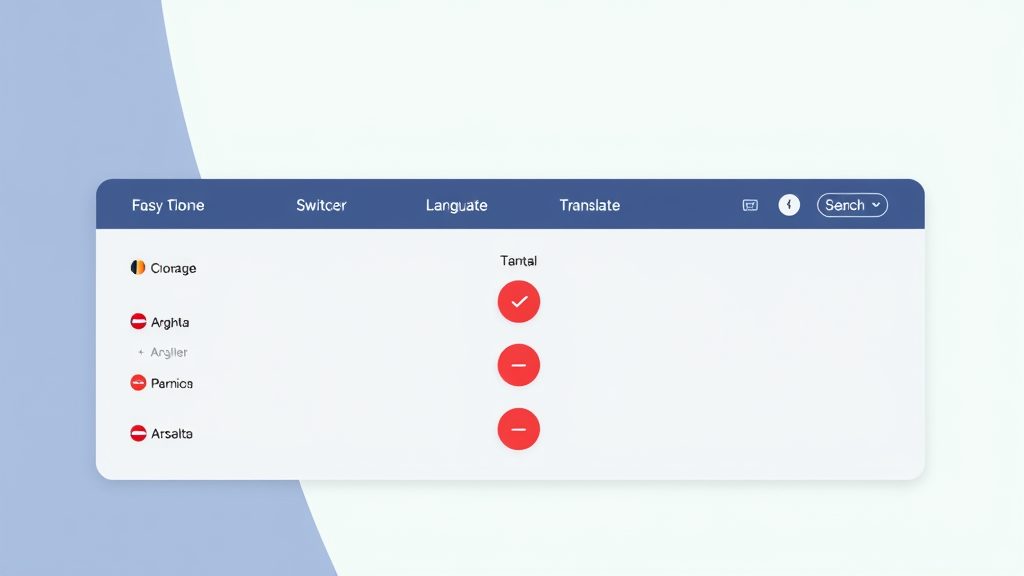
Image: Setting up language switching for your Joomla site
For more on this topic, check out our Joomla SEO guide.
The Language Switcher module is the visual element that lets visitors choose their language. We install it via Extensions > Modules, select “Language Switcher,†and assign it to a position such as “top‑right.†In the module settings, we can choose to display flags, language names, or both.
We also set the “Display Style†to either a dropdown or a horizontal list, depending on the template’s design. A dropdown works well for a compact header, while a horizontal list can act as a toolbar for larger screens. By experimenting with the “Show Active Language†option, we can highlight the current language, giving users a clear visual cue.
The module respects the language order defined in the Language Manager, so we can reorder languages simply by dragging them in the list. This flexibility allows us to prioritize languages that receive the most traffic, much like placing the most popular books on eye‑level shelves.
Every Joomla template defines a set of module positions, such as “logo,†“menu,†and “footer.†We locate a suitable position for the switcher by consulting the template’s documentation or by using the “Template Preview†feature. In Joomla 5, the preview shows a visual map of all positions, making placement intuitive.
We assign the Language Switcher module to the chosen position and set the “Access†level to “Public†so that all visitors can see it. After saving, we clear the cache and view the front‑end to confirm that the switcher appears as expected. If the layout looks cramped, we can adjust the module’s CSS class suffix to apply custom styling.
For templates that use Bootstrap, we can wrap the switcher in a div class to integrate it seamlessly into the navigation bar. This approach gives the switcher a polished look without writing extensive CSS, similar to adding a new ingredient to an existing recipe. with the navbar
While the default flag set covers most major languages, we may want to replace them with custom icons that match our brand. We upload the new flag images to the media folder and then edit the module’s “Custom Flags†field, providing the path to each image.
If we prefer text labels over flags, we can disable the flag display and enable “Show Language Names.†This is useful for languages that share similar flags, such as the United Kingdom and the United States, where a textual cue avoids confusion.
We also have the option to add a tooltip that appears when users hover over a flag or label. This tooltip can contain the full language name and a short description, offering extra guidance without cluttering the interface. By fine‑tuning these visual elements, we make the language selector as intuitive as a well‑marked road sign.
For more on this topic, check out our Joomla tutorial for beginners.
Joomla generates hreflang tags for every published article that has language associations. The tags appear in the section of the HTML, informing search engines which language version belongs to which URL. This automatic insertion saves us from manually editing templates or adding extra plugins.
The tags follow the format . When a page has multiple language versions, Joomla adds a separate tag for each, creating a complete map for crawlers. This process is similar to a librarian cataloging each edition of a book in different languages, ensuring readers find the right version.
If we need to override the default behavior, we can create a custom plugin that modifies the onAfterRender event, but for most sites the built‑in functionality is sufficient. We verify the presence of hreflang tags using browser developer tools or online validators such as the Google Search Console.
Search‑engine‑friendly (SEF) URLs make it easier for both users and crawlers to understand page content. In System > Global Configuration > Site > SEO Settings, we enable “Search Engine Friendly URLs†and “Use URL Rewriting.†Joomla then removes the index.php segment from URLs.
For multilingual sites, we also enable “Add Language Code to URLs.†This setting inserts the language prefix (e.g., /fr/. The prefix acts like a postal code, directing the request to the correct language folder. ) before the article slug, producing URLs such as https://example.com/fr/blog/mon-article
We test the URLs by visiting them in a private browsing window, confirming that the language code appears correctly and that the page loads without errors. If a language code is missing, we revisit the Language Filter plugin settings and ensure that “Remove URL Language Code for Default†is unchecked for non‑default languages.
A sitemap helps search engines discover all pages on a site, and for a multilingual site we need to include every language version. Joomla’s core sitemap component can be enabled via Extensions > Components > Sitemap. Once activated, we generate a sitemap that automatically includes the language code in each URL.
We submit the sitemap to Google Search Console and Bing Webmaster Tools, specifying the language version for each entry using the
If we use a third‑party SEO extension such as sh404SEF, we can further fine‑tune the sitemap generation, adding priority and change‑frequency values per language. Regularly updating the sitemap after publishing new content ensures that search engines stay in sync with our multilingual site.
For more on this topic, check out our Joomla extensions.
A disciplined workflow prevents content from diverging across languages. We start by creating a master copy of each article in the default language, then assign it to a translator through the “Workflow†feature in Content > Articles > Workflow. The workflow stages—Draft, Review, Published—are mirrored for each language, giving us a clear picture of progress.
We also maintain a translation brief that outlines terminology, tone, and any brand‑specific phrasing. This brief lives in a shared Google Doc or Confluence page, accessible to all translators. By standardizing the brief, we avoid inconsistencies that could confuse readers, much like a conductor keeping an orchestra in sync.
When a translator finishes a version, they mark the article as “Ready for Review.†The reviewer checks for accuracy, SEO compliance, and proper use of language‑specific tags. Once approved, the article is published, and the association link is established automatically if the translator used the “Associations†tab.
While Joomla’s core tools cover most needs, third‑party extensions can accelerate large‑scale translations. FaLang and GTranslate are popular choices that integrate directly with the Joomla backend. FaLang provides an inline editing interface, allowing translators to edit content without leaving the article view.
GTranslate offers automatic machine translation with the option to edit the output manually. It also adds language‑specific meta tags and can generate hreflang tags for pages that lack associations. We install these extensions via Extensions > Manage > Install, then configure the API keys and language settings according to the provider’s documentation.
Even with powerful extensions, we keep a human reviewer in the loop to ensure quality. Machine translation can be a helpful first draft, but cultural details often require a native speaker’s touch. This hybrid approach balances speed with accuracy, much like a chef using a sous‑chef for prep work while handling the final plating.
Keeping all language versions up‑to‑date is an ongoing challenge. We set up a cron job that runs a custom script to compare article modification dates across languages. If the default language article is newer than its translation, the script flags the translation for review.
We also use the “Content Version†feature in Joomla 5, which stores a snapshot of each article each time it is saved. By reviewing version histories, we can see exactly what changed and decide whether a translation needs updating.
Regular audits are scheduled monthly, during which we walk through each language’s menu and verify that all items have proper associations. This routine is similar to a mechanic performing a routine inspection—preventive maintenance that avoids larger issues down the road.
Sometimes the Language Filter fails to redirect visitors correctly, resulting in a “404 Not Found†error. We first check that the language code is present in the URL and that the corresponding language is enabled in the Language Manager.
If the code is missing, we verify the “Remove URL Language Code for Default†setting in the Language Filter plugin. Enabling “Automatic Language Change†can also help, as it forces Joomla to read the browser’s language header and adjust the URL accordingly.
When routing still misbehaves, we clear the site cache and the browser cache, then re‑test. In Joomla 5, we also review the new “Routing†tab in System > Global Configuration to ensure that “Multilingual Associations†is set to “Yes.â€
Conflicts arise when two articles are mistakenly linked to the same counterpart, creating a loop that confuses the Language Switcher. We open the “Associations†tab for each article and verify that only one article per language is selected.
If we discover a duplicate association, we break the link by selecting “None†and then re‑associate the correct article. Joomla stores these links in the #__associations table, so a direct database query can also reveal orphaned rows.
To prevent future conflicts, we enable the “Check Associations†option in the Language Filter plugin, which warns us when an article is saved without a proper association. This safeguard acts like a spell‑checker for multilingual links.
When the switcher does not appear, we first confirm that the module is published and assigned to a visible position. We also verify that the module’s “Access†level is set to “Public.â€
If the module shows but the flags are missing, we check that the corresponding language packs are installed and that the flag images exist in the media folder. Missing images can be replaced by uploading the correct files via the Media Manager.
For styling issues, we inspect the module’s CSS class suffix and ensure that the template’s stylesheet includes rules for that class. Using the browser’s developer tools, we can pinpoint any conflicting styles and adjust them accordingly.
1. Do I need a separate Joomla installation for each language?
No. Joomla’s core multilingual system lets us run all languages from a single installation, sharing the same database and extensions.
2. Can I use the same menu for all languages?
While it’s possible, creating separate menus per language gives us more control over URLs and associations, leading to a cleaner user experience.
3. How does Joomla generate hreflang tags?
When articles have language associations, Joomla automatically inserts the appropriate tags in the page head.
4. What’s the best way to keep translations in sync after updates?
Use the versioning and workflow features to track changes, and run periodic scripts that flag articles whose default language version is newer than the translation.
5. Are there any free extensions for managing translations?
Yes. Extensions like FaLang (free tier) and Joomla! Multilingual Content (bundled with Joomla) provide useful tools without additional cost.
6. Can I add a language that isn’t in the Joomla Extension Directory?
Absolutely. We can create a custom language pack by uploading the .ini files via Extensions > Manage > Install, then register it in the Language Manager.
7. Does Joomla support right‑to‑left (RTL) languages?
Yes. Joomla includes RTL CSS files for core templates, and language packs for languages such as Arabic and Hebrew contain the necessary directionality settings.
8. How do I test the multilingual setup before going live?
Use a private browsing window or a tool like curl to request URLs with different language codes, and verify that the correct content and hreflang tags appear.
9. Is it safe to use third‑party translation extensions on a production site?
Generally, yes, but we should test them on a staging environment first to ensure they don’t conflict with core plugins or other extensions.
10. What should I do if a language switcher link leads to a 404 page?
Check that the target article exists, that it’s published, and that the association is correctly set in the “Associations†tab. Also verify that the language code is enabled in the Language Manager.