Physical Address
304 North Cardinal St.
Dorchester Center, MA 02124
Physical Address
304 North Cardinal St.
Dorchester Center, MA 02124



When visitors land on our Joomla site and are instantly sent to unrelated domains, it is a strong sign that malicious code is executing. These redirects often appear after a short delay, using JavaScript or meta‑refresh tags that hide the original URL. Pop‑up ads that flood the screen with unrelated offers can also indicate that a script has been injected into the front‑end files. We should check the browser console for unknown script tags and compare the page source with a clean backup.
In many cases the redirect is triggered by a compromised index.php or .htaccess file that contains an eval or base64_decode payload. The payload may be obfuscated using gzinflate or str_rot13 to avoid detection by simple scanners. By disabling JavaScript temporarily, we can see whether the site still loads correctly, which helps isolate the malicious code. If the site works without JavaScript, the infection is likely limited to client‑side scripts.
We also need to monitor traffic patterns in our analytics. A sudden spike in bounce rate or a drop in average session duration often coincides with malicious redirects. Search engine crawlers may flag the site for “malicious redirects” in their reports, which can affect SEO rankings. Keeping an eye on these metrics allows us to react quickly before the infection spreads further.
Google Safe Browsing and other security services regularly scan public websites for known malware signatures. When they detect a problem, they display a warning in search results, and the site may be added to blocklists such as Spamhaus or PhishTank. These warnings usually reference specific URLs or file paths that contain the malicious payload.
We can verify the warning by using the Google Search Console “Security Issues” report, which lists affected URLs and the type of threat detected. The report may also suggest that the site is serving phishing pages or SEO spam. By reviewing the listed URLs, we can pinpoint the exact files that need cleaning.
In addition to Google, we should check other blocklist services like Sucuri SiteCheck, which provides a quick online scan and a detailed report on infected files. If the site appears on multiple blocklists, the infection is likely widespread and may involve hidden backdoors. Prompt removal of the malicious code is essential to restore trust and improve search engine rankings.
Unexpected admin users appearing in the Joomla user manager are a clear indicator of a breach. Attackers often create accounts with high privileges to maintain access after the initial infection is cleaned. We should look for usernames that we did not create, especially those with generic names like “admin” or “webmaster”.
File integrity checks are another valuable tool. By comparing the current file hashes with the original hashes from the Joomla release, we can detect unauthorized modifications. Tools such as Joomla! Security Scanner or the Joomla! Core Integrity Check extension can automate this process and highlight altered files.
Monitoring the tmp and logs directories for unexpected files can also reveal hidden malware. Attackers may drop PHP shells or script files with random names to avoid detection. Regularly reviewing file timestamps and permissions helps us spot these anomalies early.
Before we touch any files, we must create a complete backup of the site, including the database and all file directories. Using Akeeba Backup, we can generate a single archive that captures the current state, allowing us to roll back if something goes wrong. The backup should be stored on a separate server or cloud storage, accessed via SFTP or SSH.
It is important to verify the integrity of the backup by extracting a small portion and checking that the files open correctly. We should also note the version of Joomla and all installed extensions at the time of backup, as this information will guide the cleaning process. Keeping a log of the backup date and any changes made during the removal helps with future audits.
In addition to the full backup, we recommend creating a database dump using phpMyAdmin or the mysqldump command. This dump provides a snapshot of all tables, which we can compare later to identify malicious entries. Storing the dump in a secure location prevents accidental exposure of credentials.
Enabling Joomla’s debug mode gives us deeper insight into the execution flow and can reveal hidden errors caused by malicious code. We can turn on debug mode in the Global Configuration under the “System” tab, then set error_reporting to “Maximum”. This setting forces Joomla to log all warnings, notices, and fatal errors.
The error logs located in the logs directory often contain clues about which files are being accessed unexpectedly. We should look for repeated attempts to load unknown PHP files or calls to functions like eval and base64_decode. These entries can point us directly to the compromised scripts.
We also need to examine the server’s Apache or Nginx error logs, which may show 500 errors or “File not found” messages triggered by the malware. By correlating timestamps between the Joomla debug log and the server log, we can narrow down the time window when the infection was active.
Having reliable access to the server is essential for a thorough cleanup. We should gather the SFTP credentials, SSH private key, and database login details in a secure password manager. Using SFTP over plain FTP ensures that file transfers are encrypted, reducing the risk of interception.
SSH access allows us to run command‑line tools such as grep, find, and chmod to locate and modify suspicious files quickly. If the server is managed via a control panel like cPanel, we can also use the built‑in File Manager for quick edits.
Database credentials are needed to run SQL queries that clean infected tables. We must ensure that the user has sufficient privileges to update and delete rows, but not more than necessary to avoid accidental data loss. Storing these credentials securely and limiting access to trusted team members helps maintain overall site security.
If you are new to Joomla security, our guides on Joomla Two-Factor Authentication and Joomla File Permissions cover essential hardening steps. For a broader security overview, see our Joomla Security Audit Checklist. You may also want to review How to Install Joomla Extensions to ensure you are sourcing extensions safely.
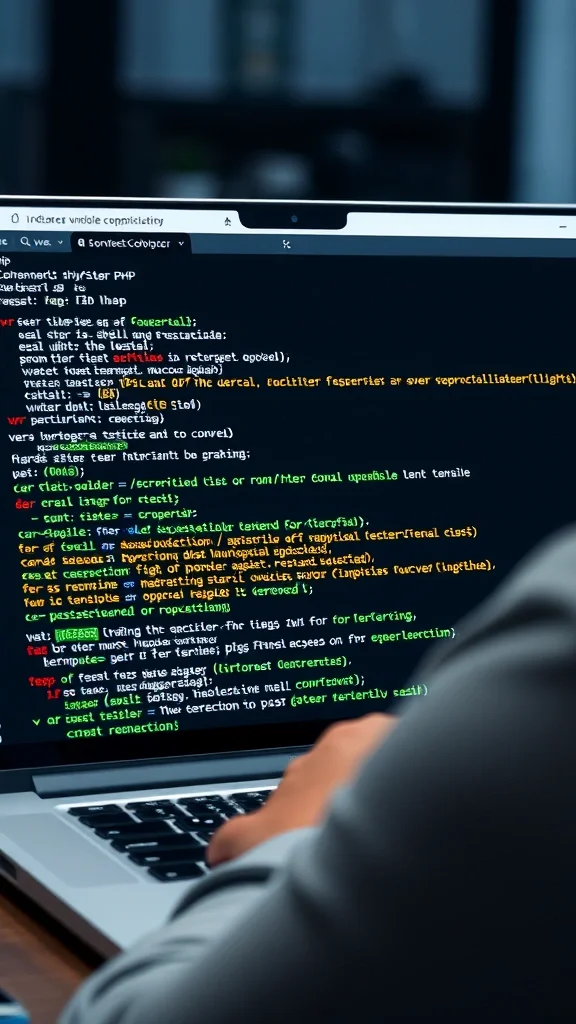
We start the removal by running a thorough scan using a reputable Joomla security scanner such as Sucuri SiteCheck or the Joomla! Security Scanner extension. The scanner checks core files, extensions, and the database for known malware signatures, including eval, base64_decode, and gzinflate patterns.
The scan report provides a list of infected files, their locations, and the type of threat detected. We should prioritize files located in the administrator, components, and templates directories, as these are common injection points. The report also highlights any suspicious .htaccess rules that could be used for phishing or SEO spam.
After reviewing the scan results, we export the list to a CSV file for tracking. This list becomes our work plan, and we can mark each file as “cleaned” once we have verified that the malicious code has been removed. Keeping a detailed log helps us demonstrate the remediation steps to clients or security auditors.
Manual inspection is necessary because automated scanners may miss heavily obfuscated code. We use SFTP or SSH to browse the file system and open each flagged file in a plain‑text editor. Look for PHP functions such as eval, assert, preg_replace with the /e modifier, and any base64‑encoded strings that are decoded at runtime.
Typical backdoor code appears as a single line like or a series of nested functions that hide the payload. We can search for these patterns across the entire site using a command such as grep -R "base64_decode" .. Any file that contains suspicious code and is not part of the official Joomla core should be either cleaned or replaced with a fresh copy.
When we remove a malicious file, we immediately replace it with the original version from the Joomla release package. For custom extensions, we should obtain a clean copy from the developer or reinstall the extension from the official Joomla Extension Directory. After each replacement, we clear the Joomla cache to ensure that the site serves the updated files.
The database often stores malicious payloads in content tables, especially in #__content, #__modules, and #__extensions. We run SQL queries that search for suspicious strings like eval, base64_decode, or gzinflate within text fields. An example query is SELECT * FROM #__content WHERE introtext LIKE '%eval%';.
Once we identify infected rows, we either delete the malicious content or replace it with the original text. For example, if a module’s params field contains an injected script, we can reset the module to its default settings via the Joomla admin interface. It is also wise to check the #__users table for unexpected password hashes or API keys.
After cleaning, we run a CHECK TABLE command to ensure the database integrity and then optimize the tables to improve performance. Finally, we update the #__extensions table to reflect the correct version numbers for all extensions, which helps prevent future mismatches.
Even after cleaning individual files, some core files may still be compromised. The safest approach is to download the exact Joomla version we are running from the official Joomla website and extract it to a temporary directory. We then replace the entire administrator and components folders with the fresh copies.
Before overwriting, we back up the current core files in a separate folder for reference. This backup allows us to compare custom modifications, such as language overrides, that we may need to re‑apply later. We also verify that the configuration.php file remains unchanged, as it contains our database credentials and secret key.
After the replacement, we clear the Joomla cache, reset the opcode cache if using PHP-FPM, and test the site in a staging environment. A successful test confirms that the core files are clean and that the site functions as expected without any remaining backdoors.

Backdoors often rely on PHP functions that execute arbitrary code. The most common are eval, assert, preg_replace with the /e modifier, and create_function. These functions can be combined with obfuscation techniques like base64_decode, gzinflate, and str_rot13.
We should also look for functions that read remote files, such as file_get_contents, curl_exec, and fopen, especially when they are used with URLs that point to unknown domains. Another red flag is the use of shell_exec or system to run shell commands, which can be a gateway for further compromise.
To automate the search, we can run a recursive grep command: grep -R -E "(eval|base64_decode|gzinflate|preg_replace.*\/e|assert|shell_exec)" .. Any matches should be examined in context to determine whether they belong to a legitimate extension or are part of a hidden backdoor.
The .htaccess file controls URL rewriting and can be abused to redirect visitors to malicious sites. We look for directives like Redirect, RewriteRule, or RewriteCond that point to external domains or use obscure query strings. Removing or commenting out suspicious rules often stops the unwanted redirects.
The index.php file at the root of the Joomla installation is another frequent target. Attackers may prepend a PHP block that includes a backdoor before the standard Joomla bootstrap code. We compare the file with the original version from the Joomla package to identify any extra code.
The configuration.php file holds the database credentials and secret key. If this file is compromised, attackers can gain direct database access. We verify that the file contains only the expected configuration array and that no additional PHP code is present. If we find any unexpected lines, we replace the file with a clean copy and re‑enter the credentials manually.
Third‑party extensions are a common entry point for malware, especially if they are outdated or obtained from unofficial sources. We start by reviewing the list of installed extensions in the Joomla admin panel and checking each one against the official Joomla Extension Directory for known vulnerabilities.
For each extension, we download the latest version and compare the files with those on the server. Any differences, especially in PHP files, could indicate a malicious injection. We also run the extension’s own security checks if they provide a built‑in scanner.
If an extension is no longer maintained or has a known security issue, we either replace it with a more secure alternative or remove it entirely. After any change, we clear the Joomla cache and test the site to ensure that functionality is not broken.
Once the site is clean, we must reset every password that could have been exposed. This includes Joomla admin accounts, FTP/SFTP users, SSH keys, and database users. Using a password manager, we generate strong, unique passwords and store them securely.
We also enforce two‑factor authentication (2FA) for all admin accounts to add an extra layer of protection. Joomla’s built‑in 2FA module supports Google Authenticator and other TOTP apps, which we enable in the Global Configuration under “Two‑Factor Authentication”.
For database access, we create a new user with a fresh password and grant it only the necessary privileges. The old user is disabled or deleted to prevent any lingering backdoor from using the previous credentials.
After cleaning, we submit a request for review in Google Search Console. The “Security Issues” section allows us to notify Google that the malware has been removed and that the site is safe for users. We provide a brief description of the steps taken, including the removal of malicious files and the reset of passwords.
Google may take a few days to re‑crawl the site and lift the warning. During this period, we monitor the “Coverage” report for any new errors and ensure that the sitemap is up‑to‑date. If Google still flags the site, we re‑run our scans and double‑check for any remaining hidden code.
In addition to Google, we should inform other security services such as Sucuri, Malwarebytes, and the local hosting provider’s security team. A coordinated effort helps ensure that all blocklist entries are cleared promptly.
To rebuild trust with search engines, we publish a “clean‑up” blog post that outlines the steps we took to secure the site. This transparency can improve user confidence and may expedite the removal of blocklist warnings. We also submit the updated sitemap to Google and Bing to encourage faster re‑indexing.
We monitor the site’s performance in Google Search Console, paying attention to the “Security Issues” and “Manual Actions” tabs. Any remaining warnings should be addressed immediately, and we keep a record of the remediation steps for future reference.
Finally, we set up automated monitoring tools such as Sucuri SiteCheck or Wordfence (for Joomla equivalents) to receive alerts if new malware is detected. Continuous monitoring helps us maintain a clean reputation and prevents future SEO penalties.
Regular updates are the first line of defense against known vulnerabilities. We schedule monthly checks of the Joomla Update Manager and apply any security patches as soon as they are released. This includes both core updates and updates for all installed extensions.
For extensions that do not receive regular updates, we evaluate alternative solutions that are actively maintained. Keeping a list of supported extensions and their update frequency helps us stay organized and avoid using abandoned software.
We also enable automatic notifications from the Joomla Extension Directory, which alert us when a new version is available. By staying current, we reduce the attack surface and make it harder for attackers to exploit outdated code.
A web application firewall (WAF) such as ModSecurity, Cloudflare, or Sucuri’s firewall provides real‑time protection against known attack patterns. The WAF can block malicious requests before they reach Joomla, stopping SQL injection, XSS, and brute‑force attempts.
We configure the firewall to enforce strict rules for the tmp and logs directories, preventing direct access to these locations. Additionally, we enable rate limiting to mitigate DDoS attacks and limit the number of login attempts from a single IP address.
Regularly reviewing the firewall logs helps us identify suspicious activity and adjust rules as needed. A well‑tuned WAF can significantly reduce the likelihood of future malware infections.
File permissions are critical for protecting the Joomla file system. We set directories to 755 and files to 644, while the configuration.php file is set to 600 to restrict access. These permissions prevent unauthorized users from uploading or modifying files.
Directory listing is disabled by adding Options -Indexes to the .htaccess file. This stops attackers from browsing the file structure and discovering hidden scripts. We also ensure that the tmp directory is not writable by the web server after the installation process is complete.
Periodically we run a permissions audit using a script that checks for files with overly permissive settings. Any deviations are corrected immediately to maintain a secure environment.
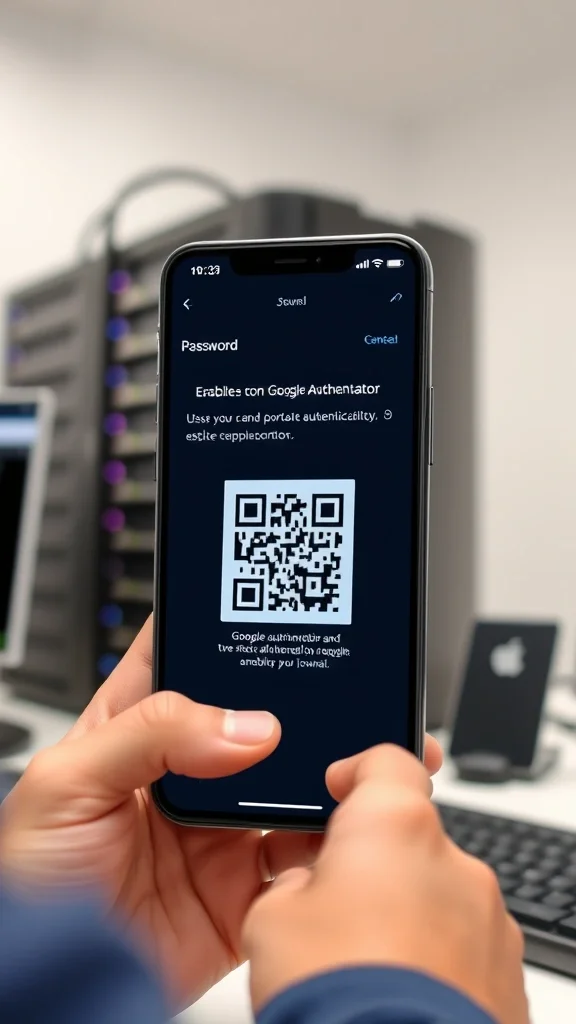
Two‑factor authentication (2FA) adds a second verification step, making it much harder for attackers to gain admin access even if they obtain a password. Joomla’s built‑in 2FA module supports TOTP apps like Google Authenticator and Authy.
We enforce 2FA for all users with “Super User” privileges and encourage its use for other high‑privilege accounts. The setup process is straightforward: users scan a QR code and enter the generated code during login.
In addition to 2FA, we limit login attempts and enable CAPTCHA on the admin login page. These measures together reduce the risk of brute‑force attacks and protect the site from credential stuffing.
Admin Tools Professional offers a full suite of security features, including a firewall, file integrity monitoring, and automatic .htaccess generation. It can scan the entire Joomla installation for known malware signatures and alert us to any changes.
The extension also provides a “Secure Configuration” wizard that hardens the site by disabling unnecessary PHP functions and tightening file permissions. We appreciate its ability to schedule regular scans and generate detailed reports for compliance purposes.
Integration with the Joomla Update Manager ensures that the extension itself stays up‑to‑date, reducing the chance of a vulnerability in the security tool.
RSFirewall is a lightweight yet powerful security extension that focuses on real‑time protection and intrusion detection. It monitors incoming requests for suspicious patterns and blocks IP addresses that exhibit malicious behavior.
The extension includes a file scanner that checks for hidden backdoors, suspicious PHP functions, and unauthorized .htaccess modifications. It also offers a “Security Checklist” that guides us through best‑practice configurations.
RSFirewall’s low overhead makes it suitable for shared hosting environments, and its detailed logging helps us audit security events efficiently.
SecurityCheck Pro provides an extensive vulnerability scanning engine that evaluates the Joomla core, extensions, and server configuration. It can detect outdated libraries, insecure PHP settings, and potential backdoors.
The extension offers a “Malware Removal” feature that automatically quarantines infected files and replaces them with clean copies from the official Joomla repository. It also integrates with Sucuri’s API for real‑time threat intelligence.
We find its reporting dashboard useful for presenting security status to clients and for maintaining documentation required for compliance audits.
We can identify a hack by looking for unexpected redirects, pop‑up ads, and warnings from Google Safe Browsing or other blocklist services. Suspicious admin accounts, altered files, and unusual database entries are also strong indicators. Regular scans with a Joomla security scanner help catch infections early.
In many cases we can clean the infection while the site remains online, especially if we work on a staging copy and then deploy the cleaned version. However, for severe compromises with hidden backdoors, it is safer to put the site in maintenance mode to prevent further damage during the cleanup.
The duration depends on the extent of the infection. A simple injection may be resolved in a few hours, while a deeply rooted attack with multiple backdoors can take a full day or more. Our step‑by‑step process ensures thorough cleaning, even if it requires additional time.
Restoring from a clean backup is a quick way to recover, but it only works if the backup predates the infection and is free of hidden backdoors. Cleaning the current site allows us to preserve recent content and user data that may not be present in older backups.
Professional services vary widely, ranging from $150 for a basic scan and cleanup to $1,000 or more for a full remediation and hardening package. Pricing often depends on the size of the site, the complexity of the infection, and the level of post‑cleanup monitoring required.