Physical Address
304 North Cardinal St.
Dorchester Center, MA 02124
Physical Address
304 North Cardinal St.
Dorchester Center, MA 02124

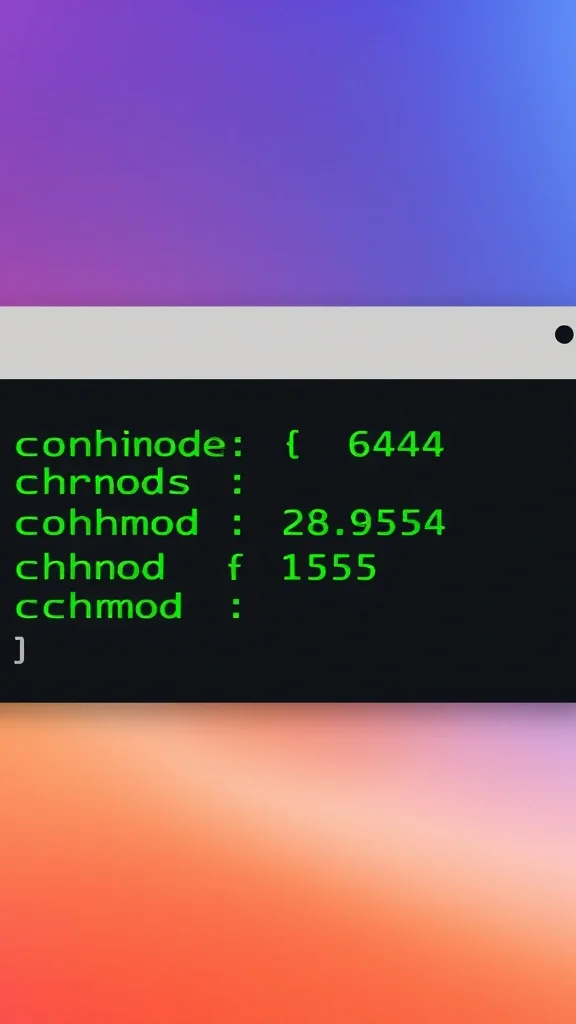


When we manage a Joomla site, the security and stability of the installation hinge on something as simple as the permissions we assign to files and folders. Too permissive settings can open the door to attackers, while overly restrictive ones can break updates, extensions, and even the front‑end. In this guide we walk through the fundamentals of the Unix/Linux permission model, explain why the right joomla file permissions matter, and give you practical commands and tools to audit and correct them on any hosting environment.
Joomla runs on a typical Unix‑like operating system, so it inherits the same permission scheme that governs every file and directory on the server. Each item has three sets of bits that control what the owner, the group, and others can do:
These three bits are expressed in numeric notation. For example, 644 translates to rw‑r‑r‑ (owner can read/write, group and others can only read). 755 becomes rwxr-xr-x, and 777 is rwxrwxrwx. In Joomla we usually set files to 644 and directories to 755. The owner and group are typically the user under which the web server runs (e.g., www-data, apache, or a dedicated FTP user).

Improper joomla file permissions expose the site to two major problems (see also our Joomla security tips for a broader overview):
777) can be used by an attacker to upload a web shell, modify configuration files, or execute arbitrary code.Balancing these concerns means applying the least‑privilege principle: give the web server just enough rights to function, and nothing more.
When a directory is set to 777 or 775 with a group that includes the web server, an attacker can exploit the following vectors:
These scenarios are common in shared‑hosting environments where default permissions are left at 777 for convenience. By tightening the permissions we dramatically reduce the attack surface.
The following table summarizes the settings that work for the majority of Joomla installations. Adjustments may be needed for custom setups, but this is a solid baseline.
| Item | Permission | Reason |
|---|---|---|
| All PHP, HTML, CSS, JS, and image files | 644 |
Owner can edit; web server can read. |
All directories (including templates, images, logs) |
755 |
Owner can list and modify; web server can traverse. |
configuration.php |
444 or 440 |
Read‑only for everyone; prevents tampering. |
.htaccess |
644 |
Web server needs to read; no execution required. |
tmp/ and cache/ |
755 |
Writable by the web server for temporary files. |
logs/ |
755 |
Web server writes logs; others only read. |
Some files deserve extra attention:
444 (read‑only for everyone) or 440 (read‑only for owner and group) blocks any script that tries to overwrite it.644 is sufficient because the server only reads it.755 is the safe choice.755 provides the needed write permission without exposing the folder to the world.
There are several ways to inspect the current permissions:
Once you are logged in via SSH, the ls -la command lists permissions, owners, and groups. To find files that are too permissive, use find with the -perm flag:
# List all files that are world‑writable (777)
find /path/to/joomla -type f -perm -o+w -print

# List directories that are world‑writable
find /path/to/joomla -type d -perm -o+w -print

# Show ownership for the entire tree
find /path/to/joomla -exec ls -ld {} \; | awk '{print $3, $4, $9}'
Replace /path/to/joomla with the actual root directory of your site. The output helps you spot any anomalies before you apply fixes.
After identifying problematic items, you can correct them with a couple of find + chmod pipelines. The following commands set the standard 644 for files and 755 for directories throughout the Joomla installation:
# Set all files to 644
find /path/to/joomla -type f -exec chmod 644 {} \;

# Set all directories to 755
find /path/to/joomla -type d -exec chmod 755 {} \;
If the ownership is incorrect (for example, the files belong to root instead of the web‑server user), you can adjust it with chown:
# Replace www-data with the appropriate user/group for your server
chown -R www-data:www-data /path/to/joomla
Running these commands as the root user or a sudo‑enabled account ensures that the changes apply to every item, including hidden files like .htaccess.
For administrators who prefer a graphical approach, the free Akeeba Admin Tools component includes a “Fix Permissions” feature. After installing the extension, work through to Components → Admin Tools → Fix Permissions. The tool scans the site, displays any mismatches, and applies the recommended 644/755 settings with a single click. You can also define custom rules for specific folders (e.g., keep tmp/ at 775 if your host requires it).
Even with the correct defaults, you may encounter error messages that point to permission problems. Below are the most frequent symptoms and their remedies.
.htaccess file (learn more in our Joomla .htaccess guide) (e.g., 777). Reset it to 644 and verify that the Apache AllowOverride directive is enabled.tmp/ folder. Ensure tmp/ is 755 and owned by the web‑server user.440 (if you want it read‑only) or 644 (if Joomla needs to update it during upgrades).administrator/components/ and components/. Verify those directories are 755 and writable by the web server.images/ folder must be writable. Set it to 755 (or 775 if your host uses a shared group) and confirm ownership.
Hosting environments differ in how they handle user accounts and web‑server processes. Understanding these differences helps you choose the right permission set.
755 for directories and 644 for files still work, but you must ensure the owner is your FTP account.www-data). Files should be owned by www-data and set to 644/755. Avoid 777 at all costs.joomla) and add the web‑server user to the same group. Then set chmod 664 for files and chmod 775 for directories if you prefer group write access.775 for tmp/ and logs/ to allow internal scripts to write.www-data. Apply the same 644/755 rules and verify that the Dockerfile does not override them.777 for any Joomla folder?No. The only time 777 is ever justified is in a temporary troubleshooting scenario on a development server. For production sites you should always use 755 for directories and 644 for files, with the exception of tmp/ and cache/ which also stay at 755.
We recommend a quarterly audit, or after any major change such as a core update, extension install, or migration to a new host. Automated tools like Admin Tools can run the check on a schedule.
uploads/ directory for user‑generated content. What permission should it have?Set the directory to 755 and ensure it is owned by the web‑server user. If users need to write files directly, 775 with a shared group can also work, but avoid 777.
chmod 600 for configuration.php?Yes, 600 (owner read/write only) is even more restrictive than 440. Just make sure the owner is the user that the PHP process runs under; otherwise Joomla will be unable to read the file.
755 on all files?In that case you can’t tighten file permissions further, but you should still ensure that no directory is set to 777. Use chmod 755 for directories and verify ownership. If the host allows it, set configuration.php to 644 or 440 for additional protection.
Maintaining the correct joomla file permissions is one of the simplest yet most effective ways to keep a Joomla site secure and running smoothly. By understanding the underlying Unix permission model, applying the recommended 644/755 defaults, and using the tools and commands outlined above, we can prevent common security breaches and avoid costly downtime. Regular audits and awareness of hosting‑specific nuances ensure that the permissions stay aligned with best practices, giving us confidence that our Joomla installations remain both fast and safe.