Physical Address
304 North Cardinal St.
Dorchester Center, MA 02124
Physical Address
304 North Cardinal St.
Dorchester Center, MA 02124




Every Joomla website has a predictable weak point: the /administrator directory. This URL is publicly known, and automated bots scan thousands of domains every hour looking for it. Once found, they fire off brute-force login attempts using leaked credential databases, common password lists, and default username combinations. A single successful breach gives the attacker full control over your site’s content, users, extensions, and server configuration. If you want to protect joomla backend access from these threats, you need more than a strong password.
The good news is that joomla admin security does not require expensive enterprise tools or deep server expertise. What it does require is a layered defense — multiple barriers stacked on top of each other so that even if one fails, the next one holds. We are going to walk through ten practical measures that range from simple username changes to server-level access controls, each one reducing your exposure to a different type of attack.
Joomla’s admin interface is a high-value target for several reasons. As we covered in our Joomla Security guide, the CMS is used by millions of websites, which makes it an attractive target for mass-scale attacks. First, the URL is almost always /administrator, which means attackers do not need to guess where the login lives. Second, many site owners leave the default username “admin” in place, providing a convenient entry point for credential‑stuffing attacks. Third, the login form is a perfect place for credential‑force bots to try thousands of password combinations per second. Because the admin panel controls extensions, users, and site configuration, compromising it gives an attacker full control over the site’s content and functionality. According to Sucuri’s annual threat report, brute-force login attacks account for the majority of CMS compromise attempts. Joomla sites are particularly exposed because the admin path has never changed across major versions — from Joomla 1.5 through Joomla 5, the backend always lives at /administrator. Understanding these motivations helps us design a defense that addresses each weakness individually and as part of a layered strategy.

siteowner2024).The username “admin” is the most common default across many CMS platforms. Attackers program their bots to try this name first because it yields a high success rate when the password is weak. By creating a new super user with a non-standard name and then deleting or disabling the original “admin” account, we eliminate the most obvious entry point. This simple change alone can block a large portion of automated attacks.
When choosing a new username, avoid anything predictable like your domain name, company name, or “administrator”. A strong approach is to combine two random words with a number — something memorable to you but impossible for a bot to guess. Also make sure the display name shown on the front end differs from the login username, so visitors cannot reverse-engineer your credentials from author bylines or comment metadata.
One effective way to hide the admin login is to prepend a secret key to the URL, such as /administrator?key=xyz123. Extensions like AdminExile, jSecure, or Admin Tools Pro allow us to configure a custom secret that must be present for the login page to load. When the key is missing, the server returns a 404 error, thwarting bots that only request the standard path.
https://example.com/administrator?key=yourSecretKey).Because the secret key is stored in the configuration file, it is not exposed to the public. Even if a bot discovers the /administrator path, it will be blocked before the login form appears, adding a strong layer to our joomla admin security strategy.
One important consideration: make sure every administrator on the team knows the secret URL. If you change the key, notify everyone immediately — otherwise legitimate users will be locked out. We recommend storing the full URL in a password manager rather than bookmarking it in a browser, since browser syncing could expose the key on compromised devices.
Adding an additional HTTP authentication layer forces anyone who reaches the admin directory to provide a second set of credentials. This can be done with a simple .htaccess file and a corresponding .htpasswd file.
/administrator folder)AuthType Basic
AuthName "Restricted Access"
AuthUserFile /path/to/your/.htpasswd
Require valid-user
htpasswd utility)htpasswd -c /path/to/your/.htpasswd adminuserYou will be prompted to enter a strong password for adminuser. After the file is saved, any request to /administrator will trigger a browser dialog asking for the username and password. Only users who know these credentials can proceed to the Joomla login page.
This double-layered approach dramatically reduces the number of login attempts that reach Joomla itself, making brute-force attacks far less effective.
Keep in mind that some hosting providers offer directory protection through their control panel (cPanel, Plesk, or DirectAdmin). If you prefer a GUI approach, look for the “Directory Privacy” or “Password Protect Directories” option in your hosting dashboard and apply it to the /administrator folder. The result is identical — a server-level authentication prompt before the Joomla login page loads.
One caveat: if your site uses an API that calls the administrator directory (for example, some form extensions route AJAX requests through the backend), password protection may break those calls. Test your site thoroughly after enabling this measure to ensure nothing is affected.
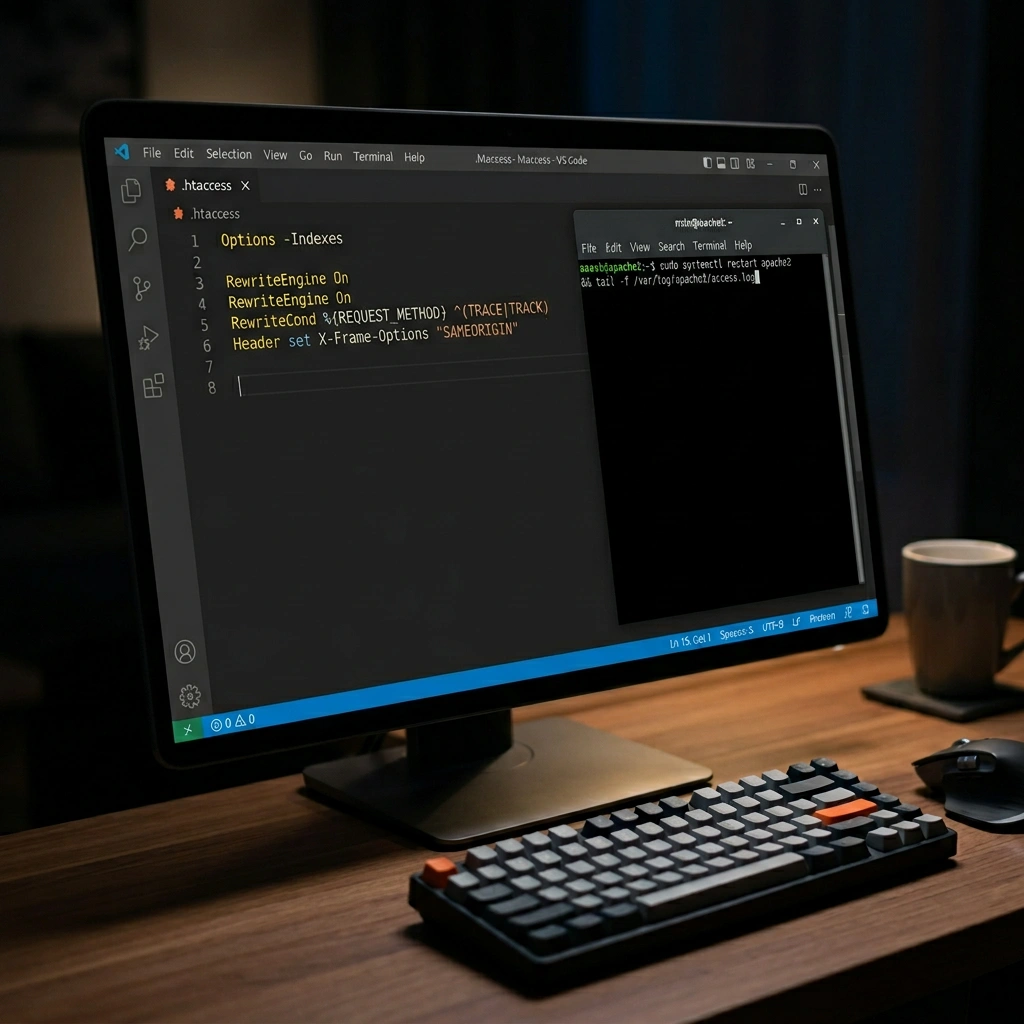
Two-factor authentication (2FA) adds a time-based one-time password (TOTP) that must be entered after the regular username and password. Joomla 4 and later versions include built-in 2FA support, and we can enable it for all super users. If you have not set this up yet, our Joomla Two-Factor Authentication setup guide covers every step in detail. You can also explore our Joomla Security Scanner article for tools that verify whether 2FA is properly configured.
From now on, every login attempt requires both the password and the TOTP code. Even if a password is compromised, the attacker cannot log in without the second factor. This feature is a cornerstone of any solid joomla admin security plan and is recommended for all administrators.
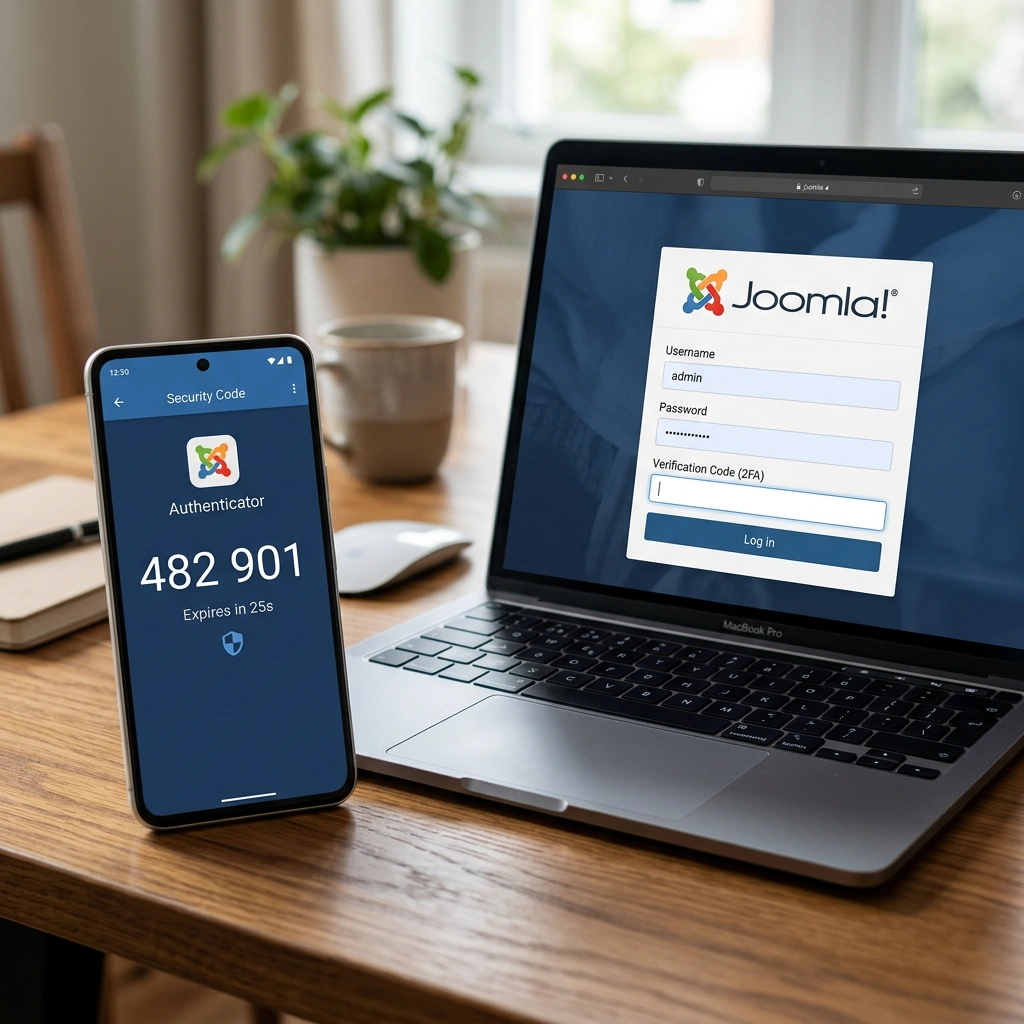
If the admin team works from a known set of IP addresses, we can restrict access to those ranges using .htaccess. This prevents any request from other IPs from reaching the login page.
<FilesMatch "^index\.php$">
Order Deny,Allow
Deny from all
Allow from 203.0.113.45
Allow from 198.51.100.0/24
</FilesMatch>
Replace the example IPs with the actual addresses of your office or VPN. For users who need remote access, a VPN can be set up so that all admin traffic appears to originate from a trusted IP range. While IP restrictions are not foolproof — attackers can spoof IPs or use compromised machines — they add an additional barrier that reduces exposure to random scans.
If your team works remotely and IP addresses change frequently, consider setting up a VPN server with a static IP. All admin traffic routes through the VPN first, and the .htaccess file only needs to whitelist that single address. Services like WireGuard or OpenVPN are straightforward to configure on a small VPS and cost very little to maintain. This approach gives you the security benefit of IP whitelisting without the hassle of constantly updating the rules whenever someone connects from a new location.
Several third‑party extensions provide a full suite of hardening tools, including firewall rules, file integrity monitoring, and admin URL obfuscation. Below are three popular choices:
| Extension | Key Features | Pricing |
|---|---|---|
| Admin Tools Pro | .htaccess generator, secret URL, IP blocking, automatic updates | $49/year |
| RSFirewall! | Malware scanner, login protection, file permission checks | $39/year |
| jHackGuard | Brute‑force protection, login attempt limits, email alerts | Free (basic) |
When selecting an extension, look for one that integrates with Joomla’s core update system and provides a clear dashboard for monitoring. Installing a security extension gives us a solid, ongoing layer of protection without having to manually edit configuration files.
We especially recommend Admin Tools Pro for joomla administrator protection because it bundles many of the measures we have discussed — secret URL, .htaccess generation, IP blocking, and file permission checks — into a single dashboard. For sites on a tight budget, jHackGuard provides basic brute-force protection at no cost and works well alongside manual hardening steps.
Every release of Joomla includes patches for known security issues. The same applies to extensions and templates. Running outdated versions leaves the site exposed to exploits that have already been publicly disclosed. The update process is straightforward:
Enabling automatic updates for the core and trusted extensions reduces the window of exposure. Regularly reviewing the Joomla! Extensions Directory for security advisories also helps us stay ahead of emerging threats.
The Joomla Vulnerable Extensions List (VEL) is a public database that tracks known security issues in third-party extensions. Before installing any new extension, we recommend checking it against the VEL. If an extension appears on the list with an unpatched vulnerability, avoid it entirely or wait for the developer to release a fix. Removing unused extensions and templates is equally important — every piece of code on your server is a potential entry point, even if it is disabled in the backend.
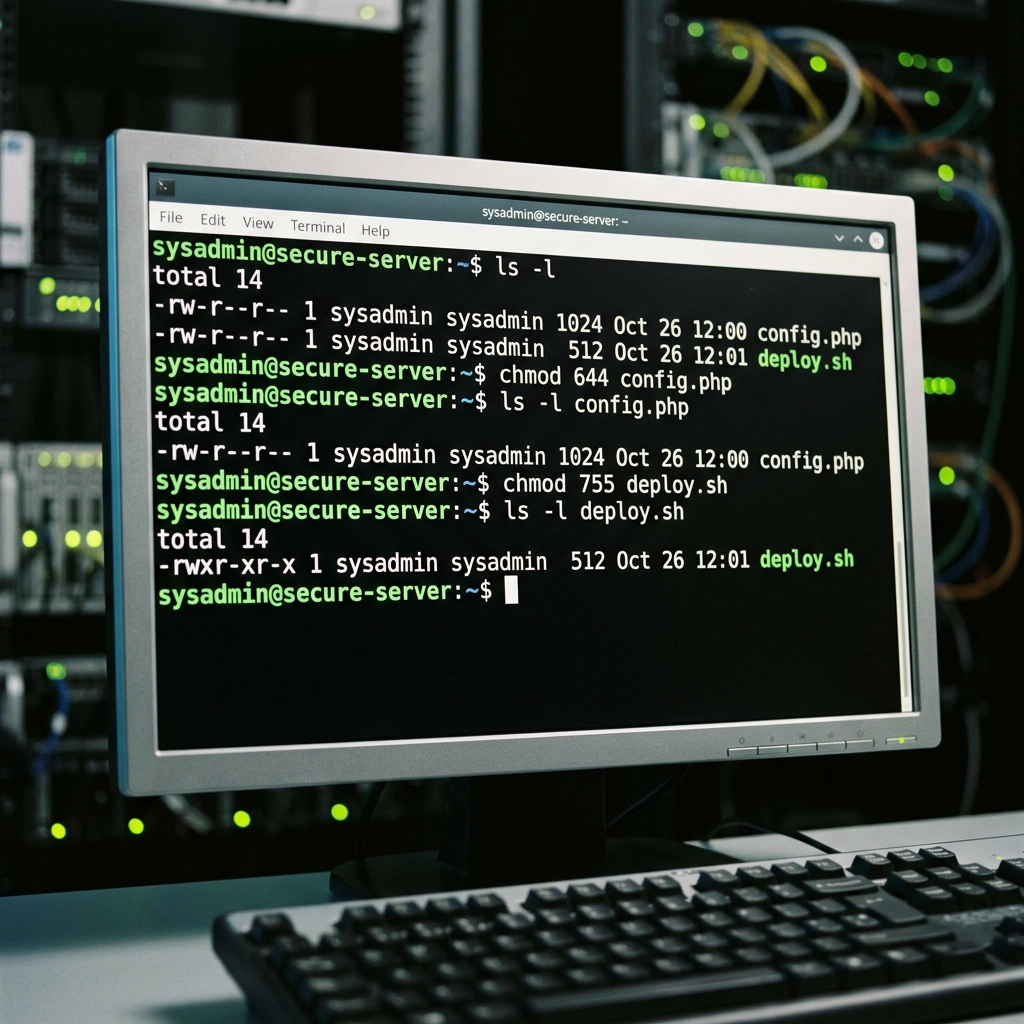
Incorrect file permissions can allow attackers to modify core files or inject malicious code. We covered permission best practices in our Joomla .htaccess guide, but the essentials bear repeating here. The following command set works for most Linux hosting environments:
# Set directories to 755
find /path/to/joomla -type d -exec chmod 755 {} \;

# Set files to 644
find /path/to/joomla -type f -exec chmod 644 {} \;

# Protect configuration.php
chmod 444 /path/to/joomla/configuration.php
configuration.php makes it read‑only, safeguarding database credentials.These permission settings form a solid baseline for any Joomla installation and are essential for solid joomla admin panel security.
Continuous monitoring helps us detect suspicious behavior early. Joomla can log every login attempt, and we can configure email alerts for failed logins.
By reviewing the log files (/administrator/logs/joomla.error.php) and responding to alerts, we can block IPs that show brute‑force patterns and investigate potential breaches before they cause damage.
Is the Joomla admin panel secure by default?
No. While Joomla includes basic protections (see the official Joomla Security Checklist), the default setup leaves the admin URL exposed, uses a common username, and does not enforce two-factor authentication. Taking active steps to secure joomla admin access is essential.
How do I recover a hacked Joomla admin panel?
First, take the site offline to prevent further damage. Reset all admin passwords, restore the configuration.php file from a known clean backup, and run a full malware scan with a security extension. Finally, review the server logs to identify the entry point and apply the hardening steps outlined in this guide.
Can I completely hide the Joomla administrator URL?
You can make it extremely difficult for bots to find by adding a secret key or using an extension that changes the login path. However, a determined attacker who discovers the key can still access it, so additional layers such as IP restrictions and 2FA remain important.
How often should I audit my Joomla admin security?
A full audit should be performed at least quarterly, with a quick review of logs and updates every month. After any major change—such as installing a new extension or updating the core—run a focused audit to ensure nothing was unintentionally exposed.
Protecting the Joomla admin panel requires a layered approach that combines obscurity, strong authentication, and vigilant monitoring. By changing the default username, adding a secret URL key, password‑protecting the directory, enabling two‑factor authentication, restricting IP access, installing a reputable security extension, keeping everything up‑to‑date, setting proper file permissions, and continuously monitoring login activity, we create a resilient defense against hackers. Remember, security is an ongoing process; regular audits and updates keep our joomla admin security posture strong and our site safe.