Physical Address
304 North Cardinal St.
Dorchester Center, MA 02124
Physical Address
304 North Cardinal St.
Dorchester Center, MA 02124

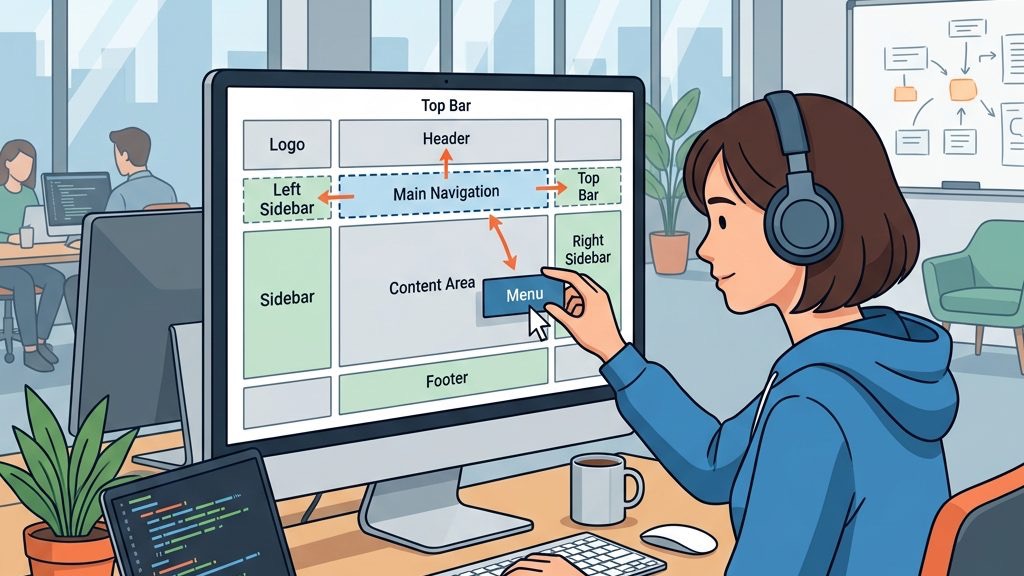


joomla menu system is the backbone of every Joomla website, guiding visitors through the maze of content with the grace of a seasoned tour guide. In this article we walk you through every twist and turn, from the first click to the final breadcrumb, so you can craft navigation that feels as natural as a river’s flow.
Key Takeaways
Whether we are setting up a simple five-page business site or managing a complex portal with hundreds of articles, the joomla menu system gives us the tools to organize every link, control every permission, and present every page in exactly the right place. Throughout this guide, we will cover everything from creating our very first menu to applying advanced techniques such as multi-level dropdowns, access-level restrictions, and search-engine-friendly URL structures.
A menu in Joomla is a collection of menu items that together form the site’s navigation structure. Think of it as a digital map, where each item is a landmark pointing to a destination such as a single article, a category list, or an external URL. We design menus in the Joomla admin area, and they appear on the front end through a menu module assigned to a template position.
The menu is not a static list; it is a living organism that reacts to user permissions, language switches, and device types. When a visitor clicks a parent item, a submenu may unfurl like a blossoming flower, revealing deeper layers of content. This dynamic behavior is powered by the menu manager, which stores the hierarchy and attributes of each menu item type.
Understanding the menu’s anatomy helps us avoid tangled navigation, much like a skilled carpenter studies the grain before cutting wood. By keeping the structure logical, we ensure that search engines and users alike can trace a clear path from the homepage to any piece of content.
The joomla menu system also integrates with Joomla’s multilingual capabilities, allowing us to create language‑specific menus that automatically switch based on the visitor’s selection. This integration reduces the need for duplicate work and keeps the site’s navigation consistent across all locales.
Every menu item in Joomla is a bridge that connects a clickable label to a destination, whether it is a single article, a category list, a system link, or an external URL. When we select a menu item type, Joomla automatically generates the appropriate SEF URL, which is both human‑readable and search‑engine friendly. This URL becomes part of the site’s breadcrumb trail, reinforcing the hierarchy for both users and crawlers.
The connection is more than a simple link; it carries metadata such as access level, language, and target window. For example, a menu item set to “Guest” will hide itself from logged‑in users, preserving a clean navigation for each audience segment. Likewise, an alias menu item can duplicate the link of another item, allowing us to create multiple entry points without duplicating content.
By mastering these connections, we can weave a web of navigation that feels intuitive, much like a well‑planned garden where each path leads to a purposeful destination. The result is a site that guides visitors smoothly, reducing bounce rates and improving dwell time.
Because the joomla menu system stores these relationships in a central database, any change to a menu item instantly propagates to every place the item appears, ensuring consistency and saving time during site updates.
In Joomla, a menu is a container that holds menu items, while a menu module is the visual representation that renders those items on the page. The menu manager lets us create multiple menus—such as “Main,” “Footer,” or “Sidebar”—each with its own set of items and settings. We then assign a menu module to a template position like position-7 or header to display the desired menu where we want it.
A menu module can be configured to show only a subset of items, filter by access level, or even display a dropdown menu for hierarchical structures. This flexibility allows us to tailor the navigation experience for different devices, languages, or user groups. The module also respects the menu type we select, whether it’s a single article, category list, or a system link.
Think of the relationship as a theater production: the menu writes the script, the menu items are the actors delivering lines, and the menu module is the stage where the performance unfolds. When all three work in harmony, the audience (our visitors) enjoys a smooth show from curtain‑rise to curtain‑call.
The joomla menu system ties these three components together, ensuring that changes made in the manager are reflected instantly in the module output. This tight coupling simplifies maintenance and guarantees that the navigation remains accurate across the entire site.
main-menu.After saving, the new menu appears in the menu manager list, ready for us to populate with menu items. We can immediately assign a menu module to a template position to make the menu visible on the front end. This initial setup is akin to laying a foundation before constructing a house; without it, no rooms (pages) can be accessed.
Remember to set the access level for the menu itself—usually “Public” for primary navigation—so that all visitors can see it. If we later need a private menu for logged‑in users, we can create a separate menu and assign it a different access level.
The joomla menu system also records who created the menu and when, providing an audit trail that can be useful for larger teams. This traceability helps us maintain accountability and quickly troubleshoot any unexpected changes.
Within the menu manager, each menu has a set of global settings that affect all its items. We can enable SEF URLs, decide whether to show breadcrumbs, and set default page behavior. Permissions are managed under the Permissions tab, where we grant or deny actions like Create, Edit, or Delete for user groups such as Manager or Administrator.
These settings act like traffic lights, directing who can modify the navigation and how it behaves. By restricting Edit rights to trusted users, we prevent accidental changes that could break the site’s flow. Likewise, enabling SEF URLs ensures that each menu link is clean and keyword‑rich, boosting SEO performance.
We also have the option to enable menu caching, which stores the rendered menu in memory for faster loading—especially useful for high‑traffic sites. Proper caching is like a well‑oiled machine, reducing the effort required to serve each request.
Because the joomla menu system centralizes these settings, we can apply consistent policies across all menus, simplifying governance for large sites with many navigation structures.
Clear naming is the compass that guides both editors and visitors through the site’s structure. We should use concise, descriptive titles such as “About Us,” “Products,” or “Contact.” Avoid vague names like “Menu 1,” which can cause confusion when managing dozens of items.
Organizing items hierarchically—placing broad categories as parent items and specific pages as child items—creates a logical flow similar to a table of contents in a book. This hierarchy also enables dropdown menus, allowing users to explore subpages without leaving the current view.
Finally, keep the number of top‑level items reasonable; a cluttered navigation bar can overwhelm visitors, much like a crowded market stall. By grouping related pages under a single parent item, we maintain a clean and user‑friendly interface.
The joomla menu system encourages us to think ahead about future expansion; by reserving parent items for upcoming sections, we can add new child items later without redesigning the entire navigation.
Each new menu item becomes a clickable entry in the navigation bar, ready to guide users to its destination. The alias field determines the SEF URL, which should be short, descriptive, and keyword‑rich for SEO benefits.
We can also assign an access level to the item, ensuring that only the appropriate audience sees it. For example, a “Member Resources” link might be visible only to logged‑in users, keeping premium content secure.
The joomla menu system automatically updates the breadcrumb trail whenever we add a new item, preserving the hierarchical context for both users and search engines.
When we select Single Article as the menu item type, Joomla presents a dropdown of all published articles. Choosing one creates a direct link, and the menu link inherits the article’s SEF URL unless we override it with a custom alias.
For a Category List, the menu item displays a list of all articles within that category, acting as a hub for related content. This is useful for blog sections or product catalogs where we want to showcase multiple items under one heading.
External URLs are linked by selecting the External URL type and entering the full address, such as https://example.com. We can set the link to open in a new window, which is handy for linking to partner sites without losing the visitor’s place on our own site.
Because the joomla menu system stores the target type internally, we can later change the destination (for example, swapping a single article for a newer version) without having to edit the menu item’s label or alias.
To create a dropdown menu, we first create a parent item—often a menu item type called Separator or Heading—and then add child items beneath it. In the menu manager, we set the Parent Item field of each child to the ID of the parent, establishing the hierarchy.
When the front‑end menu module renders the menu, it automatically nests the child items under the parent, producing a submenu that appears on hover or click, depending on the template’s JavaScript. This behavior mimics a tree branch sprouting leaves, offering a tidy way to present many links without crowding the main bar.
We can further customize the dropdown’s appearance by adding CSS classes to the Parent Item and Child Items, allowing us to style the dropdown menu to match the site’s visual language.
The joomla menu system also supports multi‑level nesting, so we can build complex navigation trees that remain easy to manage from the admin interface.
The Single Article type is the most straightforward, pointing directly to a specific piece of content. It is ideal for landing pages, “About Us” sections, or any page that stands alone. By using a clear alias, we generate an SEO‑friendly SEF URL that reinforces the article’s keyword focus.
Category List items aggregate multiple articles under a common theme, presenting them as a list or grid. This type is perfect for blog categories, product groups, or news archives, providing a natural navigation path for users seeking related content.
Both types respect access level settings, so we can hide a private article from the public while still showing it in a restricted menu for members. This granularity ensures that the right audience sees the right content at the right time.
The joomla menu system treats these types as first‑class citizens, meaning they inherit global menu settings such as caching and SEF handling, which streamlines site‑wide configuration.
System Links are internal Joomla shortcuts such as Home, Login, Logout, and Search. They do not point to external content but trigger built‑in functionality, making them essential for user interaction.
External URL items let us link to resources outside the Joomla site, such as partner pages or social media profiles. By checking the “Open in new window” option, we keep visitors on our site while they explore external content.
Alias items duplicate an existing menu link, allowing us to place the same destination in multiple menus without creating duplicate content. This is useful for multilingual sites where the same page appears under different language menus.
Because the joomla menu system stores alias relationships internally, any change to the original menu item instantly updates all its aliases, preserving consistency across the site.
Joomla’s component menu items connect the navigation to powerful extensions like Contacts, Tags, and Search. A Contacts menu item can display a contact form or a list of staff members, providing a direct communication channel.
Tags menu items generate a dynamic list of articles associated with a specific tag, enabling thematic browsing across the site. This is especially handy for news portals or knowledge bases where topics overlap.
The Search component adds a search box to the navigation, allowing users to query the entire site from any page. By placing it in a menu module, we keep the search function accessible without cluttering the main navigation.
The joomla menu system integrates these component links smoothly, ensuring that the appropriate component scripts are loaded only when the menu item is activated, which helps maintain performance.
After creating a menu, we must display it using a menu module. In the Extensions → Modules area, we click New, select Menu, and then choose the menu type we created earlier (e.g., main-menu).
Next, we assign the module to a template position such as header or position-7. The position determines where the menu appears on the page, whether at the top, side, or footer. By placing the module in a module position, we let the template’s layout engine handle the visual placement.
We can also set module assignment rules to show the menu on specific pages, menus, or user groups. This flexibility allows us to display a dropdown menu only on desktop devices while offering a simplified version for mobile.
The joomla menu system records the module‑to‑menu relationship, making it easy to swap menus between positions without recreating items, which is especially handy during redesigns.
Joomla lets us assign distinct menus to different pages by using menu assignment settings in the module configuration. For example, a “Shop” page might use a menu module that shows only product categories, while the homepage displays the full site navigation.
These assignments are controlled by selecting Menu Assignment → Only on the pages selected and then checking the relevant menu items. This approach is similar to a theater stage where different scenes (pages) have their own cast (menus).
By tailoring the navigation per page, we reduce visual noise and guide users toward the most relevant actions, improving both usability and conversion rates.
The joomla menu system makes it straightforward to clone an existing menu, adjust its items, and then assign the clone to a different set of pages, saving time when building complex site structures.
To fine‑tune the look of our navigation, we can add custom CSS classes to the menu module or individual menu items. For instance, adding class="nav-primary" to the module lets us target it in the stylesheet with .nav-primary ul { … }.
Joomla’s template overrides allow us to replace the default menu layout file (default.php) with a custom version placed in the template’s html/mod_menu folder. This gives us full control over the HTML markup, enabling us to insert additional elements like icons or microdata.
Combining CSS and overrides, we can craft a dropdown menu that animates smoothly, highlights the active menu item, and adheres to the site’s branding—much like a tailor stitching a perfect fit for a bespoke suit.
Because the joomla menu system respects these overrides, we can experiment with new designs without affecting the core functionality, ensuring upgrades remain safe.
Multi‑level dropdowns are created by nesting child items under parent items repeatedly, forming a hierarchy of any depth. In the menu manager, we simply set the Parent Item field for each level, and the menu module will render the appropriate markup.
To ensure the dropdown works across devices, we may need to add JavaScript that toggles submenus on click for touch screens. Many modern templates include this functionality out of the box, but custom scripts can be added via the template’s script.js file.
Styling multi‑level menus requires careful CSS, using selectors like .nav-primary li ul li to target deeper levels. By applying subtle transitions, we can make the menu feel responsive and inviting, akin to a gentle breeze guiding a sailboat.
The joomla menu system stores each level’s parent‑child relationship, making it easy to reorder or remove entire branches without breaking the remaining structure.
Access control in Joomla is handled through access levels such as Public, Guest, Registered, and custom groups. When we edit a menu item, we choose the appropriate access level to hide or show it based on the visitor’s login status.
For example, a “Member Dashboard” link can be set to Registered, ensuring only logged‑in users see it. Conversely, a “Login” link should be visible only to Guest users, preventing redundancy for those already signed in.
By combining menu module assignment with access level settings, we can create personalized navigation experiences—much like a concierge who greets each guest by name and offers tailored suggestions.
The joomla menu system also supports hierarchical access levels, allowing us to define custom groups (e.g., “Premium Member”) and tie menu visibility directly to those groups, which is essential for subscription‑based sites.
Search engines treat menu items as important signals of site hierarchy, so we should keep the structure shallow and logical. Use descriptive titles and aliases that include target keywords, and avoid generic labels like “Click Here.”
Enable SEF URLs in the global configuration, and verify that each menu link generates a clean, keyword‑rich address. Additionally, set the Home menu item as the default page to give search engines a clear entry point.
Implement breadcrumb navigation by enabling it in the template or via a module. Breadcrumbs reinforce the site’s structure and provide additional internal linking, helping crawlers understand the relationship between pages.
Because the joomla menu system automatically updates breadcrumbs when we modify the menu hierarchy, we can maintain SEO integrity with minimal manual effort.
The menu component, accessed via Menus → Manage, is the central hub where we create, edit, and organize all navigation structures, including menu items, menu types, and their hierarchical relationships. It works alongside menu modules, which handle the visual rendering of our menus on the front end of the site.
In the Joomla admin, go to Menus → Manage → Add New Menu, fill in the title and menu type, then save. After that, you can populate it with menu items and assign a menu module to a template position.
Joomla supports several menu types, such as Main Menu, Footer Menu, Sidebar Menu, and custom types you create for specific sections. Each type can be linked to a menu module for display. We can also create entirely custom menu types for user-specific navigation, restricted-access panels, or language-specific site versions.
Create a parent menu item (often a Separator or Heading) and then add child items with the Parent Item field set to the parent’s ID. The menu module will automatically render these as a dropdown menu.
Go to Extensions → Modules, click New, select Menu, choose the desired menu type, and then assign the module to a template position. Set the menu assignment rules to control on which pages the menu appears.
Yes, Joomla allows us to place multiple menu modules on a single page, each assigned to a different template position. For instance, we might display a main navigation bar at the top and a secondary sidebar menu for section-specific links. The menu assignment settings in each module determine which pages they appear on.
In the menu manager, we can reorder items by dragging the sorting handle next to each menu item or by clicking the column headers to sort alphabetically. We can also set the ordering manually by entering numbers in the Ordering field. Changes take effect immediately on the front end once we save.