Physical Address
304 North Cardinal St.
Dorchester Center, MA 02124
Physical Address
304 North Cardinal St.
Dorchester Center, MA 02124




joomla articles and categories are the twin pillars that keep any Joomla site tidy and discoverable. In this guide we walk you through every step, from opening the article manager to shaping a deep category hierarchy that guides visitors and search engines alike. You will learn how to write, format, and publish a piece of content, how to organize it with subcategories, and how to fine‑tune metadata, access levels, and display options. We also share practical tips for naming, URL optimization, and long‑term maintenance, so you can keep your site humming smoothly as it grows. Let’s explore into the details and turn the abstract into concrete actions.
An article in Joomla is a single piece of content that lives inside the back‑end and appears on the front‑end when a visitor clicks a link. Think of it as a page in a book: the article holds the intro text, the full text, and optional read more break that separates a teaser from the complete story. We can edit articles with the TinyMCE editor, adding images, tables, and embedded videos without leaving the interface.
Each article carries its own publishing options, such as start and finish dates, which let us schedule posts to appear at the perfect moment. The article ordering determines which piece shows first when a category is displayed as a blog layout. By setting the featured flag, we can highlight key content on the homepage or a dedicated featured‑articles module.
Because Joomla stores articles in a database, they are searchable, translatable, and can be reused across multiple menu items. This flexibility makes the article a powerful building block for any site, from a simple blog to a complex corporate portal.
Categories act like folders that group related articles together, creating a logical map for both users and search engines. When we assign an article to a parent category, Joomla automatically builds a breadcrumb trail that helps visitors understand where they are on the site. This breadcrumb is also a ranking signal for search engines, reinforcing the relevance of the content.
Categories also control the menu items that display collections of articles, allowing us to present a category blog layout or a list layout with a single click. By organizing content into clear categories, we reduce the time users spend hunting for information, which improves engagement metrics such as bounce rate and time on page.
Moreover, categories inherit access level settings, so we can restrict an entire section of the site to registered users, guests, or custom groups. This inheritance saves us from setting permissions on each article individually, streamlining the workflow for large sites.
When an article is saved, Joomla records the category ID that ties the piece to its folder. The system then pulls the article into the appropriate category view, applying the chosen layout—whether a blog that shows intro text with a “Read more” link, or a list that displays titles and dates only.
The relationship is dynamic: moving an article to a different category instantly updates its URL, breadcrumb, and menu placement. This fluidity lets us experiment with content groupings without breaking links, as Joomla can create redirects for the old URLs if we enable the SEO-friendly URLs option.
In practice, we often start with a high‑level parent category such as “News” and then create subcategories like “Company Updates” or “Industry Insights.” Articles placed in these subcategories inherit the parent’s navigation path, producing URLs like /news/company-updates/quarterly-report. This structure is both human‑readable and search‑engine‑friendly.

The article manager displays a list of existing pieces, each with columns for status, category, and access level. We can filter, sort, or search this list to locate a specific article quickly. The toolbar also offers shortcuts for publishing, trashing, or copying articles, which speeds up bulk operations.
When the form loads, we see tabs for Content, Images and Links, Options, and Publishing. Each tab groups related settings, keeping the interface tidy and allowing us to focus on one aspect at a time.
In the Content tab, we type the main body using the TinyMCE editor. The editor provides familiar toolbar icons for bold, italic, headings, and alignment, letting us shape the text without HTML knowledge. We can insert a read more break by clicking the corresponding button, which splits the article into an introductory teaser and the full story.
To add images, we click the Insert/Edit Image icon, browse the media manager, and select a file. Joomla automatically generates a thumbnail for the article list view, improving visual appeal. We can also embed videos from YouTube or Vimeo by pasting the embed code into the editor.
For better SEO, we fill out the metadata fields under the Options tab, adding a custom meta description, keywords, and author name. These values appear in the HTML head and influence how search engines display the page in results.
Switch to the Publishing tab to define when the article should appear. We set the Start Publishing date to schedule a future post, and optionally the Finish Publishing date to retire it automatically. The Featured toggle lets us mark the article for inclusion in featured‑articles modules.
The Access Level dropdown determines who can view the article: Public, Registered, Special, or any custom group we have created. Selecting a more restrictive level hides the article from guests, which is useful for premium content.
Finally, we choose the Category from the dropdown list. If the appropriate category does not exist yet, we can click the New Category button to create one on the fly, linking it to the article immediately. After reviewing all settings, we click Save & Close to publish the article.
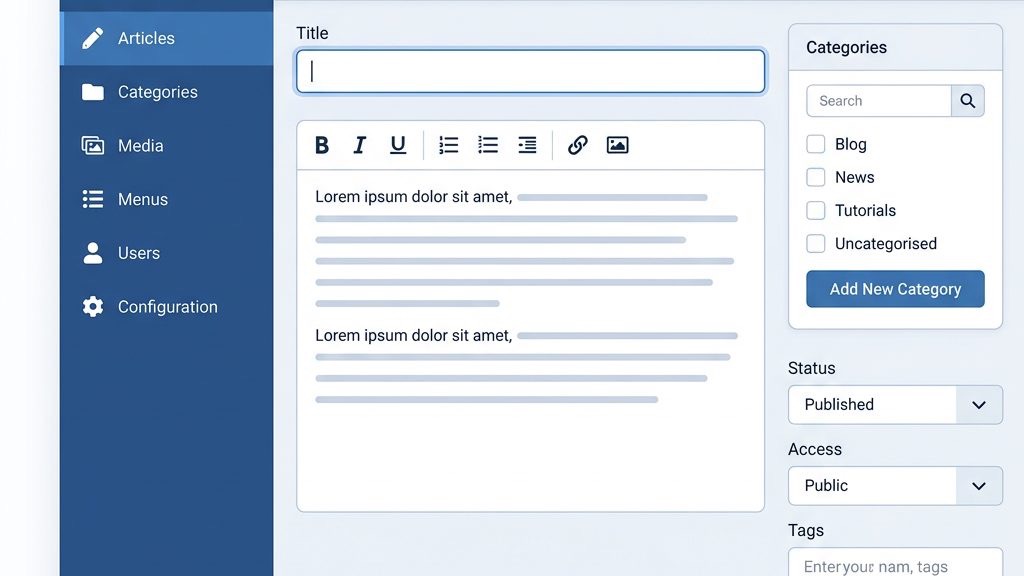
The Category Manager lets us set a parent category if we want to nest this new folder under an existing one. For a top‑level category, we leave the parent set to Root. We also fill in the Description field, which can appear on the category page if the template supports it.
Under the Parameters tab, we can define default layout options for articles inside this category, such as showing the intro text or the full text. We also set metadata for the category itself, which helps search engines understand the theme of the whole group. After configuring, we click Save & Close.
To create a subcategory, we repeat the steps above but select a Parent Category from the dropdown. For example, under the “News” parent we might add “Press Releases” and “Events”. This creates a tree structure that Joomla renders as nested menus and breadcrumb trails.
When we view the Category Manager, the hierarchy is displayed as an indented list, making it easy to spot misplaced items. We can drag and drop categories to reorder them, or use the Batch button to change the parent of multiple categories at once.
A well‑planned hierarchy reduces the number of clicks a visitor needs to reach an article. For instance, a visitor could navigate Home → News → Events → Summer Festival, each step narrowing the focus and reinforcing the site’s logical flow.
After an article is saved, we can change its category by editing the article and selecting a new Category from the dropdown. This instantly updates the article’s URL and breadcrumb, reflecting the new location.
If we need to move many articles at once, we use the Batch function in the Article Manager. We select the desired rows, click Batch, choose a new Category, and apply the change. This bulk operation saves time when reorganizing a large site.
It’s good practice to keep the intro text short and compelling, as it appears in the category blog layout preview. By assigning articles thoughtfully, we ensure that each category page showcases a cohesive collection of related content.
In the Options tab of the article editor, we find fields for Meta Description, Meta Keywords, and Robots. The meta description should be a concise, persuasive sentence that encourages clicks from search engine results pages.
We can also set a Custom URL Alias that replaces the automatically generated slug, giving us control over the final URL structure. For example, an article titled “How to Install Joomla Extensions” might receive the alias install-joomla-extensions.
If the article is part of a series, we can add Open Graph tags under the Images and Links tab, which improve sharing on social platforms. These tags include the image URL, title, and description that appear when the link is posted on Facebook or Twitter.
The Featured flag is a simple toggle that tells Joomla to include the article in any featured‑articles modules or menu items. We can also assign a Featured Ordering value to control the sequence in which featured items appear.
When using a category blog layout, the Article Ordering option determines whether articles are sorted by date, title, author, or a manual order we set. Manual ordering is useful for highlighting a specific piece at the top of the list.
To change the manual order, we go to the Article Manager, enable the Ordering column, and drag rows up or down. The new order is saved automatically, and the front‑end reflects the change instantly.
Access levels in Joomla are built on user groups and view levels. By default we have Public, Registered, and Special, but we can create custom groups such as Premium Members.
In the Publishing tab, we select the appropriate Access Level for the article. If we choose a custom level, only users belonging to that group will see the article on the front‑end. This is ideal for membership sites or internal documentation portals.
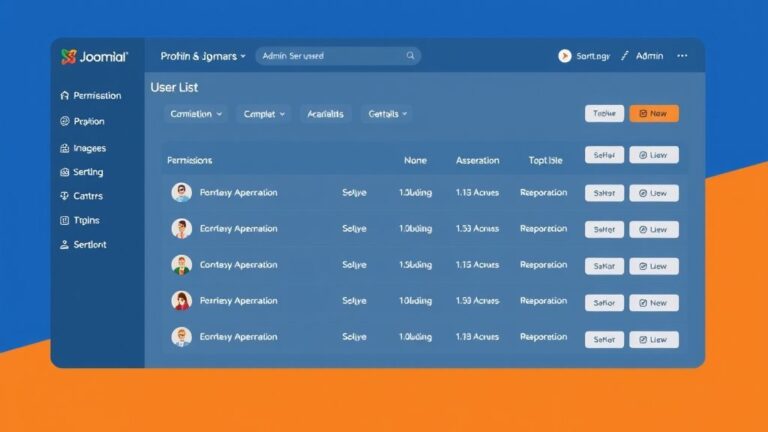
Permissions can also be fine‑tuned in the Category Manager under the Permissions tab. Here we grant or deny actions like Create, Edit, Delete, or Edit State for each user group, ensuring that only authorized editors can modify content.
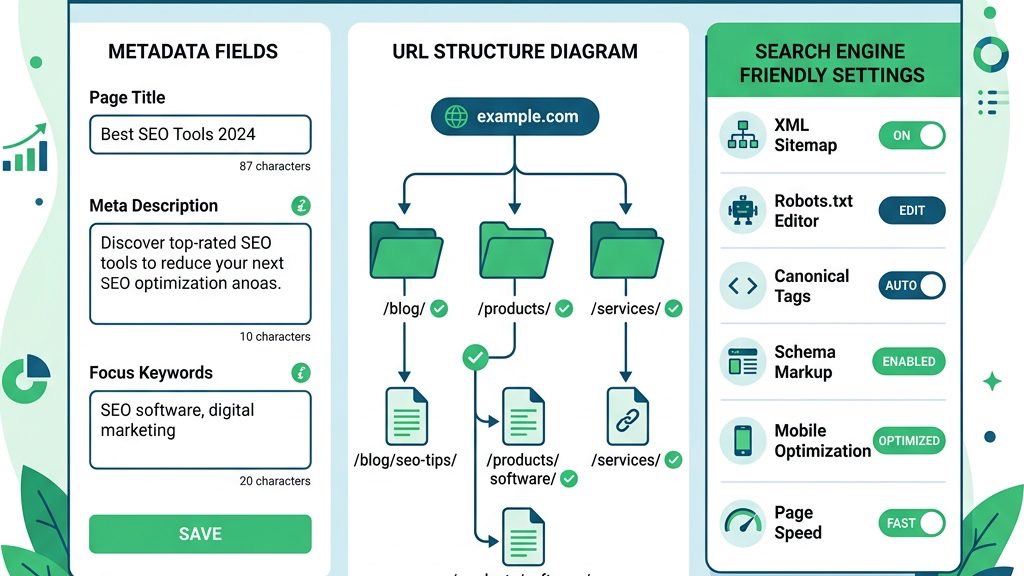
We begin by contrasting the Category Blog Layout with the Category List Layout. The blog style arranges items as a stream of excerpts, each wrapped in its own visual “card,” while the list style lines items up in a simple, vertical table. In a blog layout the reader drifts from one story to the next like a lazy river, whereas the list layout feels more like a well‑ordered ledger. Both layouts are built into Joomla, but they serve different storytelling rhythms.
When we run a cooking blog, the blog layout shines because each recipe can showcase a mouth‑watering image, a short teaser, and a “Read more” button that invites the palate to explore. Conversely, a legal document archive benefits from the list layout, where users need to scan titles, dates, and reference numbers as quickly as flipping through a filing cabinet. The blog layout is ideal for content that thrives on visual appeal and narrative hooks; the list layout excels when the priority is rapid scanning and precise metadata. By matching the layout to the content’s purpose, we keep the user experience as smooth as a well‑buttered pan.
Column options, leading articles, intro articles, and link article settings give us fine‑grained control over the presentation. We can set the blog layout to display two or three columns, turning the page into a mosaic of dishes or a gallery of portfolio pieces. The leading article feature lets a single item dominate the top of the page, much like a headline act on a theater marquee, while intro articles appear as a secondary tier of smaller cards. Link articles can be hidden or shown, allowing us to keep the navigation tidy or to expose hidden pathways for power users.
Joomla offers a suite of toggle switches that dictate how each article appears, from showing the author’s name to enabling print icons. These toggles exist at both the global level—affecting every article on the site—and at the individual article level, where we can override the defaults with a single click. For a news site, we might enable show author and show publish date globally, reinforcing credibility across every story. In a portfolio site, however, we may hide the author field and emphasize image captions instead, giving each project a clean, visual‑first feel.
The global settings act like a master key, opening the same door for all articles unless we deliberately change the lock on a specific piece. When we edit an article, a “Override Global Settings” checkbox appears, allowing us to switch off the print icon for a confidential report while keeping it active for public releases. This hierarchy of control mirrors a corporate chain of command: the headquarters sets the policy, and individual departments can request exceptions when needed. By respecting this structure, we avoid accidental inconsistencies that could confuse readers or break design harmony.
Practical examples illustrate the power of these options. Imagine a news portal that publishes breaking stories 24/7; we enable show modify date and show hits globally to signal timeliness and popularity. For a freelance photographer’s portfolio, we turn off show category and enable show image alt text to improve accessibility without cluttering the visual layout. Each toggle is a small lever that, when pulled thoughtfully, shapes the visitor’s perception of the content.
Joomla’s menu system lets us turn any category into a navigable entry point, and we can choose from several menu item types such as Category Blog, Category List, and Single Category. The Category Blog type mirrors the blog layout discussed earlier, presenting articles as flowing excerpts, while Category List offers a straightforward table of links. The Single Category type displays the category description alone, acting as a landing page that can host custom modules or promotional banners.
Nested menus provide a hierarchical roadmap, guiding users deeper into the site without overwhelming them. We might place a top‑level menu item called “Resources,” then nest sub‑items for “Guides,” “Tutorials,” and “Whitepapers,” each pointing to a different category. By assigning these sub‑items to distinct module positions, we can display a carousel of featured articles beside the list, turning the sidebar into a dynamic showcase. This arrangement feels like a well‑organized library, where each shelf is clearly labeled and the most popular books sit within arm’s reach.
A practical walkthrough begins with the Menus → Main Menu → Add New Menu Item workflow. First, we select the desired menu type, for example Category Blog, then choose the target category from the dropdown. Next, we set the Show Title option to “Yes” and decide whether to display Sub‑Category Articles. Finally, we assign the menu item to a module position such as position‑7, where a custom HTML module can advertise a seasonal promotion. By following these steps, we create a cohesive navigation experience that feels both intuitive and inviting.
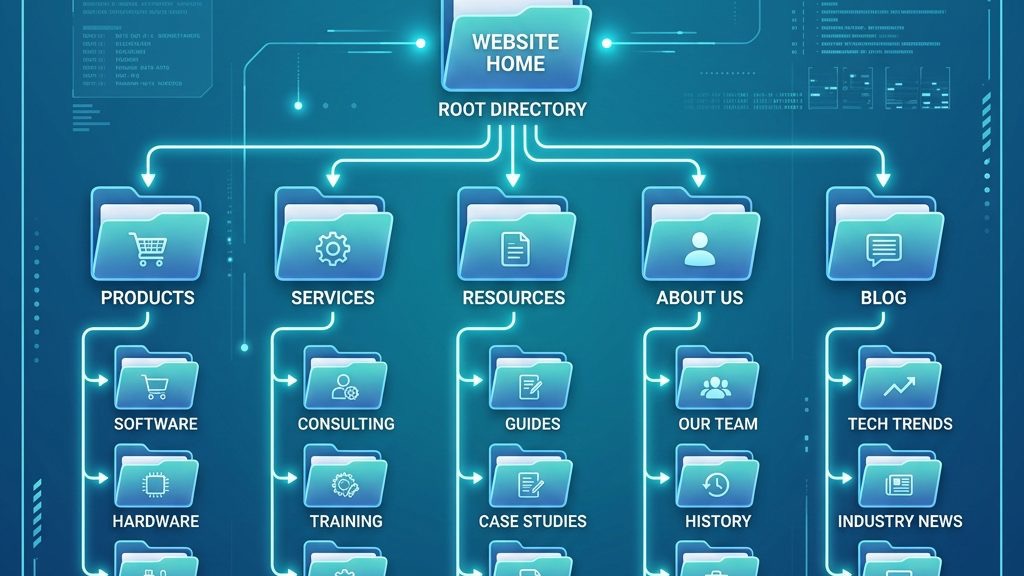
Before we lay the first brick of content, we sketch a sitemap that visualizes the category hierarchy like a tree map. This blueprint helps us avoid tangled branches that could later confuse both users and search engines. We start by identifying the core topics, then group related sub‑topics beneath them, keeping the depth to three or four levels at most. A shallow structure resembles a well‑pruned orchard, where each fruit is easy to locate and harvest.
Competitor analysis offers a realistic benchmark for how deep and wide our categories should be. We examine sites that rank well for our target keywords, noting how they segment their content and where they place flagship articles. If a rival uses a five‑level hierarchy for a niche hobby, we might simplify it to three levels to reduce click‑through friction. By borrowing successful patterns while tailoring them to our brand voice, we create a roadmap that feels both familiar and uniquely ours.
When we finalize the plan, we document the category names, intended URLs, and the purpose of each level in a shared spreadsheet. This living document serves as a reference for writers, designers, and developers, ensuring everyone pulls in the same direction. By establishing clear conventions early, we prevent the “category creep” that often leads to orphaned pages and broken links. A disciplined approach to structure lays the foundation for a site that grows gracefully over time.
Search‑engine‑friendly (SEF) URLs act as clear signposts that guide both users and crawlers toward the content they seek. We construct URLs that include keyword‑rich aliases, such as /recipes/vegan‑chocolate‑cake, rather than generic IDs like /index.php?option=com_content&id=42. The .htaccess file in Joomla can be configured to rewrite these URLs, turning a tangled web of parameters into clean, readable paths. This transformation is akin to turning a maze into a straight hallway, reducing the chance of a visitor getting lost.
Good URLs are concise, descriptive, and free of unnecessary stop words. A well‑crafted URL might read /portfolio/graphic‑design/branding‑case‑study, while a poor one could be /index.php?Itemid=123&view=article&id=987. The former conveys the topic and hierarchy at a glance; the latter looks like a cryptic code that offers no clues. By standardizing naming conventions—using hyphens instead of underscores, lower‑case letters, and avoiding trailing slashes—we create a predictable pattern that scales with new content.
Practical implementation begins with enabling Joomla’s Search‑Friendly URLs option in the Global Configuration, then editing each category’s Alias field to reflect the target keyword. For a travel blog, we might set the alias for a “Paris Attractions” category to paris-attractions. After saving, we test the URL in a browser to confirm the rewrite works and that the page title appears correctly. By treating each URL as a miniature headline, we improve click‑through rates and help search engines understand the page’s relevance.
A regular audit schedule keeps the category tree healthy, much like a gardener pruning overgrown branches each quarter. We review traffic reports, identify categories with declining visits, and decide whether to merge, split, or retire them. During this process, we also check for duplicate or orphaned articles that may have slipped through the cracks. By addressing these issues promptly, we preserve the site’s authority and prevent users from encountering dead ends.
When we restructure, we must manage redirects to preserve link equity and avoid 404 errors. Joomla’s Redirect Component allows us to map old URLs to their new destinations, acting as a bridge that guides both visitors and search engine bots to the updated location. For example, if we rename the “News” category to “Press Releases,” we create a redirect from /news to /press-releases. This practice is similar to updating a road sign after a street name change, ensuring drivers reach the correct address without detour.
Content decay management involves archiving or repurposing outdated articles rather than letting them linger unnoticed. We can set a “Publish End Date” for time‑sensitive pieces, automatically moving them to an “Archive” category once the date passes. Alternatively, we might refresh a stale post with new data and promote it back to the front page. By treating the category system as a living organism, we keep the site vibrant, relevant, and ready to adapt to future growth.
Q: What are articles in Joomla?
A: Articles are individual content pieces stored in the article manager. They contain an intro text, full text, and optional metadata. Articles can be scheduled, featured, and assigned to categories for organized display.
Q: What is the primary purpose of categories in Joomla?
A: Categories group related articles, create navigation paths, and control access. They also determine which menu items display a collection of articles, using either a blog or list layout.
Q: Can an article belong to multiple categories in Joomla?
A: No. Each article is assigned to a single category, though the same article can be linked from multiple menu items or modules. To share content across sections, we typically use modules or cross‑linking within the article body.
Q: How do I create subcategories in Joomla?
A: In the Category Manager, click New, fill in the title, and select a Parent Category from the dropdown. Save the record, and the new subcategory appears under its parent in the hierarchy.
Q: What is the difference between category blog and category list layout?
A: The category blog layout shows each article’s intro text, image, and a “Read more” link, resembling a blog feed. The category list layout displays only titles (and optional dates), providing a compact list for quick scanning.