Physical Address
304 North Cardinal St.
Dorchester Center, MA 02124
Physical Address
304 North Cardinal St.
Dorchester Center, MA 02124

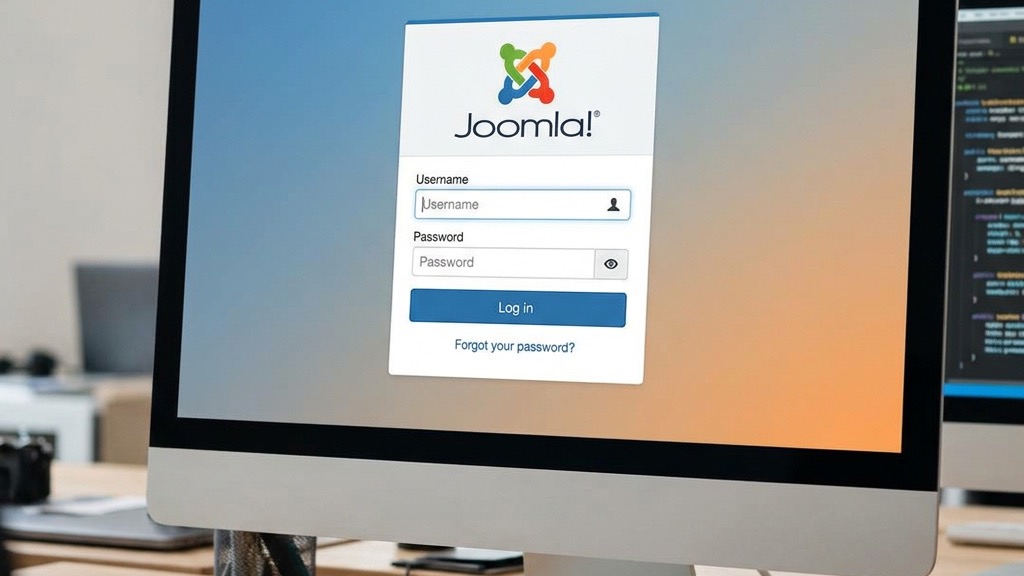


joomla admin panel is the heart of every Joomla website, and we treat it like the cockpit of an aircraft, guiding every flight of content, users, and settings. In this guide we walk you through every lever and button, from the moment you type the administrator URL to the final click that clears the cache. Our aim is to give you a clear roadmap, so you can navigate the backend with confidence and keep your site humming smoothly.
We know that a well‑organized backend feels like a well‑tuned orchestra, each instrument—modules, plugins, templates—playing its part in harmony. Throughout this article we will sprinkle practical tips, best‑practice warnings, and a few analogies to make the learning curve feel more like a gentle stroll than a steep climb.
Key Takeaways
– The joomla admin panel is accessed via /administrator and can be secured with SSL and two‑factor authentication.
– Mastering content management involves the article manager, category manager, and media manager.
– Global configuration controls site‑wide settings, including SEO settings, SMTP, and system information.
– Proper user groups and access control levels keep your team productive while protecting sensitive data.
– Regular updates, cache clearing, and check‑in of items maintain performance and stability.
– Customizing the backend appearance is possible through templates, admin themes, and CSS overrides.
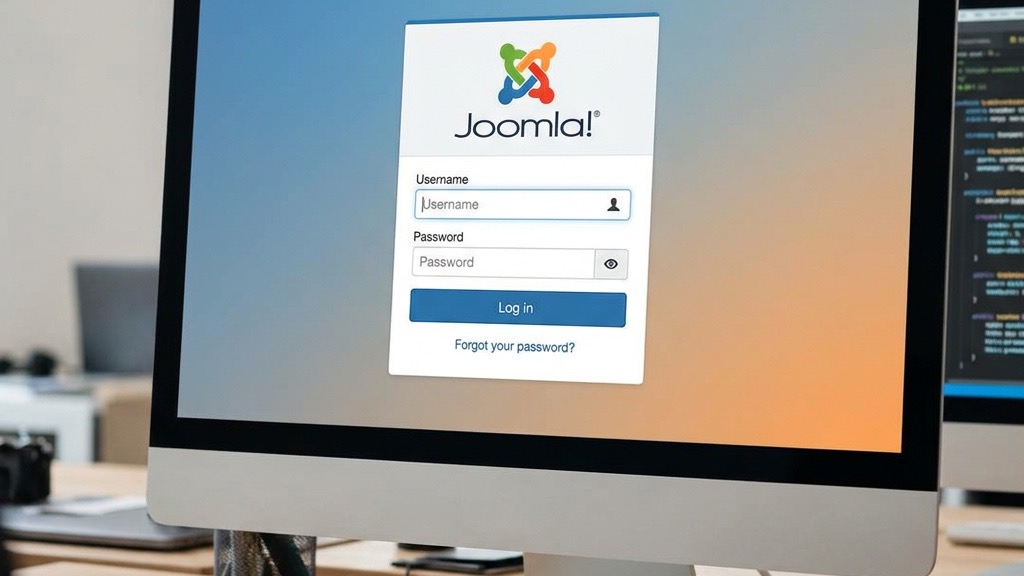
The first step toward the backend is locating the administrator URL, which by default ends with /administrator. We often compare this to finding the front door of a house; the address is simple, but the key—your login credentials—must be ready. If you have moved the login page for security, the new address will be a variation of the original, and you can verify it by checking the system information page in the front‑end.
When you type the URL into the browser, the server greets you with a familiar login screen, much like a gatekeeper waiting for the correct password. The page is built with templates that can be customized, but the core fields—username and password—remain unchanged. It is a good practice to bookmark the exact URL, so you never lose the path in a sea of tabs.
If you are managing multiple Joomla installations, we recommend using a password manager to store each administrator URL alongside its credentials. This approach reduces the chance of typing errors, which can be as frustrating as trying to open a locked safe with the wrong combination. Keeping a tidy list also helps when you need to audit access for compliance purposes.
During the initial login, you will typically use the super user account created during installation. Think of this account as the captain of a ship, holding the ultimate authority over every function in the joomla admin panel. The default username is “admin,” but for security reasons we always advise changing it immediately after the first login.
After entering the credentials, the system may prompt you to set up two‑factor authentication, adding an extra layer of protection similar to a double‑locked door. This step involves linking a mobile app or email token, which then generates a time‑based code each time you log in. Enabling this feature is akin to installing a guard dog that barks at any unauthorized visitor.
Once logged in, you will be greeted by the Dashboard, a central hub that displays system messages, check‑in items, and quick links to common tasks. The layout can be rearranged by dragging widgets, much like arranging furniture in a living room for optimal flow. Take a moment to explore the shortcuts; they are designed to reduce the number of clicks needed to reach core functions.
If the login screen refuses to accept your credentials, the first thing to verify is that the administrator URL is correct and that the server is reachable. A common culprit is a mismatched SSL certificate, which can cause the browser to block the page as if a security guard had turned you away. Checking the browser console for error messages often reveals the exact problem.
Another frequent obstacle is a locked account after multiple failed attempts. Joomla automatically locks the user after a set number of wrong passwords, similar to a vault that shuts down after too many incorrect codes. To it, you can either wait for the lockout period to expire or use phpMyAdmin to reset the status directly in the database.
If you suspect the password itself is the issue, you can reset it using the “Forgot Password” link, which sends a reset token via email. Ensure that the email configuration in global configuration—including SMTP settings—is correct, otherwise the reset email will never arrive. In cases where email fails, you can manually change the password in the user manager by editing the super user record.
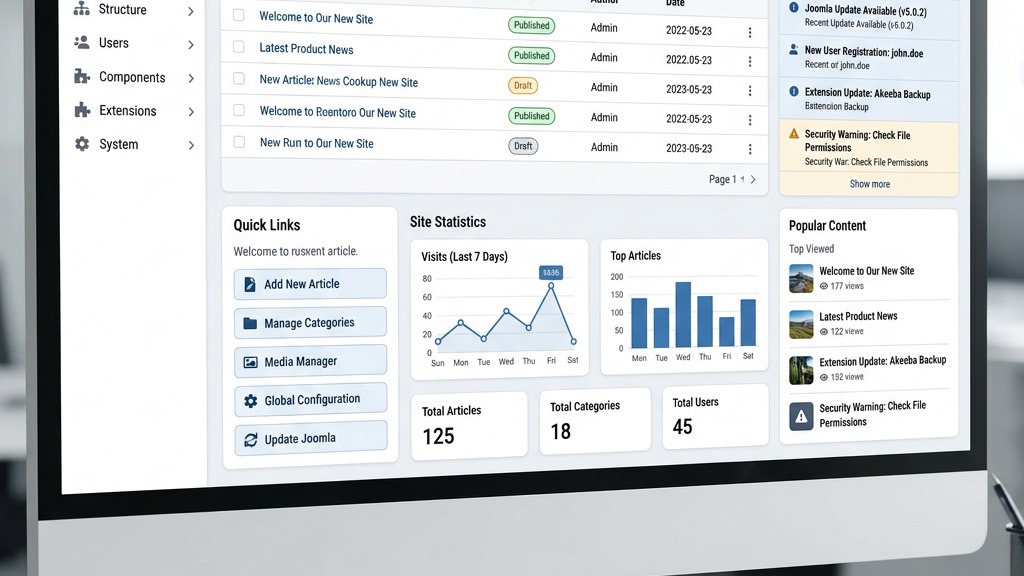
The Home Dashboard acts as a command center, displaying widgets that summarize recent activity, system health, and quick actions. Imagine it as a weather station, showing you the temperature of your site’s performance and the forecast for upcoming updates. Each widget can be collapsed, expanded, or removed to suit your workflow.
Key widgets include System Information, which provides details about PHP version, MySQL, and installed extensions—essential data for troubleshooting. The Check‑in widget lists items that are locked by other users, allowing you to release them with a single click, much like freeing a stuck gear in a machine. Keeping an eye on these widgets helps you stay ahead of potential bottlenecks.
Customizing the Dashboard is straightforward: click the gear icon on any widget to adjust its settings or drag it to a new position. This flexibility mirrors arranging tools on a workbench, placing the most frequently used items within easy reach. A well‑organized Dashboard reduces the time spent hunting for settings and lets you focus on content creation.
Running the across the panel sits the top menu bar, a ribbon of links that guide you to every major area of Joomla. From Content, Menus, Components, Extensions, and System, each menu is a doorway to a set of specialized tools. Think of it as a map with highways leading to different regions of your site.
Hovering over a menu reveals a dropdown of sub‑items, such as Article Manager, Category Manager, and Media Manager, each designed to streamline specific tasks. The quick‑link icons on the right side provide shortcuts to frequently used pages like Global Configuration and Cache Management. These icons act as fast‑track lanes on a highway, cutting down travel time.
Understanding the hierarchy of the menu bar is essential for efficient navigation; for example, Extensions → Manage lets you see all installed modules, plugins, and templates in one place. This central view is comparable to a control panel where you can toggle the status of each component, making it easier to spot outdated or conflicting extensions.
System messages appear at the top of the backend, alerting you to successes, warnings, or errors—much like traffic lights guiding the flow of operations. A green success message might confirm that an article was saved, while a red error could indicate a failed database query. Paying attention to these notifications prevents small issues from turning into major outages.
The notification bell icon on the top right aggregates alerts about pending updates, security warnings, and scheduled tasks. Clicking it opens a pane that lists each item, allowing you to address them in order of priority. This feature works like a newsroom ticker, keeping you informed of the latest developments without leaving the dashboard.
We can also configure the system messages display in global configuration, choosing whether they appear as pop‑ups or inline alerts. Adjusting this setting can reduce visual clutter, similar to dimming lights in a theater to focus attention on the main stage. Proper handling of messages ensures a smooth and uninterrupted workflow.

Articles are the building blocks of Joomla, and the Article Manager provides a polished workspace for crafting them. When you click “New,” a blank canvas appears, ready for text, images, and embedded media—much like an artist’s easel awaiting a fresh masterpiece. The editor supports both WYSIWYG and code view, catering to writers and developers alike.
During editing, you can assign the article to a category, set publishing dates, and add metadata for SEO. These options are comparable to setting the stage for a performance, ensuring that the audience finds the content at the right time and place. Remember to click “Save & Close” to commit your changes and return to the article list.
If you need to edit multiple articles simultaneously, the batch processing feature lets you apply the same changes—such as a new author or tag—to a selection of items. This capability is akin to a gardener pruning several plants at once, saving time and maintaining consistency across the site.
Categories act as folders that group related articles, making navigation and management easier for both editors and visitors. Creating a clear hierarchy of categories is similar to arranging books on a shelf by genre, allowing users to locate information quickly. In the Category Manager, you can set parent‑child relationships, define access levels, and assign default metadata.
When you move an article from one category to another, Joomla updates the URL automatically if you have SEO and URL Settings enabled. This behavior mirrors a river changing its course while still delivering water to the same destination. Proper categorization also improves the site’s internal linking structure, boosting search engine visibility.
We recommend regularly reviewing the category tree to prune unused or duplicate entries, much like a librarian weeding out outdated volumes. A tidy category structure reduces clutter in the menu management interface and helps maintain a coherent navigation experience for site visitors.
The Media Manager is the digital vault where all images, videos, and documents reside, ready to be inserted into articles or modules. Uploading a file is as simple as dragging it into the browser window, and Joomla automatically creates thumbnails for quick preview. Think of it as a pantry where ingredients are stored for future recipes.
Organizing media files into folders mirrors the way you would sort tools in a workshop—each category labeled for easy retrieval. You can also set permissions on folders, ensuring that only certain user groups can upload or delete files. This control is comparable to assigning keys to specific rooms in a building.
When inserting media into an article, the editor offers a button that opens the Media Manager and lets you select the desired file. The system then generates the appropriate HTML tag, complete with alt text for accessibility. Properly labeled media not only improves user experience but also contributes to SEO settings by providing contextual clues to search engines.
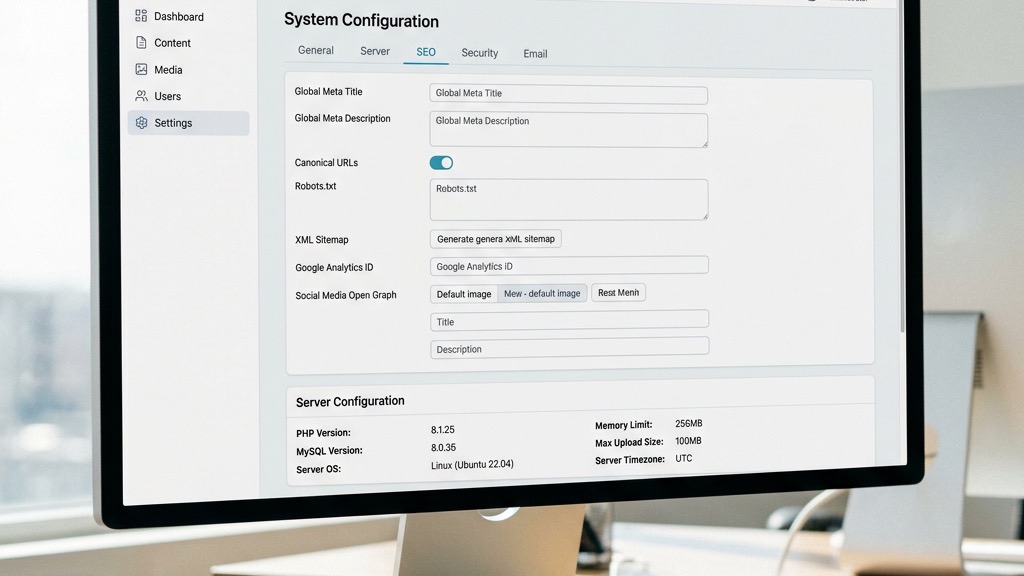
The Global Configuration panel is the central hub for site‑wide settings, acting like a control tower that directs traffic across the entire Joomla installation. Here you can define the site name, offline message, and default language—elements that shape the visitor’s first impression. Setting accurate metadata, such as meta description and keywords, enhances search engine discoverability.
Within the Site tab, you also configure SEO settings, including URL rewriting, which removes “index.php” from addresses for cleaner links. This process is comparable to pruning a tree, removing unnecessary branches to reveal a smoother shape. Enabling friendly URLs often requires updating the .htaccess file, a small but crucial step.
We also recommend enabling GZIP compression and setting the appropriate cache handler to improve page load times. These optimizations act like a well‑tuned engine, delivering power efficiently while conserving resources. Regularly reviewing the system information page helps you stay aware of PHP and database versions, ensuring compatibility with extensions.
Server settings in Global Configuration let you define paths, error reporting levels, and session handling—much like configuring the plumbing and wiring of a house. Adjusting the Error Reporting level can help you catch warnings during development without exposing them to visitors. Setting the Path to Temp Folder correctly prevents file upload failures.
Email configuration is essential for user registration, password resets, and contact forms. By entering the correct SMTP server details, you ensure that messages are delivered reliably, similar to routing mail through a trusted postal service. Remember to test the email settings after saving, as a misconfigured SMTP can cause critical notifications to be lost.
If you need to secure email transmission, enable SSL or TLS in the SMTP settings. This encryption is comparable to sealing a letter in an envelope, protecting its contents from prying eyes. Proper email setup also reduces the chance of your site being flagged as spam by receiving servers.
SEO configuration in Joomla revolves around clean URLs, meta data, and sitemap generation. Enabling Search Engine Friendly URLs and Use URL Rewriting removes unnecessary query strings, creating addresses that read like natural language. This transformation is akin to turning a tangled rope into a straight line.
You can also set default metadata for each article, category, and menu item, ensuring consistent information across the site. Adding Open Graph tags helps social platforms display rich previews, much like a billboard that catches the eye of passing traffic. Regularly updating the sitemap, either manually or via an extension, keeps search engines informed of new content.
For multilingual sites, the Language Filter plugin works together with URL settings to generate language‑specific URLs, providing a experience for international visitors. This feature operates like a translator that automatically adjusts the route based on the visitor’s language preference, enhancing accessibility and reach.
User accounts are the lifeblood of any collaborative Joomla site, and the User Manager offers a straightforward interface for adding, editing, and deleting users. When you click “New,” you fill out fields such as name, username, email, and password—much like completing a membership form for a club. Assigning the correct user group at this stage determines the permissions the user will inherit.
After creating an account, you can set the activation status and send a welcome email that contains a password reset link. This process is similar to handing over a key and a map to a new resident. Regularly auditing user accounts helps you spot inactive or orphaned profiles, reducing security risks.
Bulk actions allow you to change the group or block multiple users simultaneously, a feature that saves time when handling large teams. Think of it as a conductor directing an entire orchestra to adjust volume with a single gesture, ensuring harmony across the ensemble.
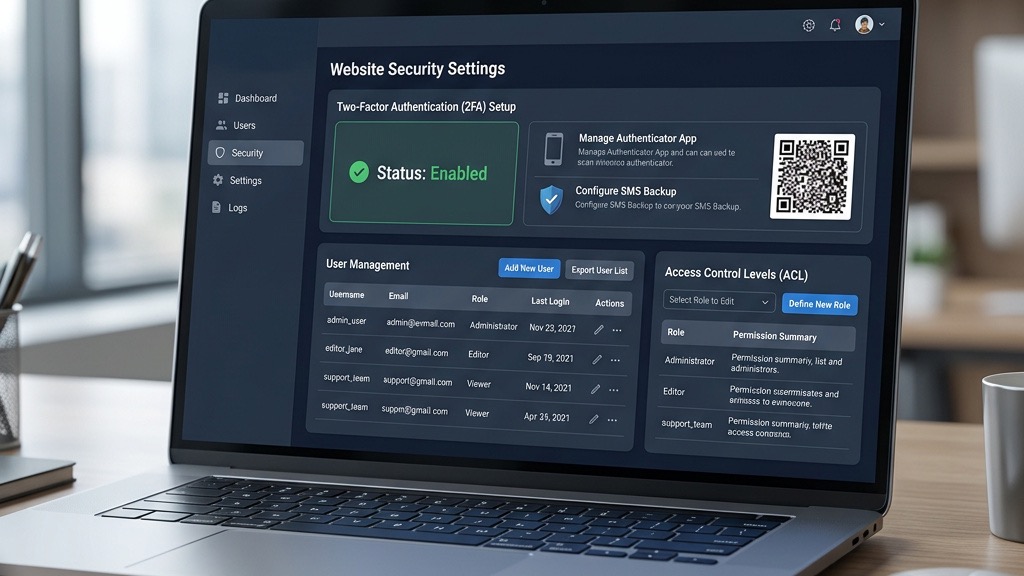
User groups define the roles that users play, while Access Control Levels (ACL) determine what each role can see or edit. Joomla’s default groups—such as Public, Registered, Author, Editor, and Super Users—form a ladder of privileges, similar to the ranks in a military hierarchy. Custom groups can be added to fit unique organizational structures.
When you assign a group to a menu item, module, or article, you are effectively placing a gate that only members of that group can pass. This mechanism is comparable to a club’s velvet rope, allowing entry only to those with the proper invitation. Properly configured ACL prevents unauthorized edits and protects sensitive data.
We recommend reviewing the Permissions tab for each component regularly, especially after installing new extensions. Misconfigured permissions can inadvertently expose admin functions to the public, much like leaving a backdoor unlocked. A disciplined approach to ACL keeps the site secure while empowering legitimate users.
Two‑factor authentication (2FA) adds an extra security layer by requiring a second verification step after the password. Joomla supports several 2FA methods, including Google Authenticator and email tokens, which act like a second lock on a vault. Enabling 2FA for Super Users and privileged accounts dramatically reduces the risk of credential theft.
To configure 2FA, navigate to the User Manager, edit the desired account, and select the preferred method under the “Two‑Factor Authentication” field. The system will guide you through scanning a QR code or entering a secret key, similar to pairing a new device with a Bluetooth speaker. Once set up, each login will prompt for a time‑based code, ensuring that only the rightful owner can access the backend.
We advise enforcing 2FA across all administrative accounts and encouraging regular users to adopt it as well. This practice is comparable to requiring a badge and a PIN for entry into a secure facility, providing layered protection against unauthorized access.
Regular updates are the cornerstone of a healthy Joomla installation, much like routine maintenance keeps a car running smoothly. The Extension Manager shows a list of installed modules, plugins, and templates, highlighting those with available updates. Clicking “Update” applies the latest patches, which often contain security fixes and performance improvements.
Before applying updates, it is wise to back up the database and files using a tool such as Akeeba Backup. This precaution is akin to taking a snapshot before renovating a house, allowing you to revert if something goes wrong. After updating, clear the cache to ensure that visitors see the newest version of the site.
We also recommend monitoring the Joomla Security Center for advisories about critical vulnerabilities. Promptly applying patches reduces exposure to attacks, similar to sealing a leak before it floods a basement. Keeping both the core and extensions up to date is essential for long‑term stability.
Securing the joomla admin panel involves multiple layers, from strong passwords to server‑level restrictions. One effective measure is to rename the default administrator URL to a custom path, obscuring the login page from automated bots. This technique is comparable to changing the lock on a door to a unique key that only you possess.
Implementing .htaccess rules to restrict access by IP address adds another barrier, allowing only trusted networks to reach the login page. Coupled with SSL encryption, the data transmitted between the browser and server remains private, much like a sealed envelope. Additionally, disabling the “Allow User Registration” option when not needed prevents unwanted accounts from being created.
We also suggest enabling System Check‑in to automatically release locked items after a set period, preventing stale locks that can hinder workflow. Regularly reviewing system logs helps you spot suspicious activity early, akin to a security camera catching unusual movements. A disciplined security routine keeps the backend safe without sacrificing usability.
Performance tuning ensures that the backend remains responsive even as the site grows. Joomla’s built‑in cache system stores rendered pages and data, reducing the load on the server—much like a pantry stocked with ready‑made meals. Configuring the cache to “Conservative” or “Progressive” based on traffic patterns can dramatically improve speed.
Beyond caching, you can enable GZIP compression and set the session lifetime to appropriate values, optimizing bandwidth and memory usage. These settings act like aerodynamic tweaks on a vehicle, allowing it to move faster with less effort. Regularly clearing the cache after major content updates prevents stale data from being displayed.
We recommend monitoring server resources using tools like phpMyAdmin for database health and checking the system information page for PHP memory limits. Adjusting the cache handler to a faster option, such as APCu or Redis, can further boost performance, similar to upgrading a highway from a single lane to a multi‑lane expressway. A well‑tuned backend keeps administrators productive and visitors satisfied.
We type the administrator URL (usually yourdomain.com/administrator) into the browser and log in with a super user account.
The default path is /administrator, but it can be changed for security reasons.
During installation you set the password; there is no universal default. If you forgot it, you can reset it via the “Forgot Password” link or directly in the database.
Use the password reset feature, ensure SMTP is configured, or edit the user record in phpMyAdmin to set a new hash.
Enable SSL, rename the administrator URL, enforce two‑factor authentication, restrict access via .htaccess, and keep Joomla and all extensions up to date.
Yes, you can apply custom admin templates, adjust CSS, and use the admin theme settings to change colors, fonts, and layout.