Physical Address
304 North Cardinal St.
Dorchester Center, MA 02124
Physical Address
304 North Cardinal St.
Dorchester Center, MA 02124




joomla backup is the safety net that keeps our site alive when storms strike. We’ll walk through every tool, technique, and habit that lets us protect our data with confidence.
Key Takeaways
– Regular backups shield us from costly downtime.
– Akeeba Backup offers a one‑click solution for Joomla.
– Manual FTP and phpMyAdmin steps give us full control.
– Hosting panels and cloud storage add extra layers of safety.
– The 3‑2‑1 rule is a timeless recipe for resilience.

Image: Protecting your Joomla site with regular backups
When a Joomla site disappears, we lose the money we paid for hosting.
We also spend developer hours rebuilding the code and configuration.
During the downtime, our sales and ad revenue drop sharply.
Customers notice the outage and may trust us less in the future.
An e‑commerce store can lose order records that never reach the payment gateway.
A membership portal may delete user accounts and subscription data.
Content‑heavy sites can see years of articles vanish in a single failure.
Each of these losses forces us to answer angry users and repair reputation.
Akeeba Backup lets us create a snapshot in minutes for free.
The time we spend configuring it is measured in a few minutes per month.
Rebuilding a site from scratch can cost thousands of dollars and weeks of effort.
Therefore the backup expense is a tiny fraction of the potential loss.
Joomla core updates sometimes break compatibility with older extensions.
Extension updates can introduce PHP code that fails on our server.
Changing the PHP version without testing can cause fatal errors.
These failures often leave the site unusable until we roll back.
Malware injection can overwrite files and corrupt the database.
SQL injection attacks may delete or alter critical tables.
Brute‑force attempts on the admin login can lead to unauthorized changes.
Defaced pages damage our brand and require immediate cleanup.
Accidentally deleting the Joomla directory removes all site files.
Database corruption can arise from sudden power loss or disk errors.
Hosting providers sometimes suspend accounts or lose data during migrations.
Expired hosting contracts leave us without any access to the site.
Sites that publish new articles every day need a fresh backup each 24 hours.
E‑commerce platforms process orders continuously, so daily snapshots protect revenue.
Community forums receive user posts and attachments that change constantly.
We schedule these backups to run automatically after midnight.
Blogs that post a few times a week can survive a week without a new backup.
Brochure sites rarely change content, so a weekly snapshot is sufficient.
Before any Joomla core or extension update we always create a manual backup.
This practice gives us a safe restore point if the update fails.
The Recovery Point Objective defines how much data loss we can accept.
A daily schedule limits loss to a single day’s worth of changes.
Automated scheduling removes the guesswork and ensures consistency.
We monitor logs to confirm each job finishes without error.
We download the package from the Akeeba Backup official page.
The zip file is uploaded through the Joomla Extension Manager.
Installation completes with a confirmation message in the admin panel.
After that we see a new Akeeba menu item ready for use.
We create a backup profile that defines where the archive will be saved.
The output directory can point to a local folder or remote storage.
We choose JPA for compact archives or ZIP for compatibility with other tools.
Database settings are left at default because Akeeba detects the Joomla database automatically.
We can exclude cache folders, log files, or large media directories to speed up the process.
For shared hosting we raise the timeout limit to avoid incomplete archives.
Akeeba can split large files into chunks that fit within hosting quotas.
These options let us tailor the backup to our server’s constraints.
We open Components > Akeeba Backup and click the Backup Now button.
The interface shows a progress bar that updates as each step finishes.
We wait until the bar reaches 100 % and the status changes to Completed.
The system then lists the newly created archive for download.
The JPA archive contains all site files and the full database dump.
It is stored in the directory we set during configuration.
We can download the file directly from the Joomla backend or via FTP.
Keeping a copy on an off‑site drive protects us from server loss.
We compare the archive size with the expected size shown in the backup log.
Akeeba offers a built‑in verification button that checks the archive’s checksum.
We also test a restoration on a staging site before trusting the backup.
Successful verification gives us confidence that the snapshot is reliable.
We create a CRON entry in cPanel that calls the Akeeba front‑end URL.
The command runs the backup profile we selected for daily execution.
cPanel’s scheduler lets us set the exact time, such as 02:00 AM.
The job writes a log entry each time it finishes, successful or not.
We set up a lightweight profile that backs up only the database each night.
A separate profile runs weekly and creates a full site archive.
Each profile has its own retention rule to delete old files after a set period.
This separation keeps daily storage usage low while still preserving full snapshots.
Akeeba can send us an email when a backup completes or fails.
We enable this feature in the profile’s Advanced Settings tab.
Monitoring the email logs helps us spot problems before they affect the site.
Regular review of the backup directory ensures we have enough free space.
We connect to the server with FileZilla using our FTP credentials.
The client displays the public_html folder that holds all Joomla files.
We select the entire directory and start a recursive download to our local machine.
The process may take several minutes for large sites, but it copies everything verbatim.
In cPanel we open File Manager and navigate to the Joomla root folder.
We use the Compress function to create a ZIP or tar.gz archive on the server.
The archive is then downloaded with a single click, which is faster than FTP for big sites.
ZIP offers broad compatibility, while tar.gz provides better compression for text files.
The configuration.php file stores database credentials and site settings.
The images folder holds all uploaded media that appears on the front end.
Template customizations and .htaccess modifications can affect site appearance and security.
Backing up these items ensures we can restore the site exactly as it was.
We log into the hosting control panel and launch phpMyAdmin.
The Joomla database appears in the left‑hand list of schemas.
We click the database name to view all tables that belong to the site.
This interface gives us full control over export and import operations.
We choose the Export tab and select the SQL format for the dump.
All tables are checked, and we enable both structure and data options.
For large databases we enable compression, such as gzip, to reduce file size.
The resulting file can be saved to our computer or a cloud folder.
When we have SSH access we run mysqldump to export the database directly.
The command can pipe the output through gzip for on‑the‑fly compression.
This method avoids the timeout limits that sometimes affect phpMyAdmin.
We store the dump in a secure location alongside our file backups.
A file‑only backup leaves the site without its content stored in the database.
A database‑only backup lacks the PHP files, extensions, and media that render the site.
Both parts must be restored together to bring the site back to a working state.
We therefore keep a copy of each type for every backup cycle.
We name each archive with the site name and a timestamp, such as site_2026‑03‑10.zip.
The file backup and the database dump are placed in the same folder for easy reference.
Compression reduces storage usage and speeds up transfer to off‑site storage.
Consistent naming helps us locate the correct version when a restore is needed.
Manual steps take time and are easy to overlook during busy periods.
Forgetting to run a backup can leave a gap in our protection plan.
Human error may cause us to miss critical files or select the wrong database.
Extensions automate the process and reduce the chance of such mistakes.
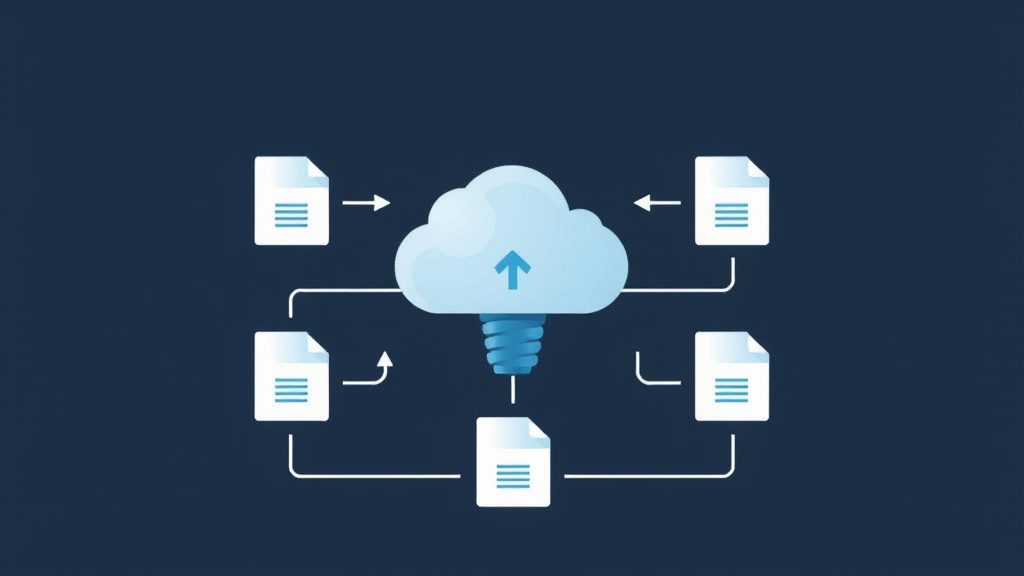
Image: Restoring your site from a backup when needed
For more on this topic, check out our Joomla security tips.
We open cPanel and click the Backup Wizard icon.
The wizard asks us whether we want a full backup or a partial one.
We select the option that best matches our recovery needs.
After the backup finishes we receive a download link for the archive.
A partial backup lets us download the home directory separately from the MySQL databases.
This is useful when we only need to restore files or only the database.
We can choose to back up the email accounts as well if they are part of the site.
Each component can be restored independently through the same wizard.
To restore we upload the backup archive via the Restore interface.
The database is imported automatically if we selected a full backup.
After restoration we may need to reset file permissions on the Joomla folders.
Common issues include missing write access on the cache directory.
Many hosts such as SiteGround, Bluehost, and A2 Hosting offer daily snapshots.
These backups are usually kept for a set retention period, like 30 days.
We can retrieve a backup from the host’s control panel when needed.
The service often runs without any configuration on our part.
Some providers include JetBackup or R1Soft as part of the hosting package.
We access these tools through a dedicated tab in the control panel.
The interface lets us select a date and restore files or databases with a few clicks.
Both tools support incremental backups that save only changed data.
Retention periods may be short, forcing us to export older backups ourselves.
We have little control over which files are included or excluded.
If the hosting provider experiences an outage, the backup service may also be unavailable.
Relying solely on this method can leave us vulnerable to data loss.
Hosting backups run on the server hardware, so they are usually fast to create.
Plugin backups like Akeeba give us the ability to store archives on external services.
We can download a plugin backup at any time, while hosting backups may be limited to the provider’s portal.
Both approaches have merits, so we evaluate them based on our workflow.
Akeeba archives can be imported into a new Joomla installation on a different host.
Hosting‑specific backups often require the original server environment to restore correctly.
This makes plugin backups more suitable for moving sites between providers.
We keep a copy of the Akeeba archive whenever we plan a migration.
We treat the host’s daily snapshot as a safety net for quick recovery.
In parallel we schedule Akeeba backups that are stored off‑site for long‑term retention.
This layered approach reduces risk and gives us multiple restore points.
By combining both methods we achieve a resilient backup plan.
For more on this topic, check out our best Joomla hosting.
We begin by linking Akeeba Backup to Google Drive, a cloud vault that feels like a digital safety deposit box. The configuration wizard asks for a client‑ID and secret, which we obtain from the Google API console, and then we grant permission for the backup archive to glide into the Drive folder. Once the connection is live, each backup file is streamed in chunks, reducing the chance of a hiccup that could corrupt the archive. In practice, this method lets us retrieve a full site snapshot from any browser, even when the original server has gone dark.
Dropbox offers a similar pathway, but its API emphasizes a simpler token‑based handshake that we appreciate for its minimal ceremony. After creating an app in the Dropbox developer portal, we paste the generated access token into the Akeeba settings and designate a target folder for our Joomla backups. The system then uploads the compressed archive in a single burst, and we can set a retention rule that automatically prunes older files to keep the storage tidy. We have found that Dropbox’s version history feature acts as a safety net, allowing us to roll back to a previous file if a stray edit overwrites the latest backup.
Both services support two‑factor authentication, which adds a layer of protection that feels like a lock on a treasure chest. We recommend enabling the “app password†option for the backup user, ensuring that the credentials used by the Joomla server never expose our personal login. When the backup schedule runs, the log records a concise success message and a direct link to the cloud file, making audits as easy as flipping through a photo album. By spreading our copies across Google Drive and Dropbox, we diversify risk and gain peace of mind that our site can rise again from any corner of the internet.
Amazon S3 presents a scalable bucket that can hold an endless parade of Joomla snapshots, each one safe behind Amazon’s formidable security wall. We create an IAM user with a policy that permits only PutObject and ListBucket actions, then we feed the access key and secret into the Akeeba Remote Storage panel. The backup engine then compresses the site, encrypts the archive with a passphrase, and streams it straight into the designated bucket, where it rests among the clouds.
S3’s lifecycle rules let us transition older backups to Glacier storage after a configurable period, turning costly hot storage into a frugal archive. We set a rule that moves files older than 90 days to Glacier, while keeping the most recent month readily available for quick restores. The cost‑effective tiering strategy feels like a well‑tuned orchestra, each instrument playing its part without drowning the others.
Beyond S3, we have experimented with Backblaze B2 and Wasabi, both of which mimic S3’s API while offering lower price points. The migration process is as simple as swapping the endpoint URL in the configuration file, after which the same backup script continues its work unimpeded. By testing multiple remote stores, we ensure that a single provider’s outage will not strand us without a recent copy of the site.
We adopt the classic 3‑2‑1 rule as a guiding star: three copies of the data, stored on two different media, with one copy kept off‑site. In our Joomla workflow, the primary copy lives on the web server’s local disk, the second copy is uploaded to a cloud service such as Google Drive, and the third copy rests in an Amazon S3 bucket. This arrangement creates a safety net that can catch a failure no matter where it originates.
The rule also nudges us to test each copy periodically, because a backup that cannot be restored is as good as no backup at all. We schedule a monthly drill where we spin up a fresh LAMP stack, pull the latest S3 archive, and run Akeeba Kickstart to rebuild the site. The drill reveals hidden issues, such as missing database tables or permission mismatches, before a real disaster strikes.
By honoring the 3‑2‑1 principle, we transform a simple copy operation into a resilient fortress that defends our Joomla installation against hardware crashes, ransomware, and accidental deletions. The discipline of maintaining three distinct copies feels like tending a garden, each plant nurtured in a different plot, yet all bearing the same fruit.
For more on this topic, check out our Joomla extensions.
When a site falters, we launch Akeeba Kickstart, a PHP script that unpacks the backup archive and re‑creates the Joomla environment in one graceful motion. First, we upload the .jpa or .zip file to a temporary folder on the new server, then we point our browser to kickstart.php and follow the wizard’s prompts. The script extracts the files, rewrites the configuration.php with the new database credentials, and runs the built‑in installer to rebuild the database schema.
Kickstart’s “Database Restoration†step asks us to provide the target database name, user, and password; we supply these details, and the script imports the SQL dump in a single transaction, rolling back if any error surfaces. The process concludes with a friendly “All done!†message and a link to the freshly restored Joomla front‑end. We recommend deleting the kickstart.php file and the uploaded archive immediately after the restore to close any security gaps.
Because Kickstart handles both files and database in one pass, it eliminates the need for manual FTP uploads and phpMyAdmin imports, which can be error‑prone and time‑consuming. The wizard’s progress bar offers a visual cue that the restoration is advancing, much like a sunrise breaking over the horizon. When we encounter a permission issue, we simply adjust the folder permissions and rerun the script, confident that the backup remains untouched.
In environments where Kickstart cannot run—perhaps due to missing PHP extensions—we fall back to a manual restoration that relies on FTP and phpMyAdmin. We begin by extracting the backup archive on a local machine, then we connect to the server via FTP and upload the Joomla core files, extensions, and media folders, preserving the original directory structure. The transfer can be accelerated by using a client that supports parallel connections, turning a tedious chore into a brisk sprint.
Next, we create a fresh MySQL database and import the SQL dump using phpMyAdmin’s import feature, ensuring that the file size does not exceed the server’s upload limit. If the dump is larger than the limit, we split it into smaller chunks with a tool like split, then import each piece sequentially. After the database is populated, we edit the configuration.php file to reflect the new database name, user, and password, as well as the correct $live_site URL if the domain has changed.
Finally, we clear Joomla’s cache by deleting the contents of the /cache folder and, if needed, reset the permissions on the /administrator and /tmp directories to be writable by the web server. A quick visit to the site’s front page confirms that the restoration succeeded, and any lingering “404†errors can be traced to missing .htaccess rules that we re‑apply from the original backup. Though more hands‑on, this method gives us full control over each step and a deeper understanding of the site’s inner workings.
One frequent stumbling block is the “SQLSTATE[HY000] [2002] Connection timed out†error, which signals that the database credentials in configuration.php do not match the server’s settings. We double‑check the host name, port, username, and password, and we verify that the MySQL service is listening on the expected port. If the server uses a socket file instead of a network port, we adjust the host entry to “localhost†and ensure the socket path is correct.
Another common issue is the “500 Internal Server Error†that appears after a restore, often caused by mismatched PHP versions or missing extensions. We consult the server’s error log, which typically points to a specific line in a plugin or module that requires a newer PHP function. By upgrading the PHP version or disabling the offending extension, we restore normal operation. In some cases, the error stems from file permission problems; we set directories to 755 and files to 644, then re‑run the site to confirm the fix.
A third error we encounter is “Joomla! is not installed†despite the presence of all core files, which usually indicates that the configuration.php file is unreadable or contains syntax errors. We open the file in a plain‑text editor, look for stray characters or missing semicolons, and ensure that the file encoding is UTF‑8 without BOM. After correcting the file, we reload the site and watch the familiar Joomla welcome page appear, confirming that the restoration has succeeded.
Before we apply any core, extension, or template update, we run through a checklist that acts like a pre‑flight inspection for a spacecraft. First, we verify that the current backup is recent, complete, and stored off‑site; we do this by checking the backup log and confirming the presence of the archive in our cloud bucket. Next, we note the current version numbers of Joomla, all extensions, and the template, recording them in a simple text file for future reference.
We then place the site into “offline†mode via the Joomla Global Configuration, which prevents visitors from encountering errors while we perform the update. This step also reduces the chance of new content being written to the database during the upgrade, which could otherwise create a mismatch between the backup and the live site. Finally, we clear the cache and disable any third‑party caching extensions, ensuring that the update process works with a clean slate.
With the checklist complete, we proceed to the update, confident that a safety net is ready should anything go awry. The ritual of preparation feels like a conductor raising the baton before an orchestra, setting the tempo for a harmonious performance.
After each backup finishes, we do not simply trust the process; we perform a quick integrity check that reads the archive’s checksum and compares it to the value stored in the log file. If the checksums match, we know the archive has not been corrupted during transfer or storage. We also extract a small sample of files—such as the configuration.php and a few media assets—to a temporary folder and verify that they open without error.
For database integrity, we import the SQL dump into a local MySQL instance and run a few SELECT queries to confirm that critical tables, like #__users and #__content, contain expected rows. This step uncovers hidden problems such as truncated tables or character‑set mismatches that could otherwise surface only after a full restoration. By automating these checks with a simple shell script, we turn a tedious manual task into a reliable, repeatable ritual.
When the verification passes, we tag the backup with a “verified†label in our cloud storage console, making it easy to locate the most trustworthy copy later. If any discrepancy appears, we discard the faulty archive and trigger an immediate re‑backup, treating the failure as a warning sign rather than a fatal flaw. This disciplined approach ensures that every backup we keep is a true replica of the live site.
We design a retention schedule that balances storage costs with the need for historical snapshots, typically keeping daily backups for the past week, weekly backups for the past month, and monthly backups for the past year. This tiered approach creates a pyramid of copies, each layer offering a broader view of the site’s evolution while conserving space. Older monthly backups are transferred to archival storage such as Amazon Glacier, where they linger at a minimal expense.
Rotation is handled by a cron job that runs each night, scanning the backup directory and deleting files that exceed the defined age thresholds. The script also renames the newest backup with a timestamp, preserving a clear chronology that aids in forensic analysis if a breach occurs. By automating rotation, we avoid the human error of forgetting to purge obsolete files, which could otherwise clutter the storage and increase costs.
We review the retention policy quarterly, adjusting the intervals if our site’s update frequency changes or if new compliance requirements emerge. This periodic audit feels like pruning a garden: we remove the dead branches while nurturing the healthy growth of our backup ecosystem. The result is a lean, resilient collection of snapshots that can be called upon at a moment’s notice.
What is the best backup extension for Joomla?
We find Akeeba Backup to be the most feature‑rich and user‑friendly option, offering one‑click full‑site archives, cloud integration, and a built‑in restoration wizard. Its free tier covers most small‑to‑medium sites, while the professional version adds advanced scheduling and encryption.
How do we restore a Joomla site from an Akeeba backup?
We upload the backup archive to a temporary folder on the target server, run kickstart.php, and follow the on‑screen prompts to extract files and import the database. After the wizard finishes, we delete the kickstart files and verify that the site loads correctly.
Can we backup Joomla without an extension?
Yes, we can manually copy the site’s files via FTP and export the MySQL database using phpMyAdmin or the mysqldump command. This method requires more steps and careful coordination, but it works when extensions are unavailable or unsupported.
How often should we back up our Joomla website?
We recommend a daily backup for sites that receive frequent content updates, supplemented by weekly full backups for added redundancy. For low‑traffic sites, a weekly schedule may be sufficient, provided we retain off‑site copies.
Where should we store our Joomla backups?
Ideal storage locations include a combination of local server space, a cloud service such as Google Drive or Dropbox, and an off‑site object store like Amazon S3. This multi‑location strategy aligns with the 3‑2‑1 rule and protects against both hardware failure and remote outages.